Front desk
The desk's daily work happens on “Today's bookings” and “Counter sale”. The owner, managers and front-desk staff can open both pages; coaches can't. The pictures in this chapter are from a computer, as most desks use a large screen; on a phone, search folds behind a magnifier icon and “Close court” sits under the ⋯ button. Court names in the pictures are the example venue's Thai names
The “Today's bookings” page
Press “Today's bookings” in the menu. The page shows every court's bookings for the day, one court per row. Use “‹” and “›” to change the day, or tap the date to pick one from the calendar. The search box takes a name, phone or booking code. “Timeline” and “List” switch the view, and “Today's summary” counts the bookings, arrivals, slips to check and what is owed
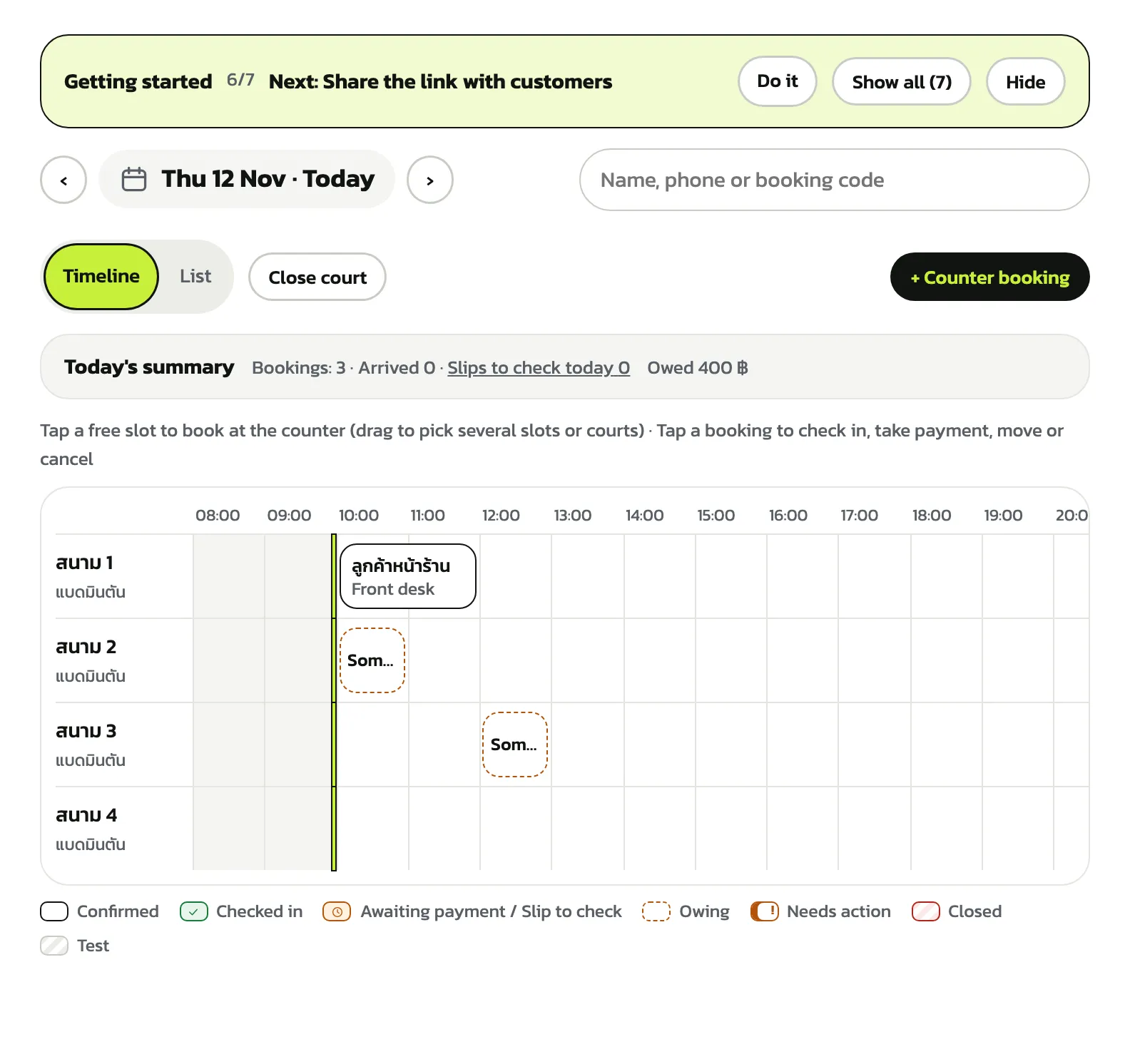
Each block's colour shows its state: a dark outline is confirmed, green with a tick is “Checked in”, orange with a clock is awaiting payment or a slip check, a dashed outline is “Owing”, the ! badge is “Needs action”, red stripes are “Closed” and grey stripes are a test booking. Time already gone is grey, and the vertical line is now
Booking a walk-in
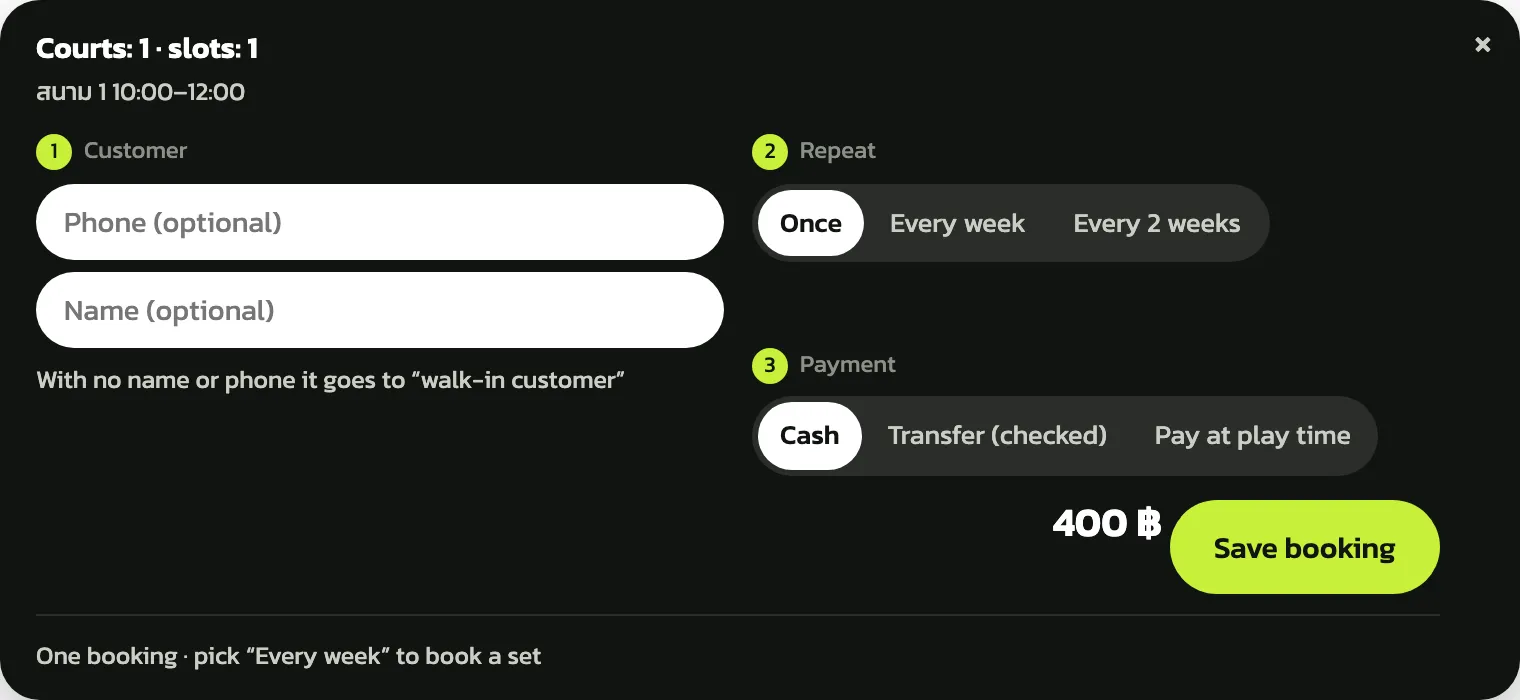
Tap free times on the board (tap several, or drag across courts). A booking bar opens at the bottom; its heading counts the courts and time slots you picked. Name and phone are optional; without them the booking goes to the shared walk-in customer. Under “Payment” choose “Cash” or “Transfer (checked)”, then press “Save booking”. The message after saving names the court, the time and the money taken, so you can check it at once
Choose “Transfer (checked)” only after you have seen the money arrive. A walk-in with no phone can only be refunded in cash if the booking is cancelled later
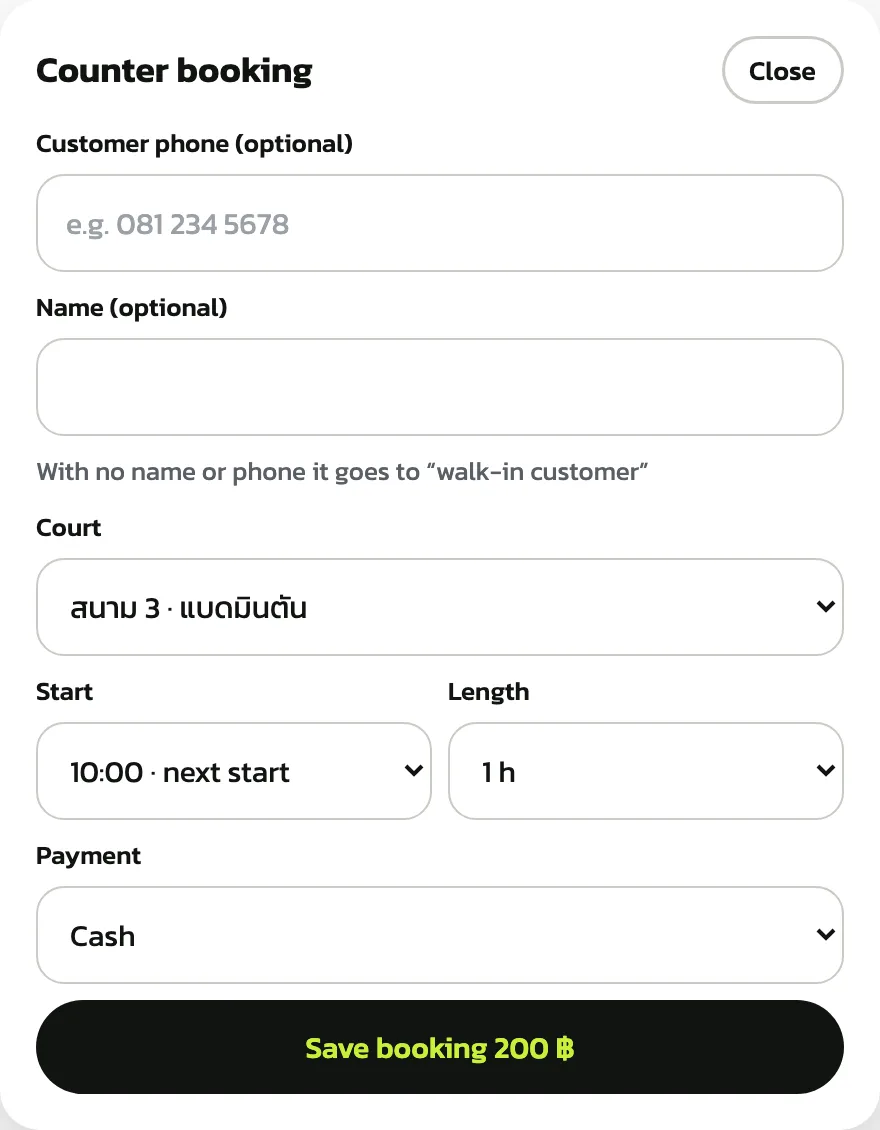
You can also type it in instead of tapping the board: press “+ Counter booking” and pick “Court”, “Start”, “Length” and “Payment” in the form. In the “List” view on a computer, this form sits beside the list. When less than half of the current hour is left, “Start” picks the next hour for you (it says “next start”); an hour already under way shows the minutes left and can still be picked, but is charged in full
Pay at play time, check-in and payment
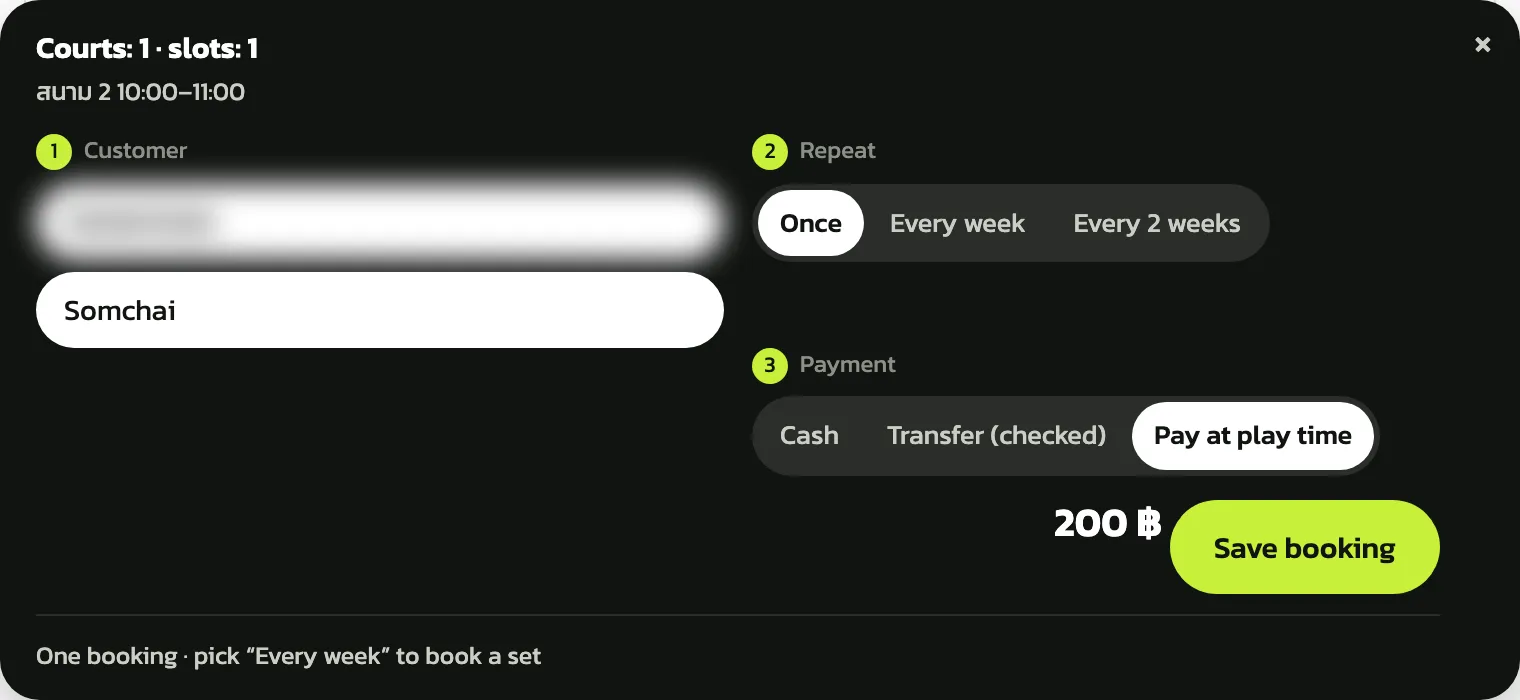
For a customer who books now and pays when they play, choose “Pay at play time” under “Payment”. This needs the customer's phone (the button reads “Enter the customer's phone first” until you do); a name is optional. Press “Save booking” and it shows on the board as owing
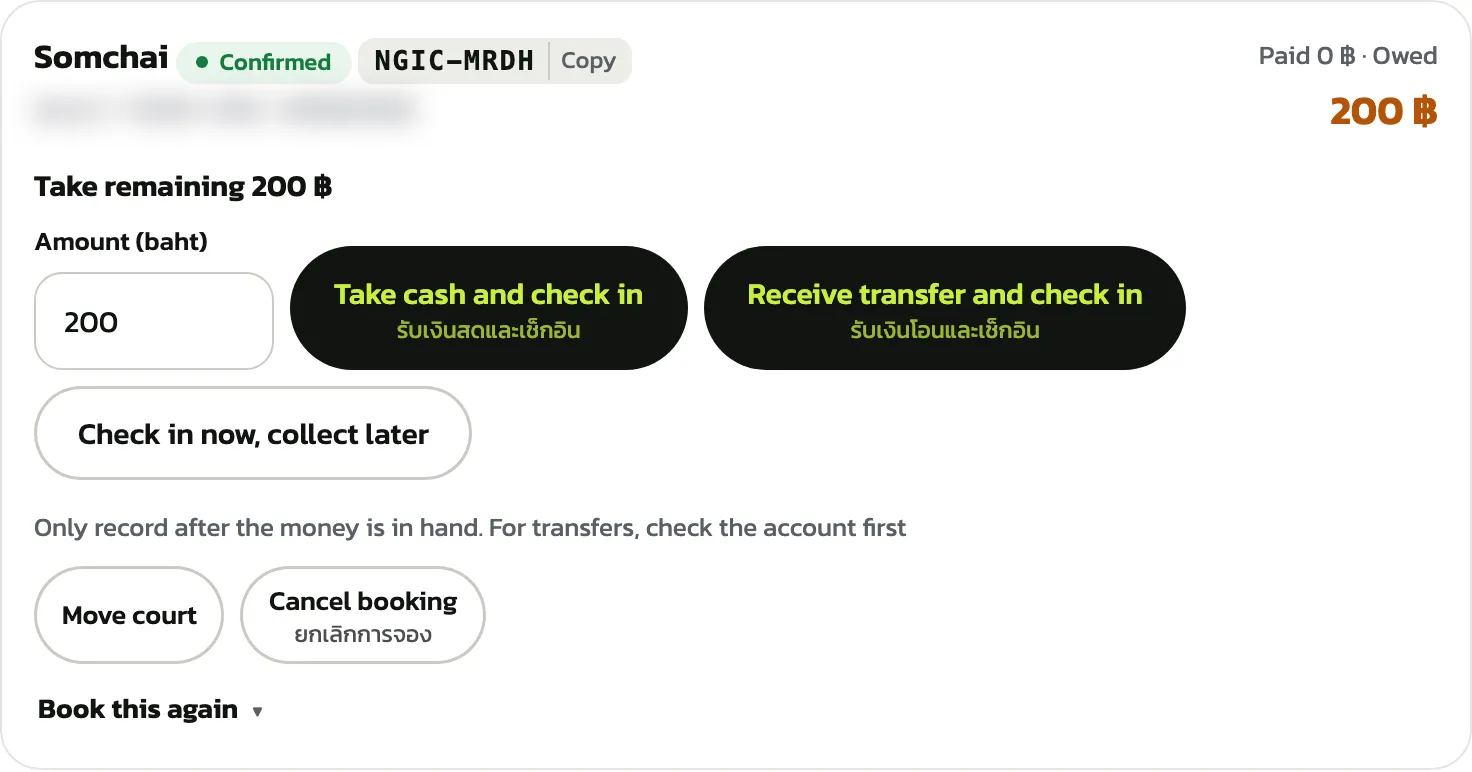
When the customer arrives, tap their booking. “Take remaining” shows what is owed. Press “Take cash and check in” or “Receive transfer and check in”; if they pay later, press “Check in now, collect later”. The block turns “Checked in”
Check-in works on the day of play only. When the customer has paid in full, press “✓ Arrived · check in”
Moving to another court
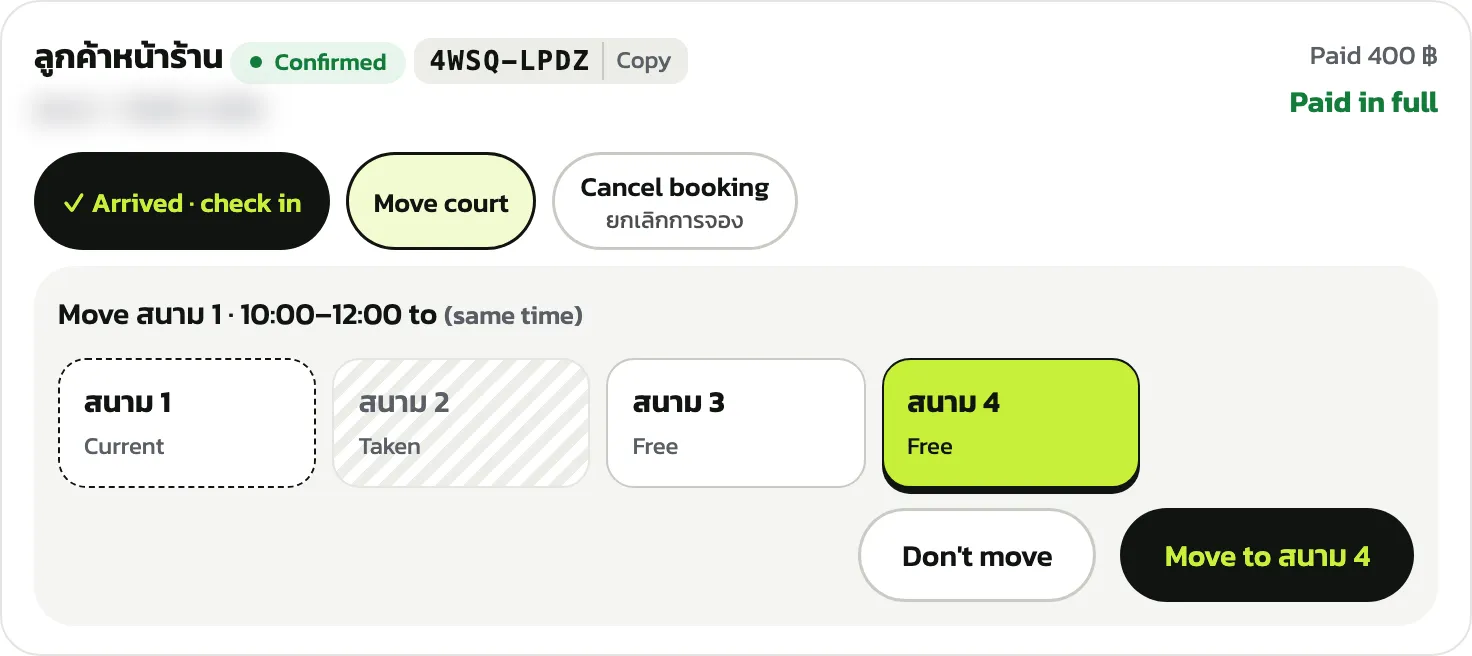
Tap the booking and press “Move court”. Every active court is listed, grouped by sport: the current one says “Current”, courts free at the same time say “Free”. Tap the court to move to and press “Move to …”; the time stays the same. A court of another sport can be picked too, but its price may differ. Changed your mind? Press “Don't move”
Cancelling and refunding
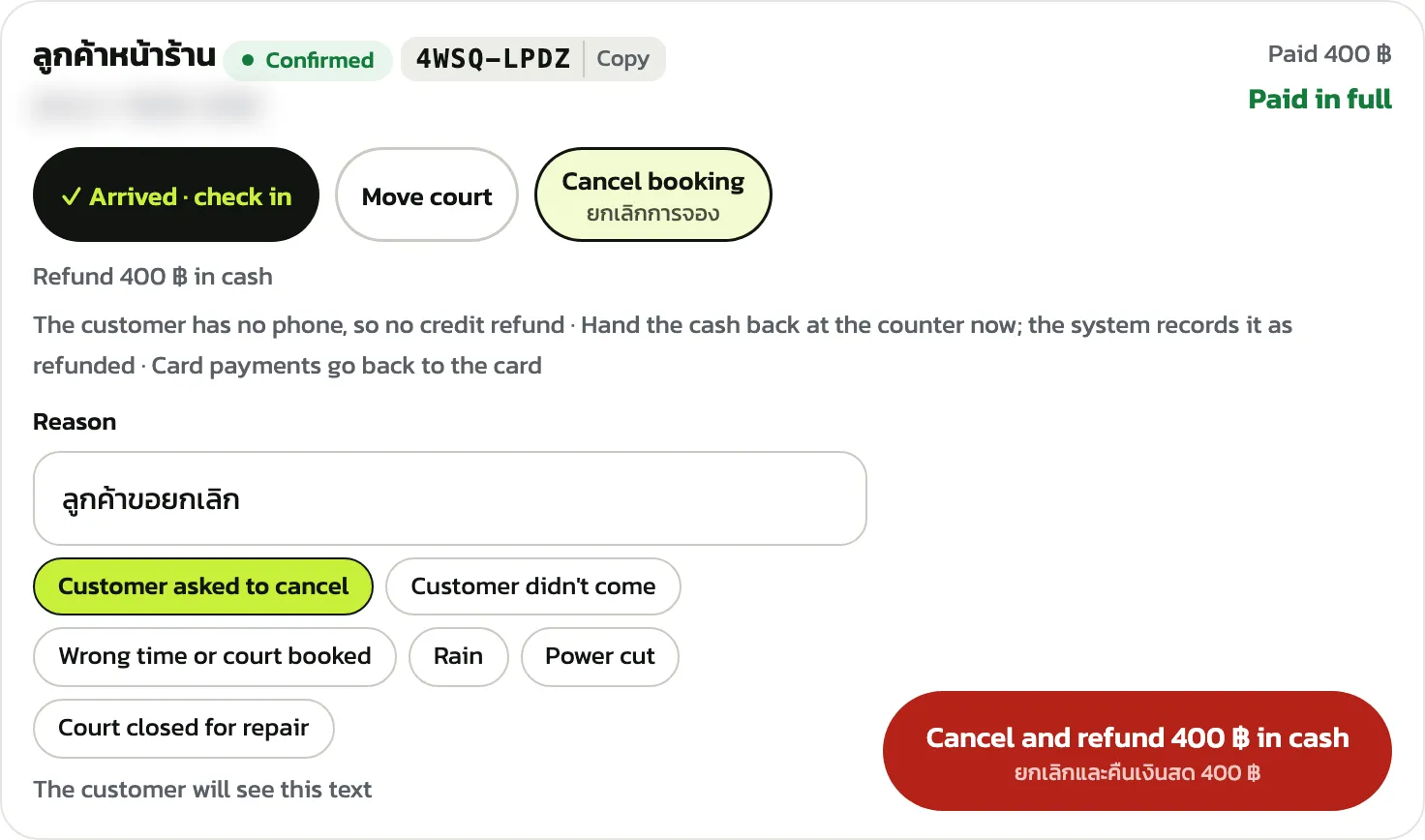
Tap the booking and press “Cancel booking”. The screen shows the amount to refund; for a customer with a phone you can refund as credit or cash. Type a “Reason” or tap a ready one such as “Customer asked to cancel”, then press the red button. The customer sees this reason (unlike the reason for closing a court). A ready-made reason is filled in in Thai
A walk-in with no phone can't get credit, so the refund is cash at the desk. A booking that has been paid is cancelled by a manager or the owner
Closing courts for a while
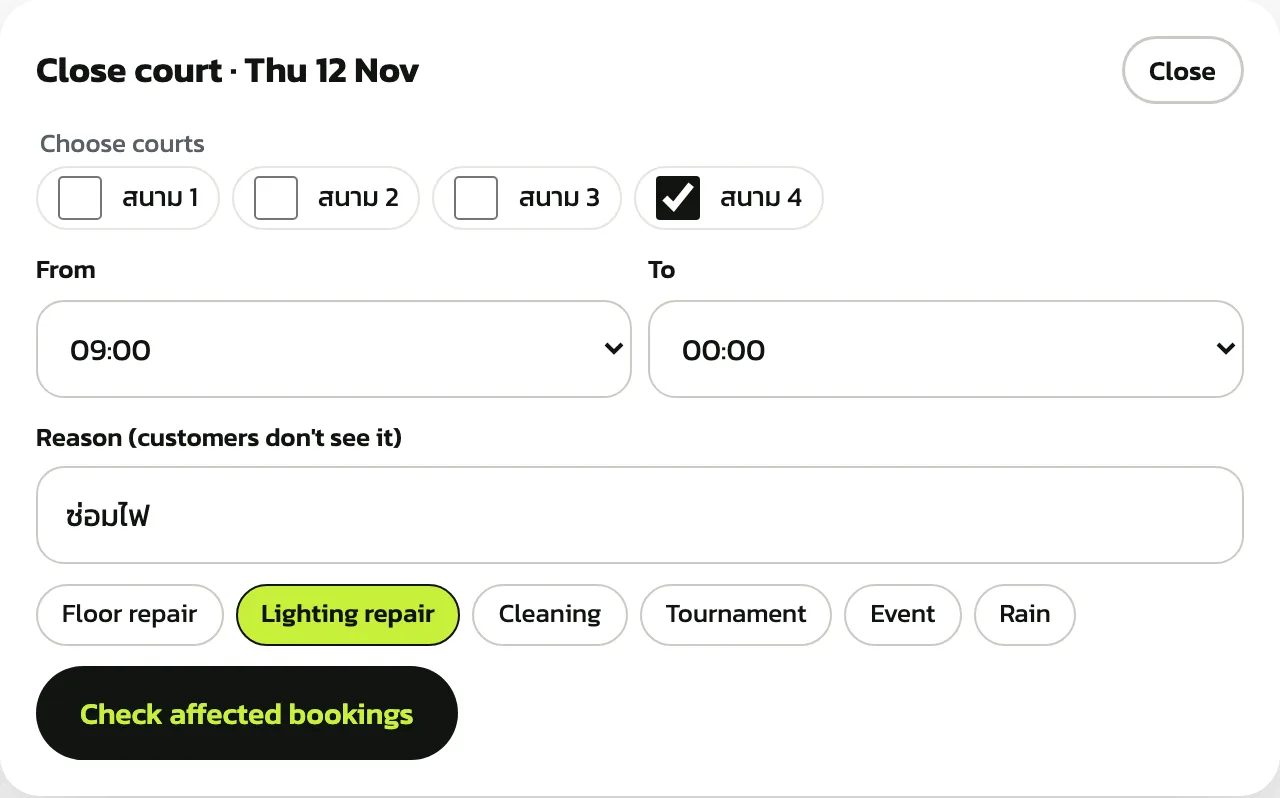
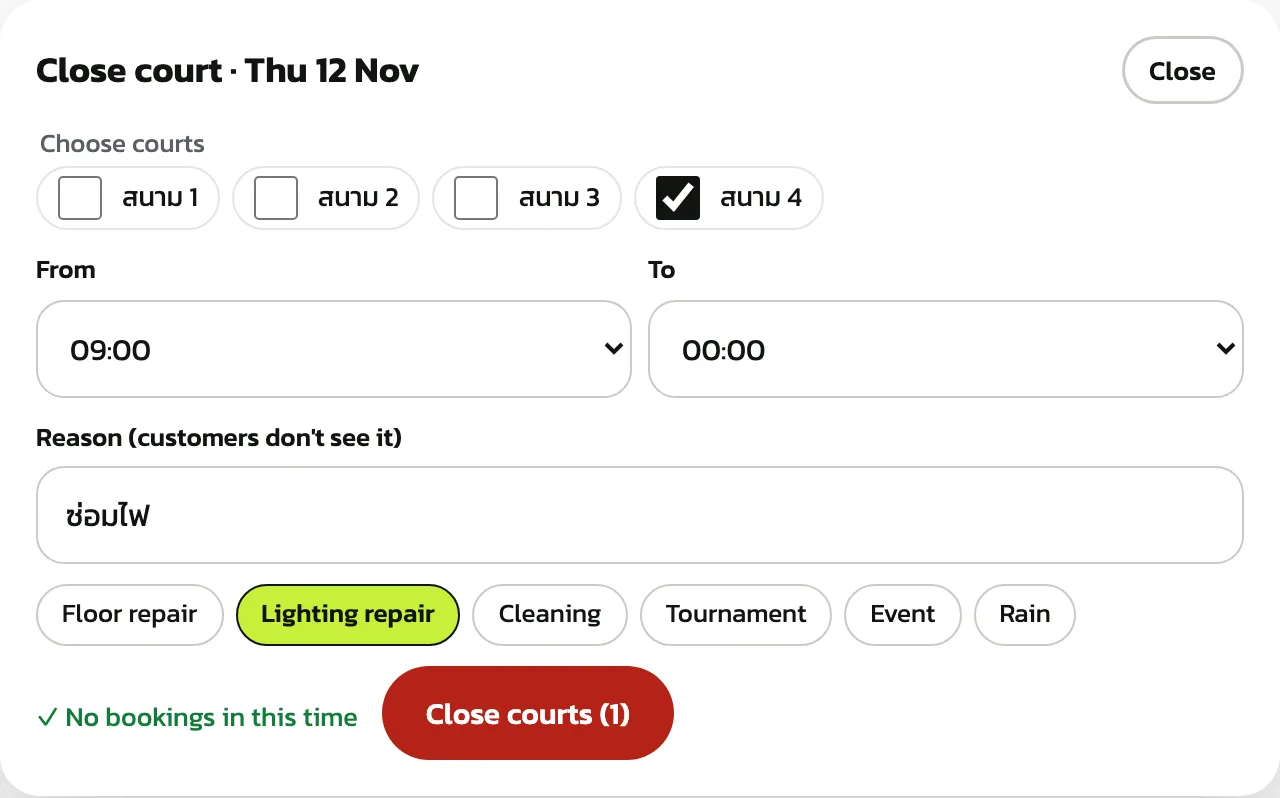
Press “Close court” at the top (on a phone, under the ⋯ button). Tick courts under “Choose courts”, set “From” and “To”, type a “Reason (customers don't see it)” or tap a ready one such as “Lighting repair”, then press “Check affected bookings”
If it says “✓ No bookings in this time”, press “Close courts (1)”. If there are bookings, the window lists them to move or cancel first; then call those customers. The closed time shows on the board as “Closed” and customers can't book it
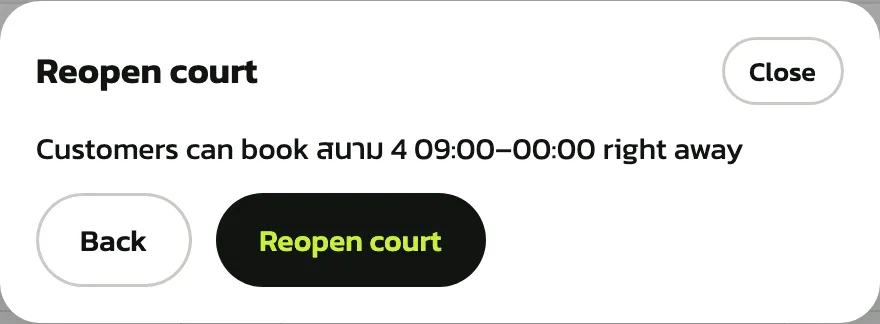
To open it again, press “Reopen” on the closed block, then “Reopen court”. Customers can book that time straight away
Regular weekly bookings
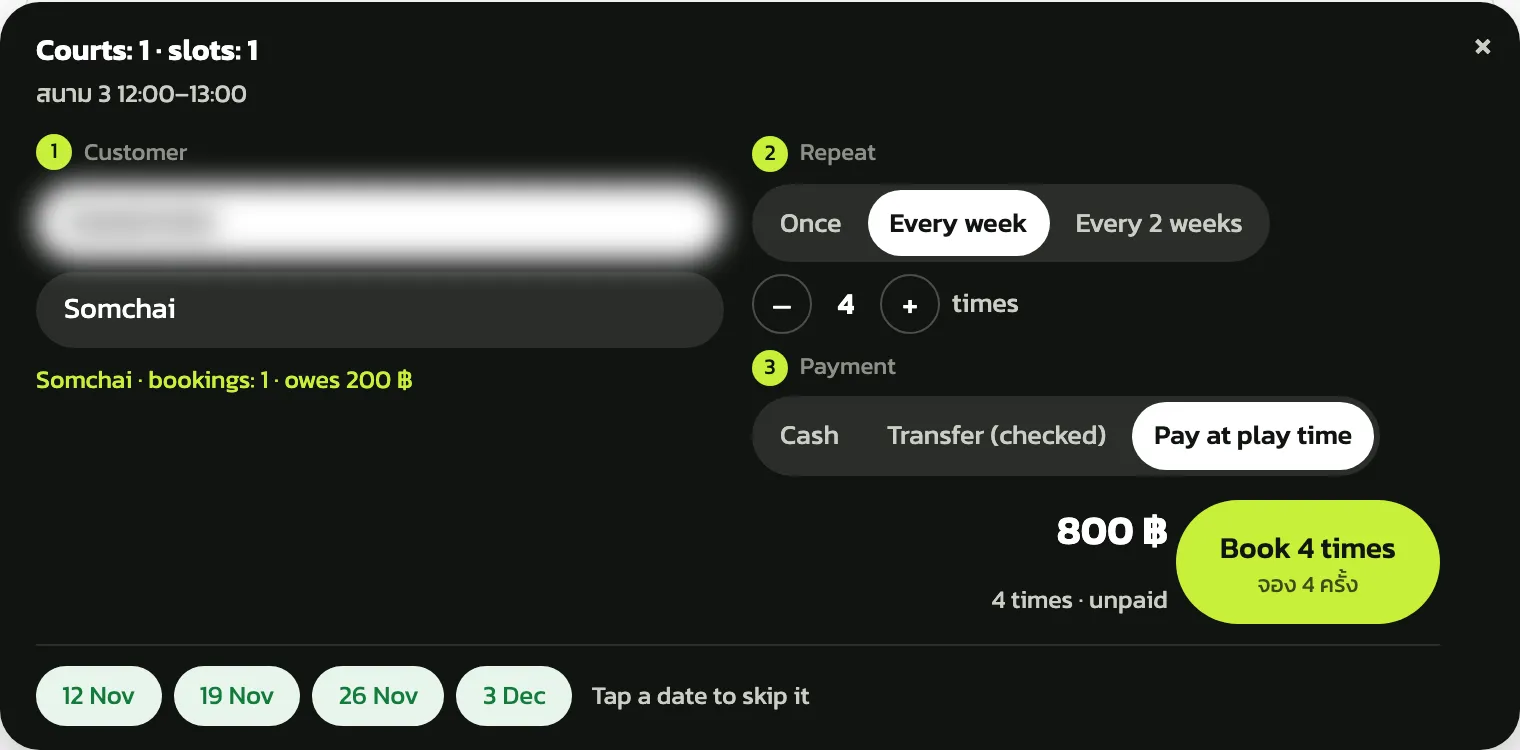
For a regular, tap a time on the board and under “Repeat” choose “Every week” or “Every 2 weeks”, then set how many times with − and +. The customer's phone is needed; if it matches someone booked at the counter before, their name and what they owe appear. The dates show at the bottom: tap a date to skip it, then press “Book 4 times”
Picking a repeat sets payment to “Pay at play time”; if the customer pays the whole set now, switch to “Cash” or “Transfer (checked)”. Works on every plan
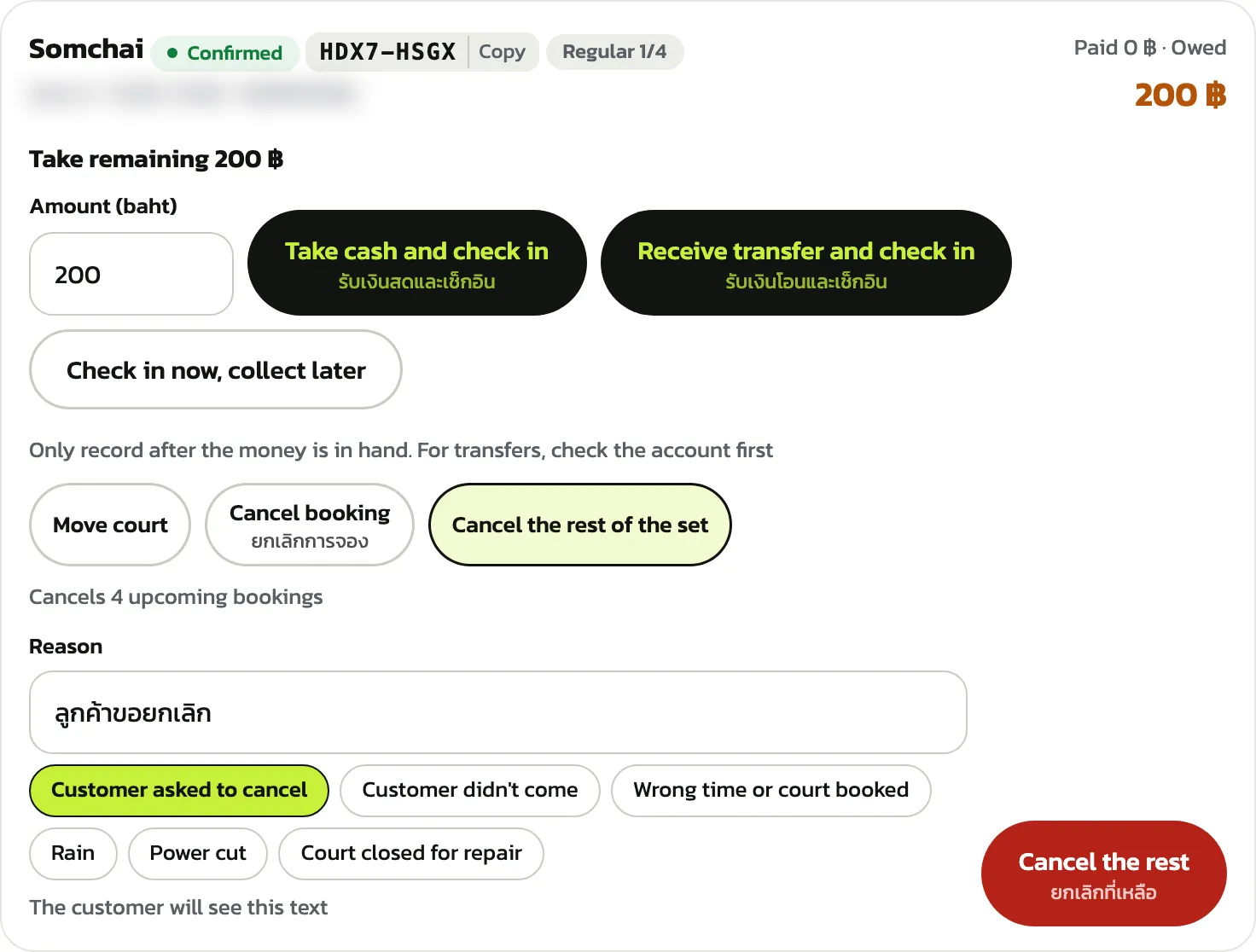
Each week shows on the board with a “Regular 1/4” tag. If the customer stops coming, tap any booking of the set and press “Cancel the rest of the set”. It says how many upcoming bookings it cancels; add a reason (the customer sees it) and press “Cancel the rest”
The “List” view
Press “List” to see bookings by time. The tabs “All”, “Not arrived”, “Owing” and “Slip to check” filter the list, with a count beside each. Tap a booking to check in, take money, move or cancel, as on the timeline
“Counter sale” Pro
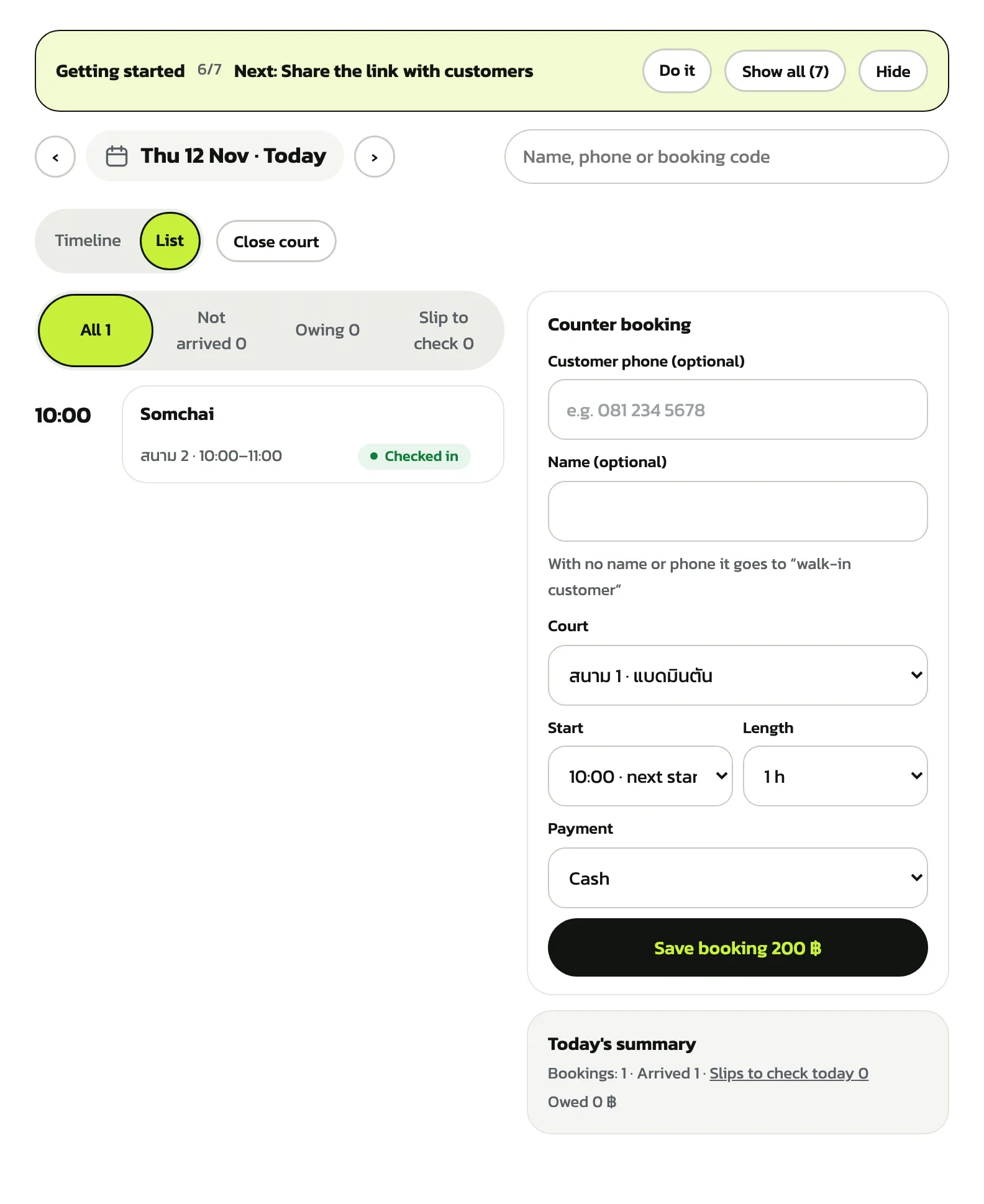
Press “Counter sale” in the menu. Tap products to add them to “This bill”; tap again for more, or use − and + in the bill. Each card shows how many are left. Under the bill, “Customer pays with” offers “Cash” and a second button named after the venue's payment channel: the PromptPay QR if PromptPay is set up (as here), or a bank transfer if a bank account is
Products and prices are set in Venue settings › Counter products. Stock that arrives at the desk can be added with “Receive stock” at the top of this page (on a phone, the owner and managers find it under “Manage products”)
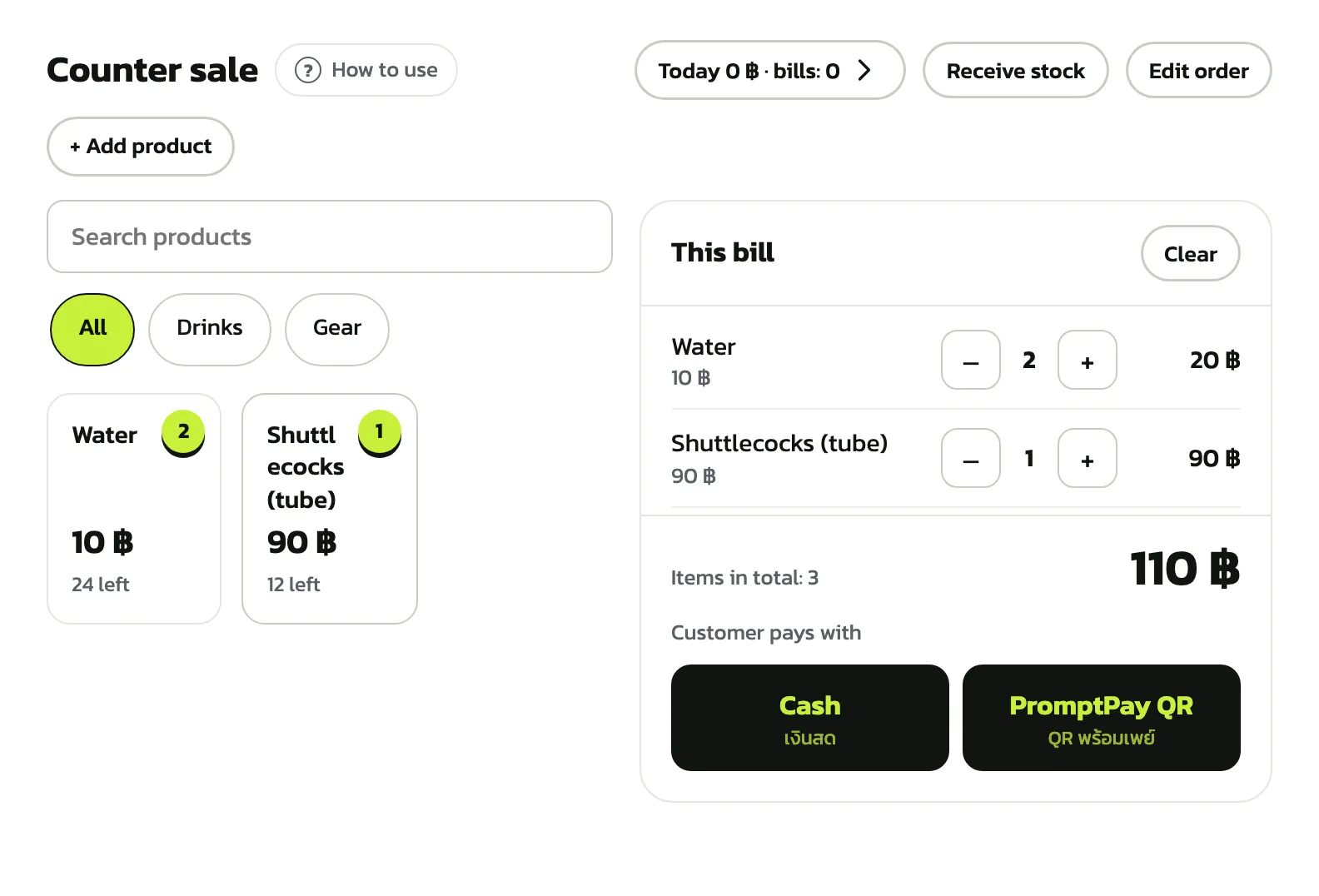
Press “Cash”, enter “Received (baht)” or tap “Exact” or the note the customer gave. The screen shows the “Change”. Press “Cash received”; “Sold” shows the change and the bill number. Press “New bill” for the next customer
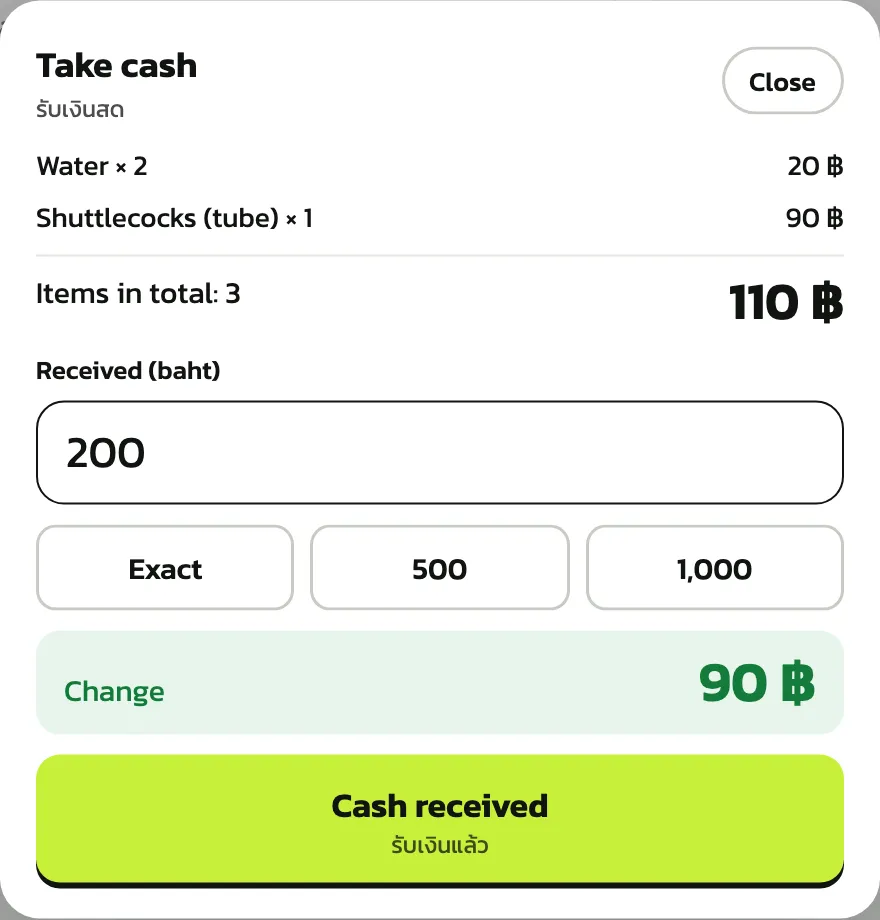
The “Sold” window shows the change, the amount sold and the bill number. Counted products go down by what was sold straight away
Today's sales and cancelling a bill Pro
Press the “Today” sales button at the top to open “Today's sales”: the total and number of bills, cash and transfer apart, “Best sellers (items)” and every bill under “Today's bills”. The owner and managers can press “Past sales by product ›” for the report
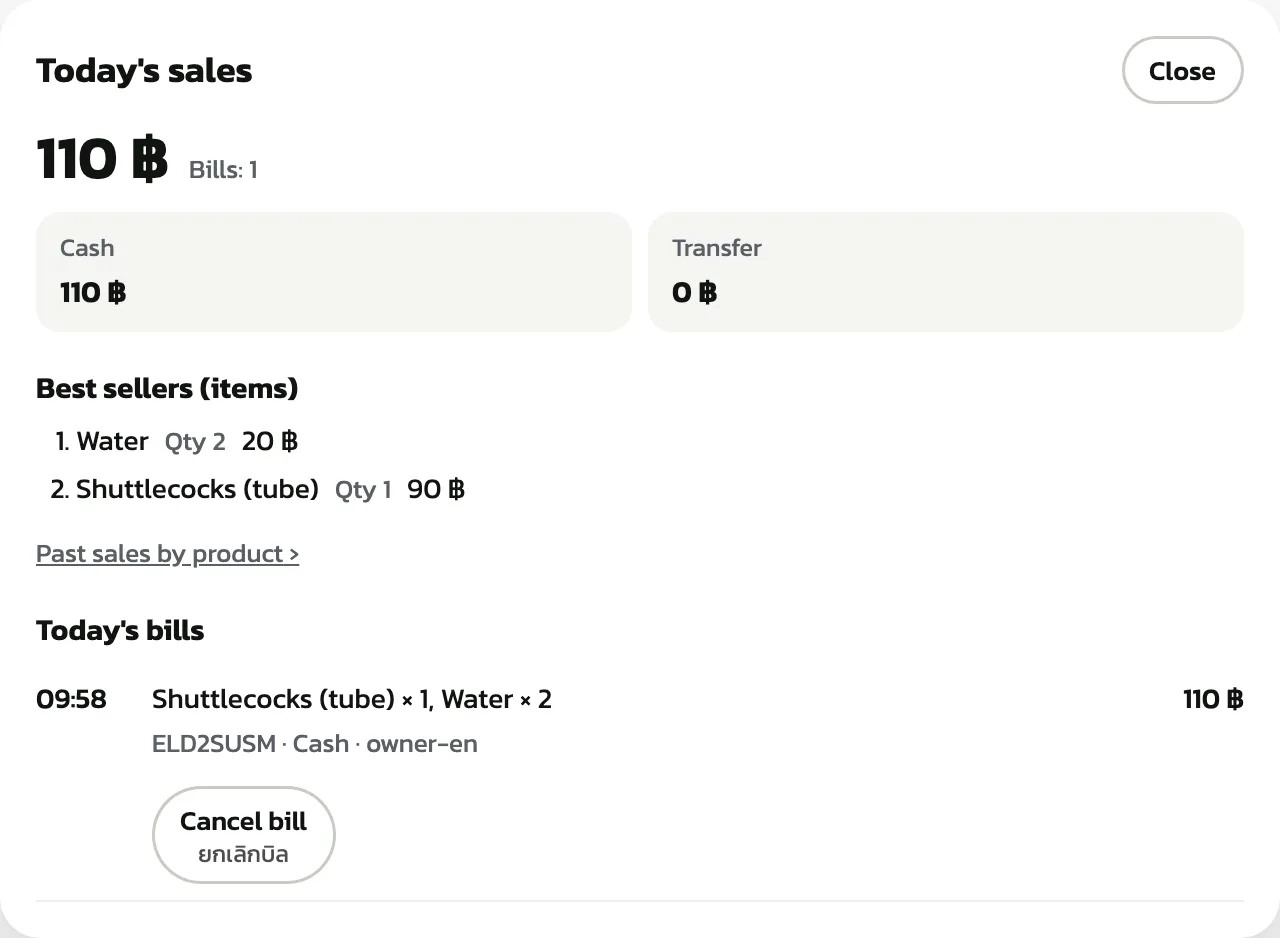
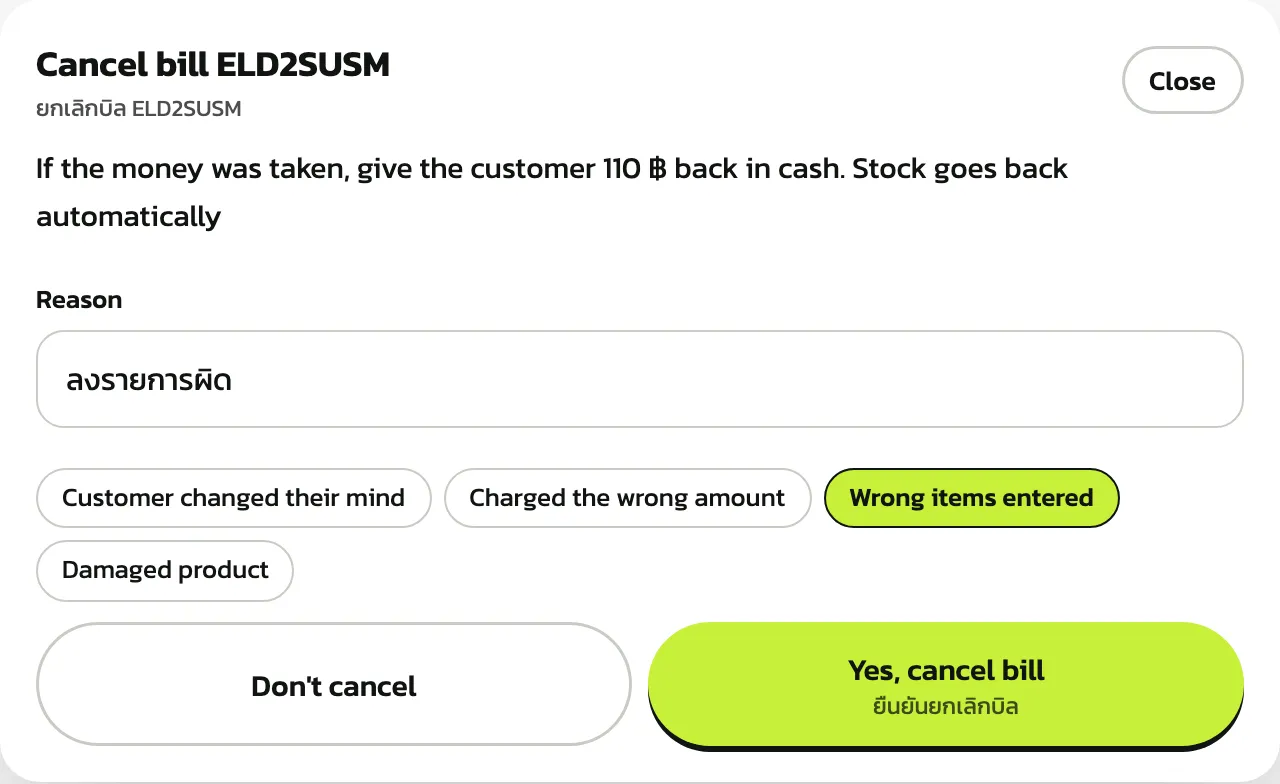
Wrong amount or the customer changed their mind? Press “Cancel bill” on that bill, pick a reason such as “Wrong items entered” and press “Yes, cancel bill”. The window says how much to give back (a cash bill is refunded in cash), and the stock comes back by itself
Only the owner and managers can cancel a bill, and only today's bills. A bill sold while the internet was down can be cancelled until the day it reaches the system
Selling while the internet is down Pro
Works in the HOLD KOURT Team app only (not on the web). When the connection drops you can keep selling for cash and transfer. Bills are kept on the phone and sent to the system by themselves once the internet is back
The bar at the top of the Sell page says “Offline” and shows the time of the product data on the phone. Sell as usual, but only cash and “Transfer / PromptPay QR” can be taken (Stripe is not available without internet). For a transfer the app reminds you to check the money arrived in the bank app before you confirm. If you can't check, take cash
The product data on the phone must be at most 7 days old; if older, connect to the internet to load it again. If the stock on the phone runs out you can still sell after confirming, but real stock may go negative. Check the numbers again after the bills are sent
When the sale is done the bill has a number starting “OFF-” followed by 6 letters or digits, such as OFF-3FA2C1. There is no receipt or tax invoice yet. Once the bill is sent it gets its real bill number, and you can search the OFF number in the history. A VAT venue's abbreviated tax invoice is issued when the bill is sent (dated the day it is sent, if that is a later day), so tell the venue's accountant
Tap “N bills waiting” on the top bar to see bills not yet in the system, bills sent today, and bills that failed with the reason. The owner and managers can press “Discard this bill…” for a bill keyed in wrongly; a reason is required and the discard is recorded in the Audit log. If the bill has already reached the system, cancel it from the history instead
If a bill has waited more than 2 hours while online, the top bar turns to a warning colour. Bills are sent while a staff member of that branch is signed in on the phone
In the sales history, a bill sold while offline has a label: “Sold offline · OFF-…”, “Sent later”, “Sent by …” and “Needs check” (the price differs from today's, sold more than 3 days ago, the phone's clock was off, or the seller is not of that branch). A bill sold yesterday but sent today sits in yesterday's history, so a past day's total goes up after the bill is sent, and the cash given back when a bill is cancelled across days is in no day's summary
Careful: if you uninstall the app or clear its data, bills still waiting to be sent are lost for good. Before that, connect to the internet and let the bills send, or press “Export all as text” at the bottom of the “Bills waiting to send” list to keep a copy. Signing out does not delete waiting bills; the app asks you to confirm first