Prices and sales
Every tab in the “Prices and sales” group of Venue settings, plus the top-up and resale cards on the cancellations tab. Changes apply to new bookings at once; existing bookings keep their price. Sections marked Pro work on the Pro plan and during the trial. Every picture is from a phone
The “Prices and sales” group
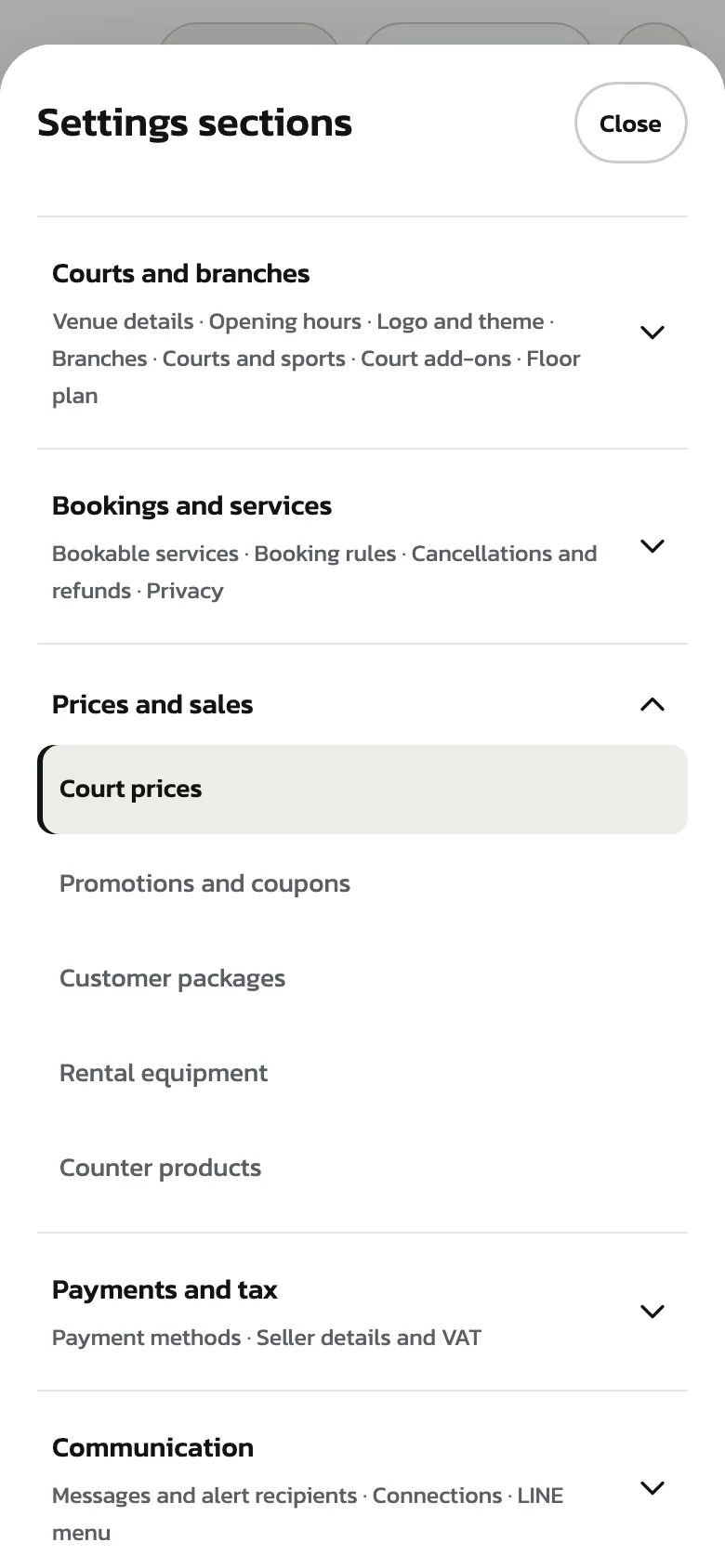
Tap “Venue settings” in the bottom bar, then the section button on the right. The “Prices and sales” group holds “Court prices”, “Promotions and coupons”, “Customer packages”, “Rental equipment” and “Counter products”. On a computer the list sits on the left of the page
“Court prices”
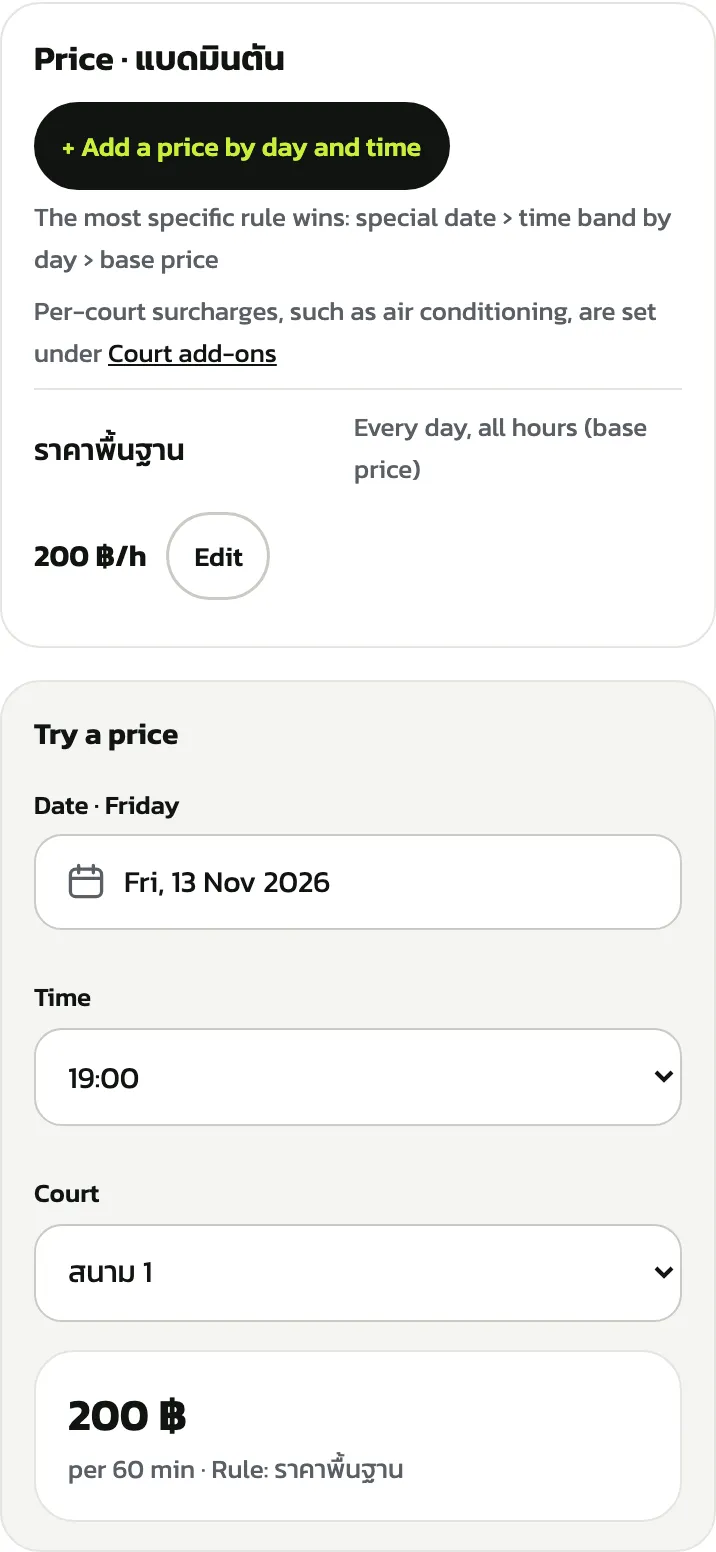
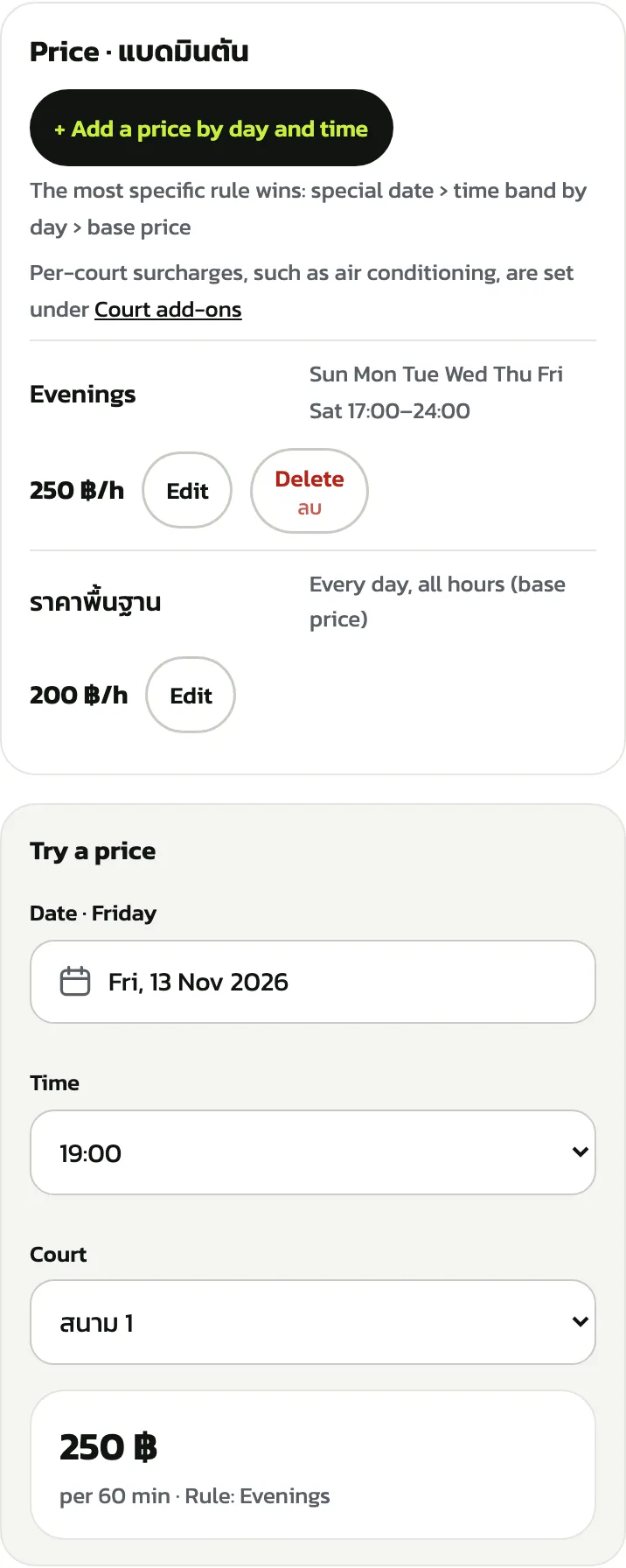
The base price (“ราคาพื้นฐาน”, the name it was saved with) is the one entered when the venue was made, and it applies every day at every time. Tap “Edit” to change it. With more than one sport, buttons at the top pick the sport; each sport has its own prices. The most specific rule wins: a special date, then a time band by day, then the base price
New prices apply to new bookings right away; existing bookings keep their price. Per-court extras such as air conditioning are set on the “Court add-ons” tab
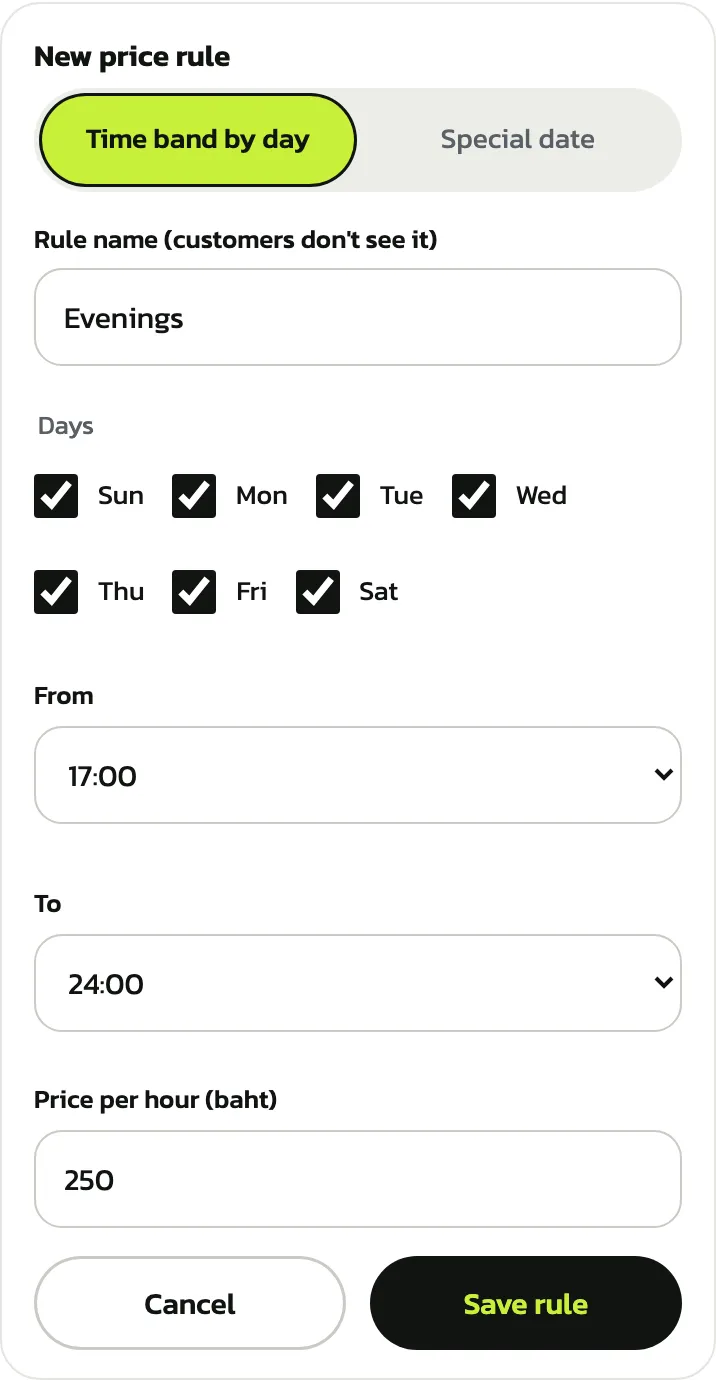
Tap “+ Add a price by day and time”. Pick “Time band by day” (a price for some weekdays and hours) or “Special date” (a price for one date, such as a long weekend). Enter a “Rule name (customers don't see it)”, tick the days (the form ticks Monday to Friday and 17:00–24:00 for you), pick “From” and “To”, enter the “Price per hour (baht)” and tap “Save rule”. This example sets evenings, every day 17:00–24:00, at 250 baht an hour
The “Try a price” box shows the price for the court, date and time you pick and the rule it used, so you can check a rule gives the price you meant. To remove a rule, tap “Delete”, then confirm (the base price can't be deleted)
The example rule was deleted again, so the example venue still has only its base price
“Promotions and coupons”: automatic promotions Pro
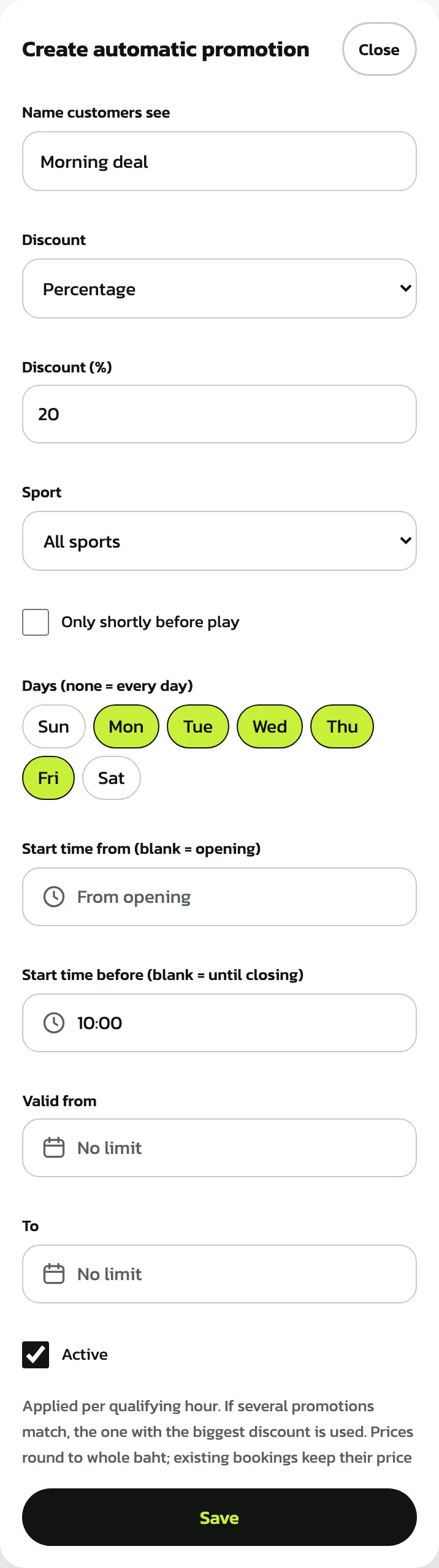
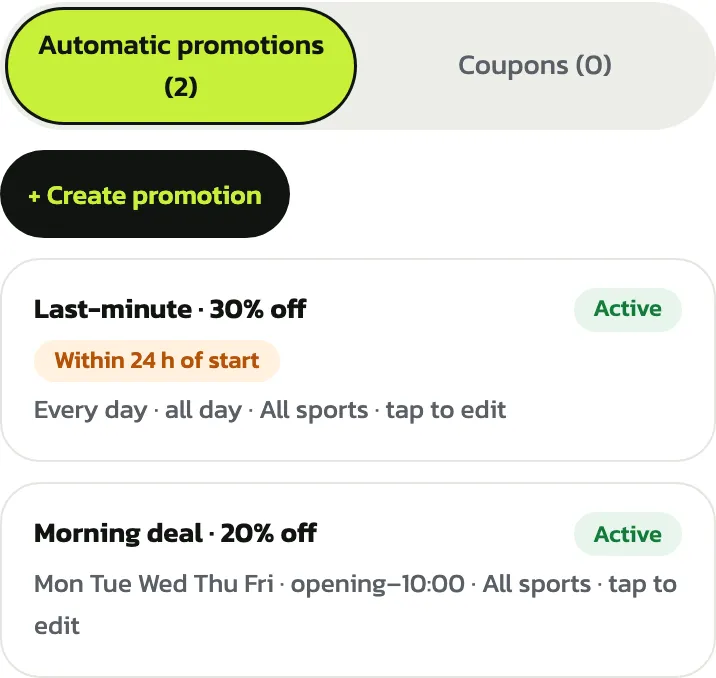
This tab has two parts: “Automatic promotions”, which apply themselves when a booking matches, and “Coupons”, which customers enter as a code. The number in brackets is how many there are. Tap “+ Create promotion”, enter the “Name customers see”, pick the “Discount” as a percentage or baht per hour, then the conditions: sport, days (none = every day), the start times it covers and the dates it is valid. The example is “Morning deal”: 20% off Monday to Friday for play starting before 10:00
The discount is worked out hour by hour for the hours that match. When several promotions match, only the biggest one counts; prices round to whole baht, and existing bookings keep their price. Customers see the lower price on the board and a discount line when confirming
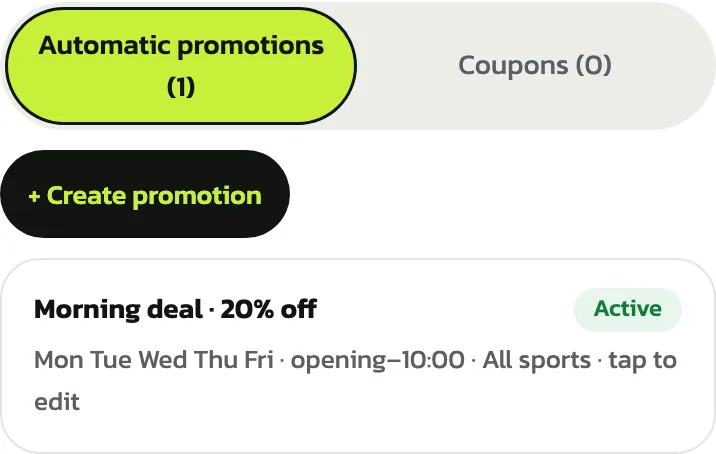
Tap “Save” and the promotion shows in the list as “Active” with its conditions. Tap it to edit. A promotion can't be deleted; to stop it, open it and untick “Active”, and it shows “Off”. One past its last date shows “Ended”
Last-minute deals Pro
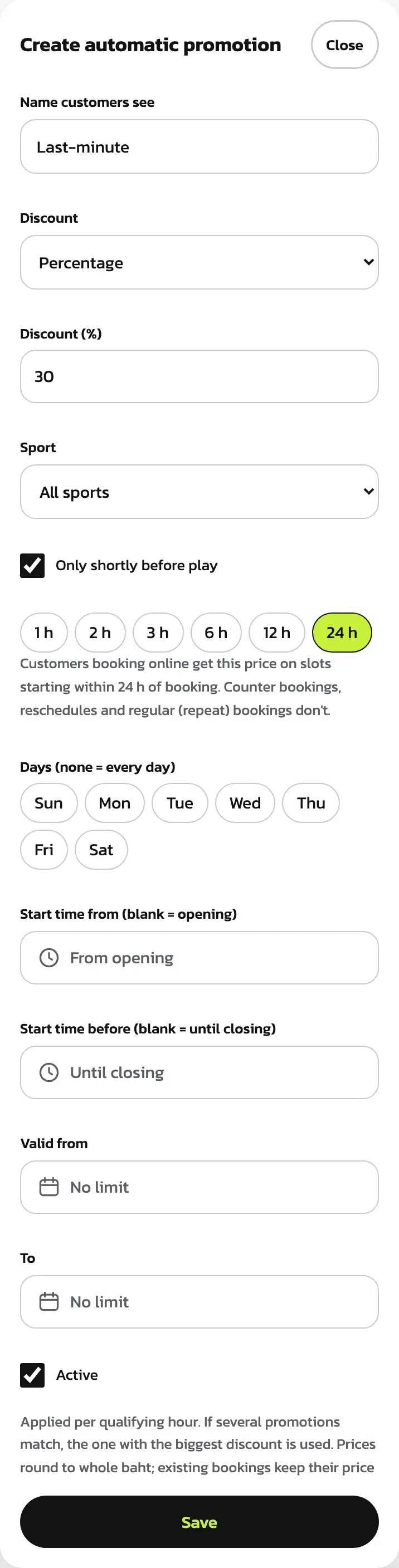
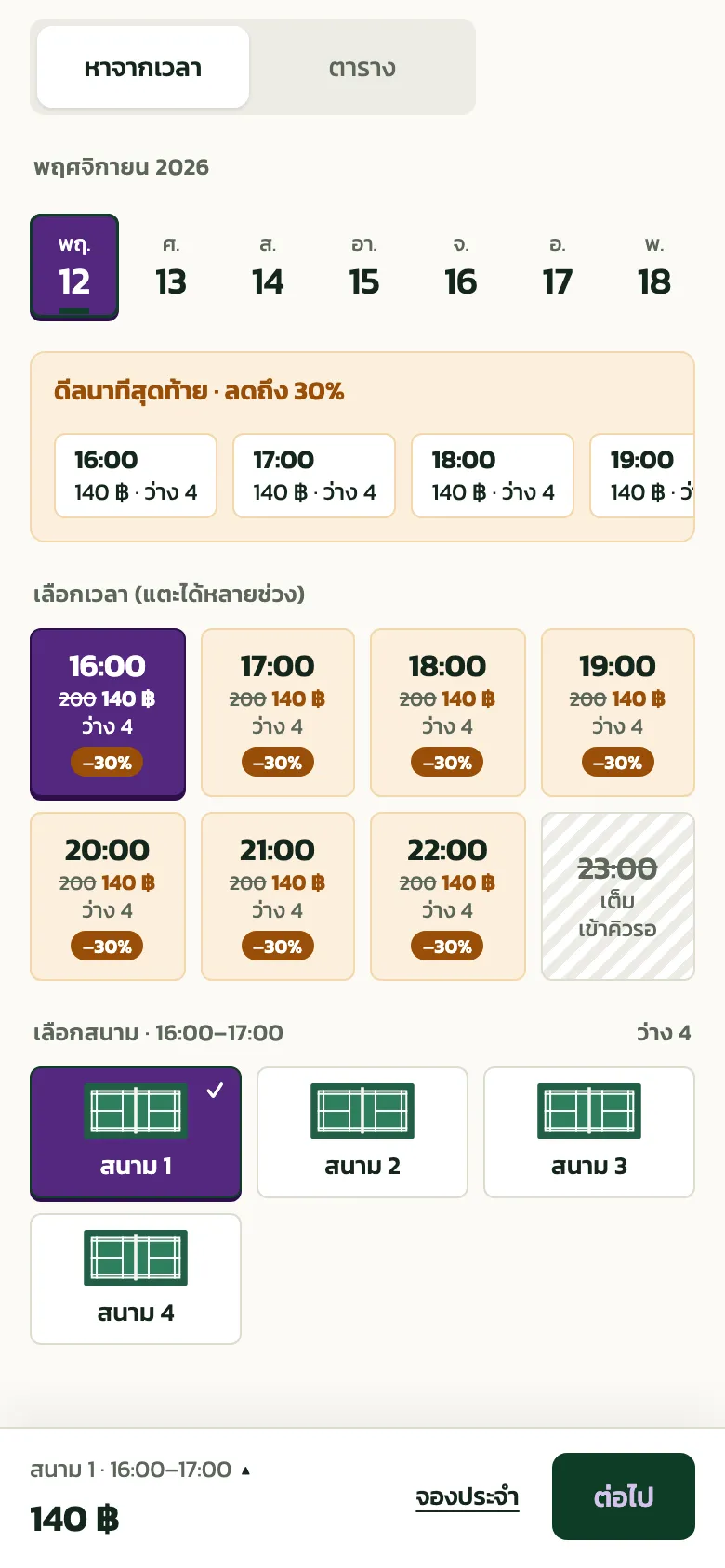
A last-minute deal is an automatic promotion that only counts for empty times close to play. Create a promotion as above and tick “Only shortly before play”: buttons for 1, 2, 3, 6, 12 or 24 h appear (ticking starts at 3 h). Times that start within that long of when the customer books get the deal. The example takes 30% off within 24 h
Deals are for online bookings only: counter bookings, moving a booking and repeat bookings don't get the deal price
In the list a deal has an orange “Within 24 h of start” tag under its name
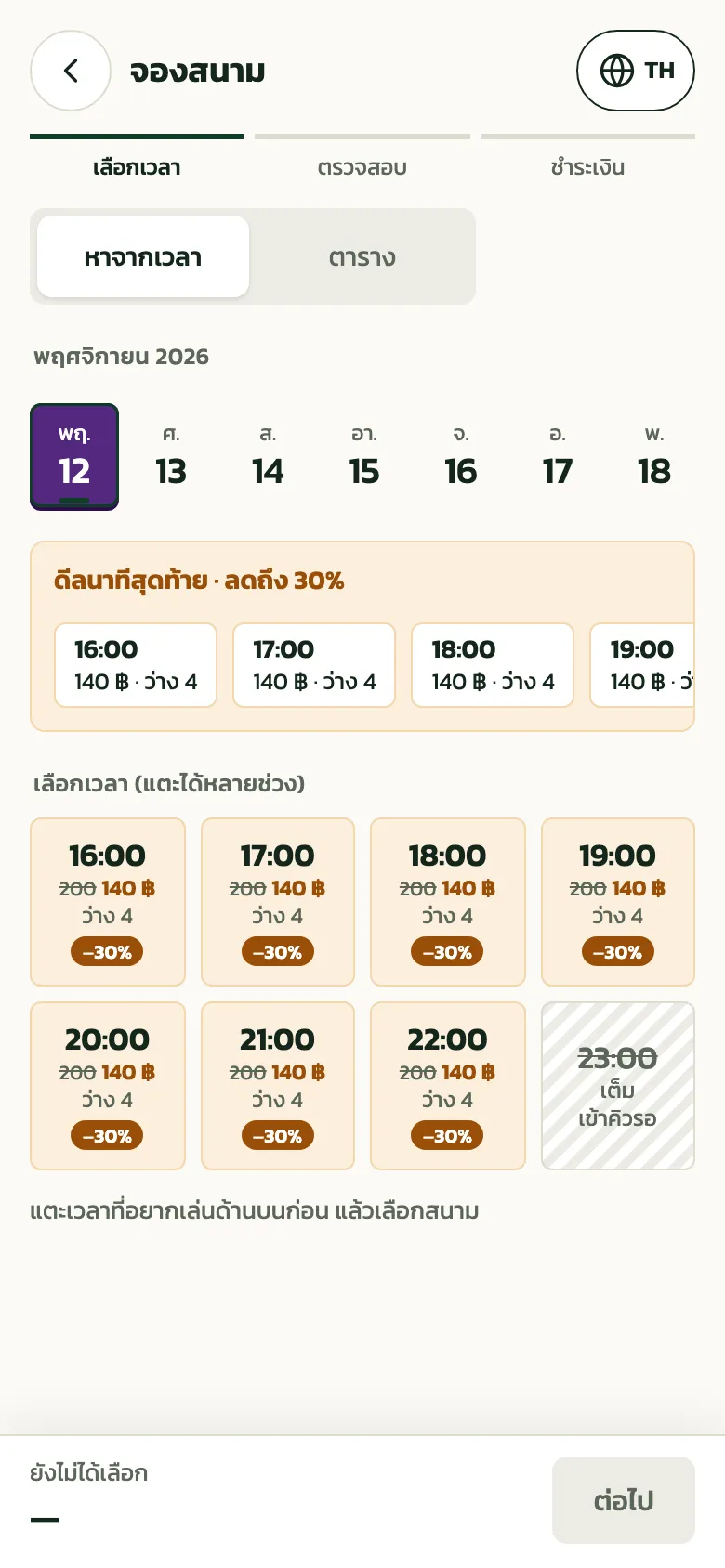
Customers see a last-minute deal strip with the biggest discount above the times (the customer pages here are in Thai). Times with a deal show the old price struck through and the new price; tapping a time in the strip picks it
Coupons Pro
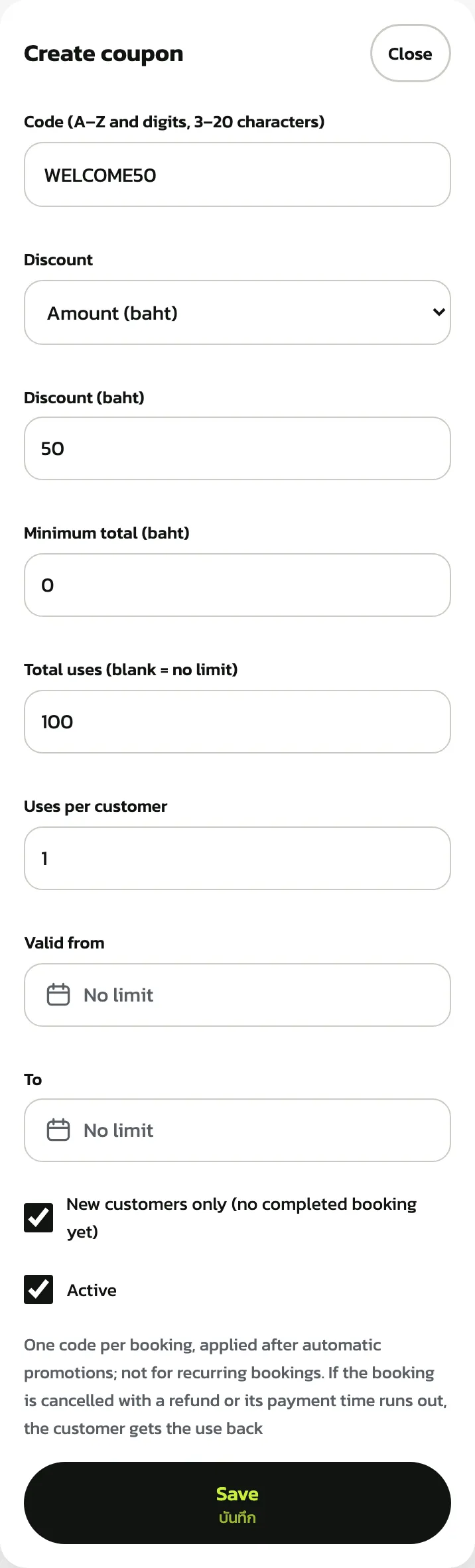
Tap “Coupons (0)”, then “+ Create coupon”. Enter the code (letters A–Z and digits, 3–20 characters), pick the discount as an amount or a percentage (a percentage can have a maximum), and enter the minimum total, the total uses and the uses per customer (starts at 1). Tick “New customers only (no completed booking yet)” to keep it for first-timers. The example is WELCOME50: 50 baht off, 100 uses
Coupons don't discount rental equipment. One code per booking, taken after automatic promotions, and not on repeat bookings. If the booking is cancelled with a refund or its payment time runs out, the customer gets the use back. The code and discount type can't change after creating
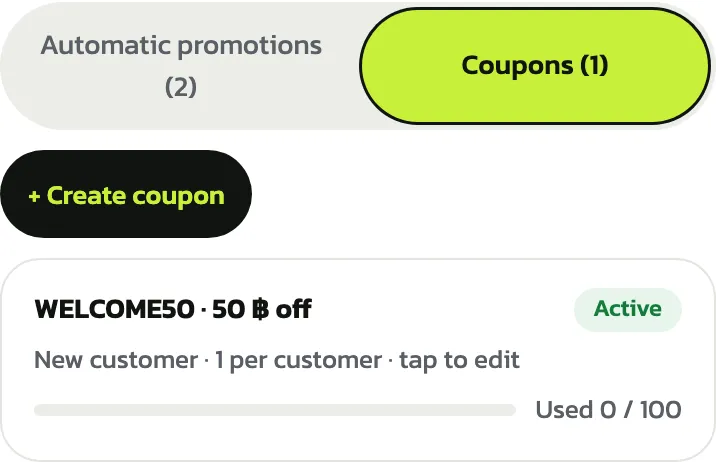
Tap “Save” and the coupon shows in the list with a bar of how many times it has been used. Share the code in a post or chat; customers enter it when confirming a booking
“Customer packages” Pro
Tap “+ Create package” and pick a kind: “Credit top-up” (pay once, get credit to book with), “Hour pack” (a number of hours to play, optionally for one sport, some days and play ending before a time) or “Membership” (a discount on every booking, booking further ahead than others, and optional free hours per period)
The member discount can't be combined with a coupon. Customers renew on the packages page themselves, the new period starts where the old one ends, and customers are reminded 7 days and 1 day before it ends (turn the reminder off in Venue settings › Messages and alert recipients)
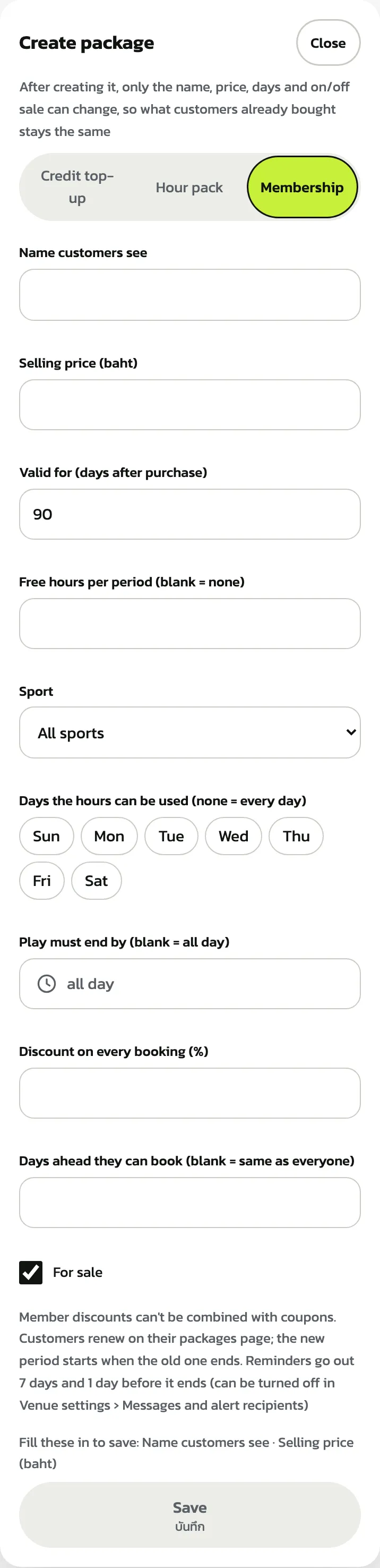
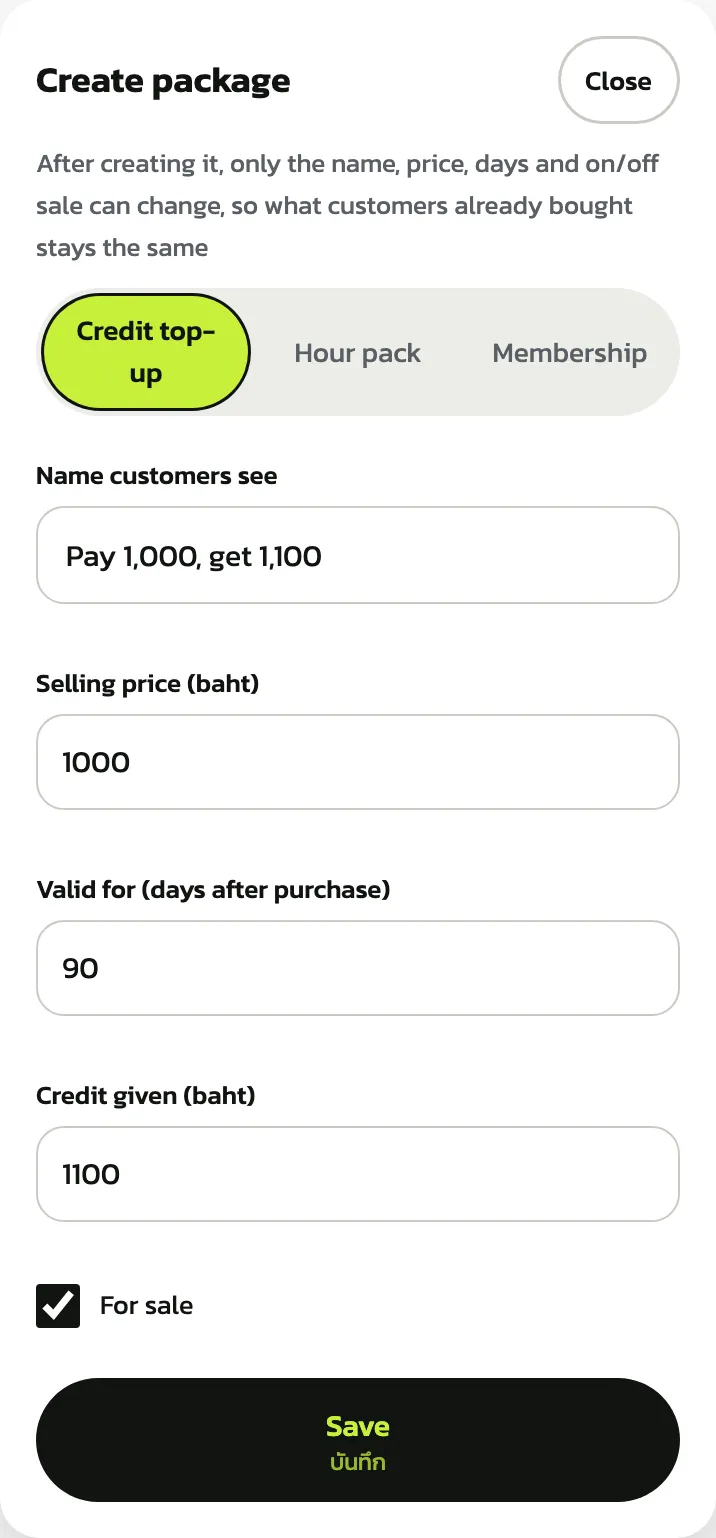
Enter the “Name customers see”, the “Selling price (baht)” and “Valid for (days after purchase)” (the form fills in 90). A credit top-up also needs “Credit given (baht)”. The example sells 1,100 baht of credit for 1,000 baht. Tap “Save”
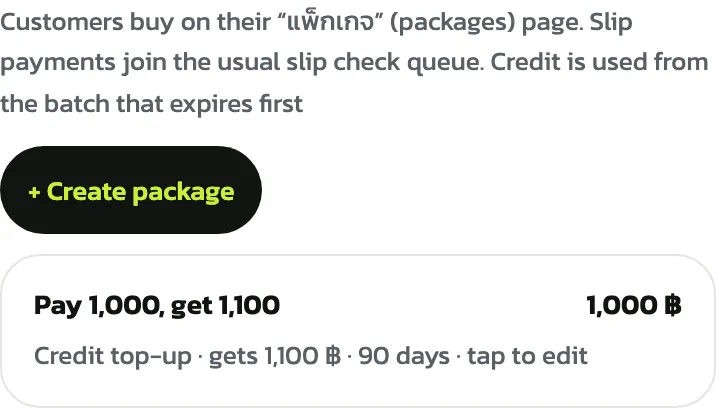
After creating, only the name, price, days and for-sale switch can change, so what customers bought stays as bought. Packages can't be deleted; to stop selling one, untick “For sale”
Customers buy packages on the venue's packages page and pay as they would for a booking; at a venue paid by slip, the slip goes to the same slip queue as bookings. With several lots of credit, the one expiring first is used first
Repeat bookings and the waitlist Pro
Repeat bookings and the waitlist have no setting: customers get them while the venue is on Pro or in its trial. On the court booking page, a time with every court taken shows “เต็ม” (Full) and “เข้าคิวรอ” (Waitlist) for customers to tap. Once a customer picks a time and a court, the bottom bar has “จองประจำ” (Repeat booking) to book the same time every week or every 2 weeks
Repeat bookings don't get last-minute deal prices and can't use a coupon
“Rental equipment” Pro
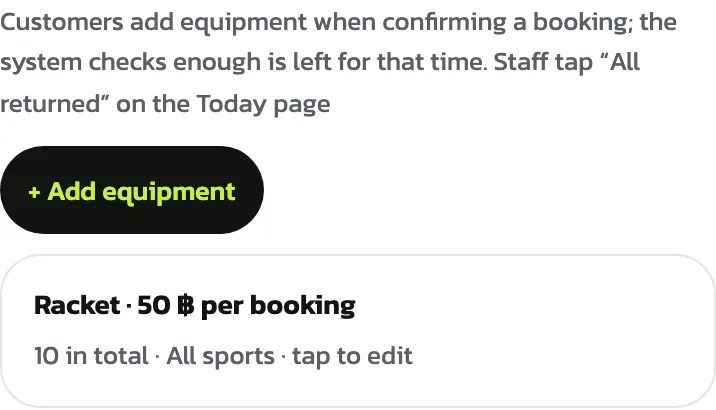
Tap “+ Add equipment”, enter the “Name”, pick “Pricing” per booking or per hour, enter the “Price (baht)” and the “Total quantity” the venue has, pick the “Sport” and tap “Save”. The example is a racket at 50 baht per booking, 10 of them
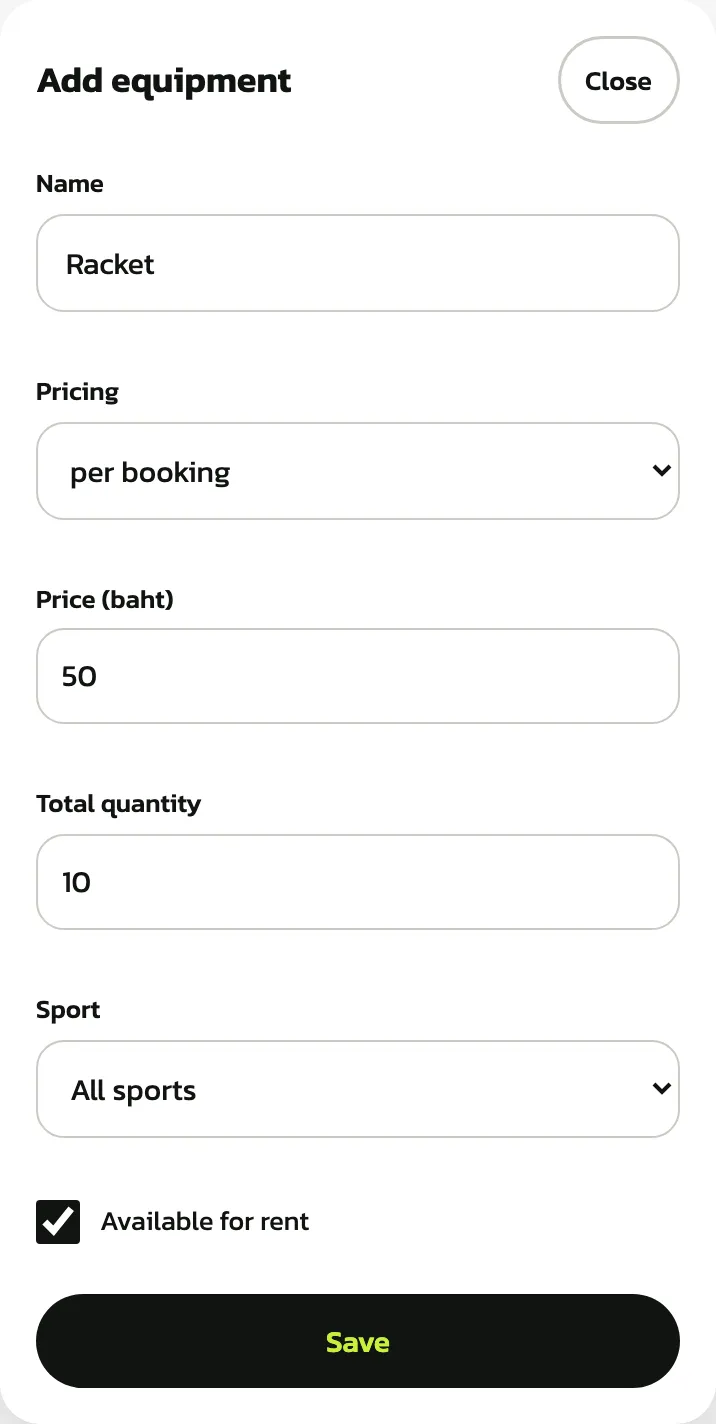
Customers add equipment when confirming a booking, and the system checks enough is left at that time. When it comes back, staff tap “All returned” on the Today page. Equipment belongs to a branch. To stop renting an item, tap it and untick “Available for rent”
“Counter products” Pro
Products are what the desk sells, such as water or shuttlecocks. Tap “+ Add product”, enter the “Name”, “Category (optional)” and “Price (baht)”, set in the unit you sell most. To have the system count stock, tick “Track stock” and enter the “Starting quantity” and “Warn when stock is at or below” (5 to start). Leave it unticked for made-to-order drinks or services, which sell without a limit. The example is water at 10 baht, starting with 24 bottles
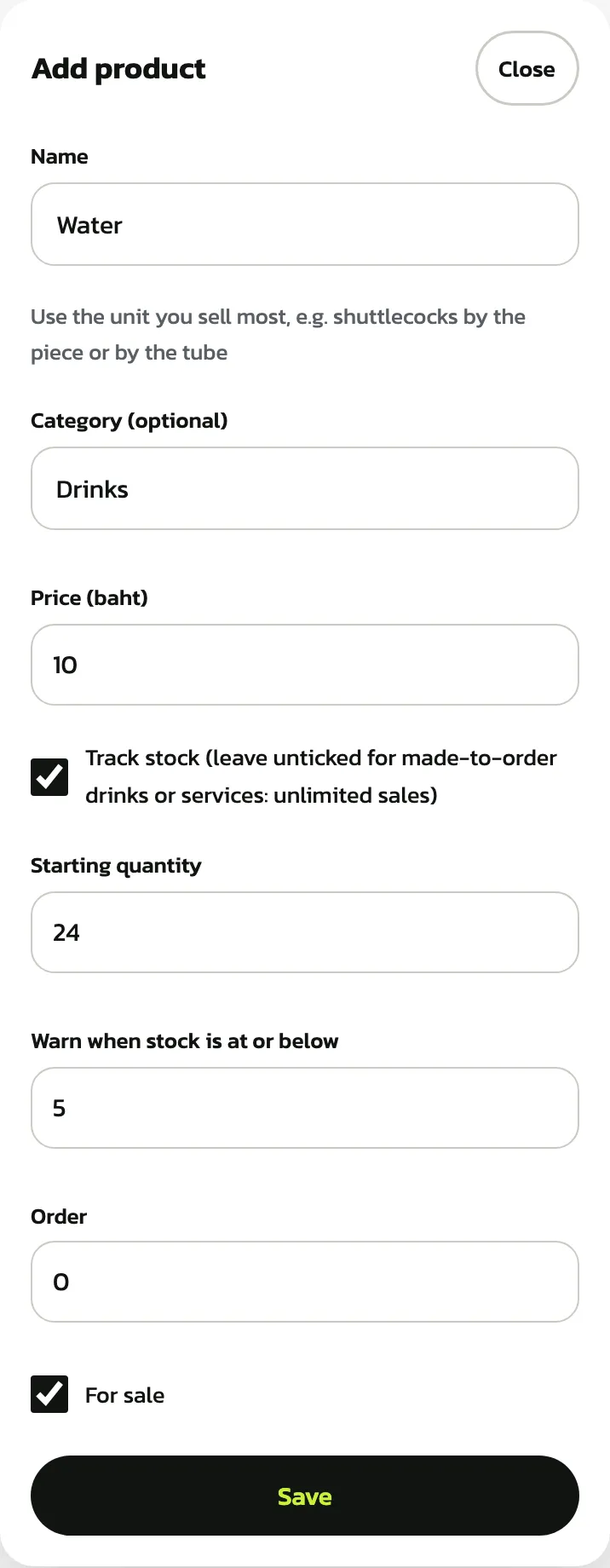
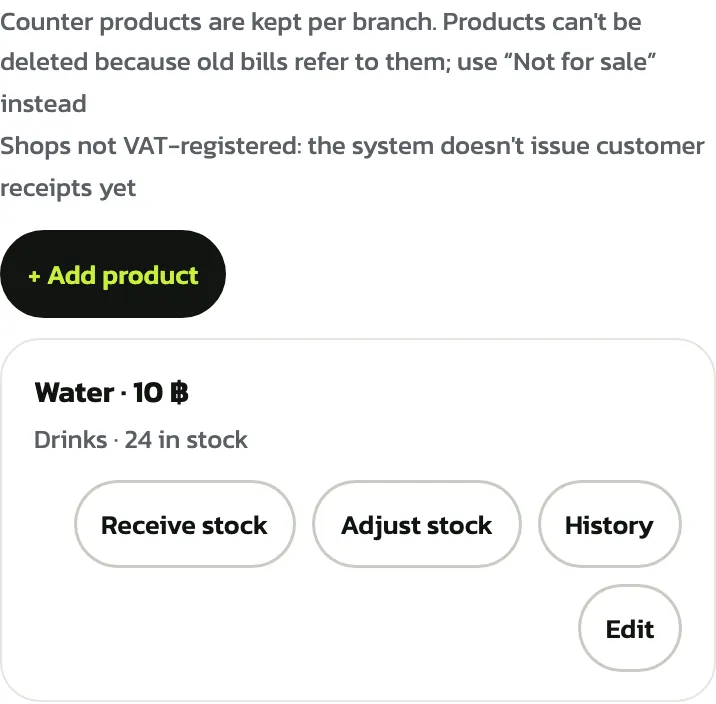
Products belong to a branch and can't be deleted, because old bills refer to them. To stop selling one, tap “Edit” and untick “For sale”. A product with tracked stock has “Receive stock”, “Adjust stock” and “History” buttons. Low stock shows “Low stock”, and none left shows “Out”
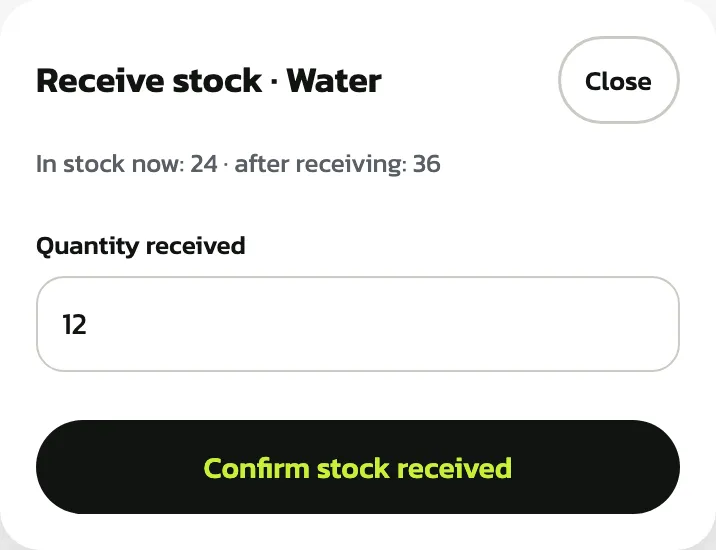
When a delivery arrives, tap “Receive stock”, enter the “Quantity received” (the dialog shows what will be left after it) and tap “Confirm stock received”
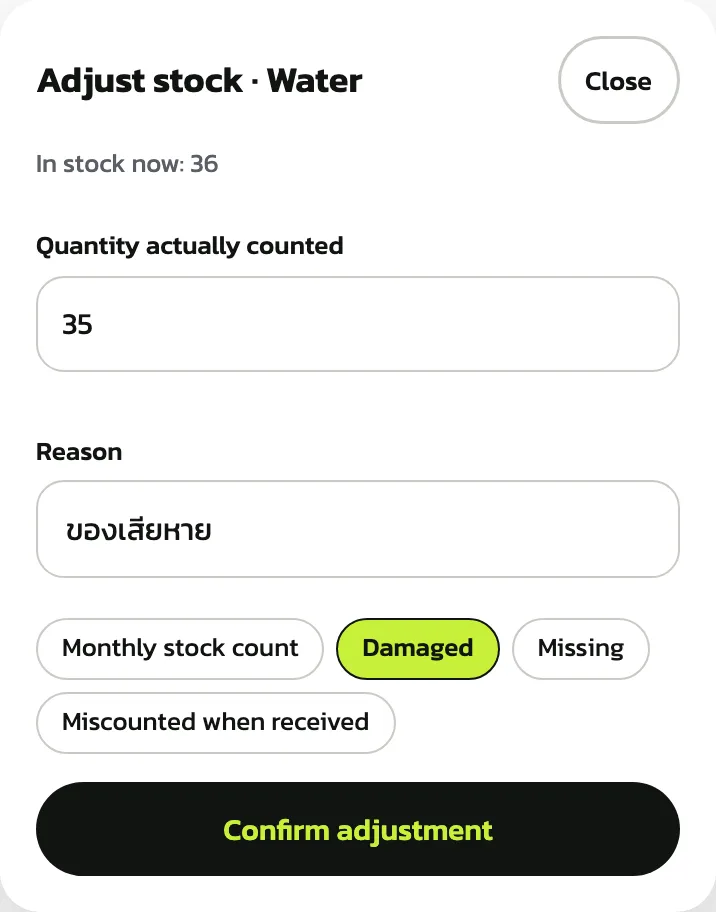
When a count doesn't match, tap “Adjust stock”, enter the “Quantity actually counted” and a “Reason” (required), or tap a suggested reason (it is filled in in Thai), then tap “Confirm adjustment”. Apart from sales, stock only changes through receiving and adjusting; the product form can't edit it
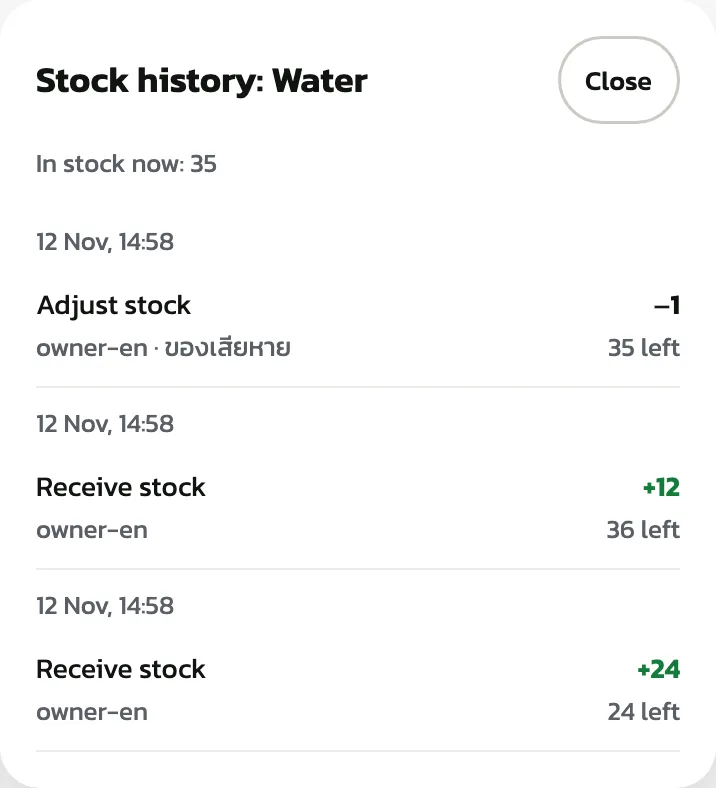
Tap “History” to see every change to the stock: deliveries, adjustments, sales and voided sales
“Let customers top up credit”
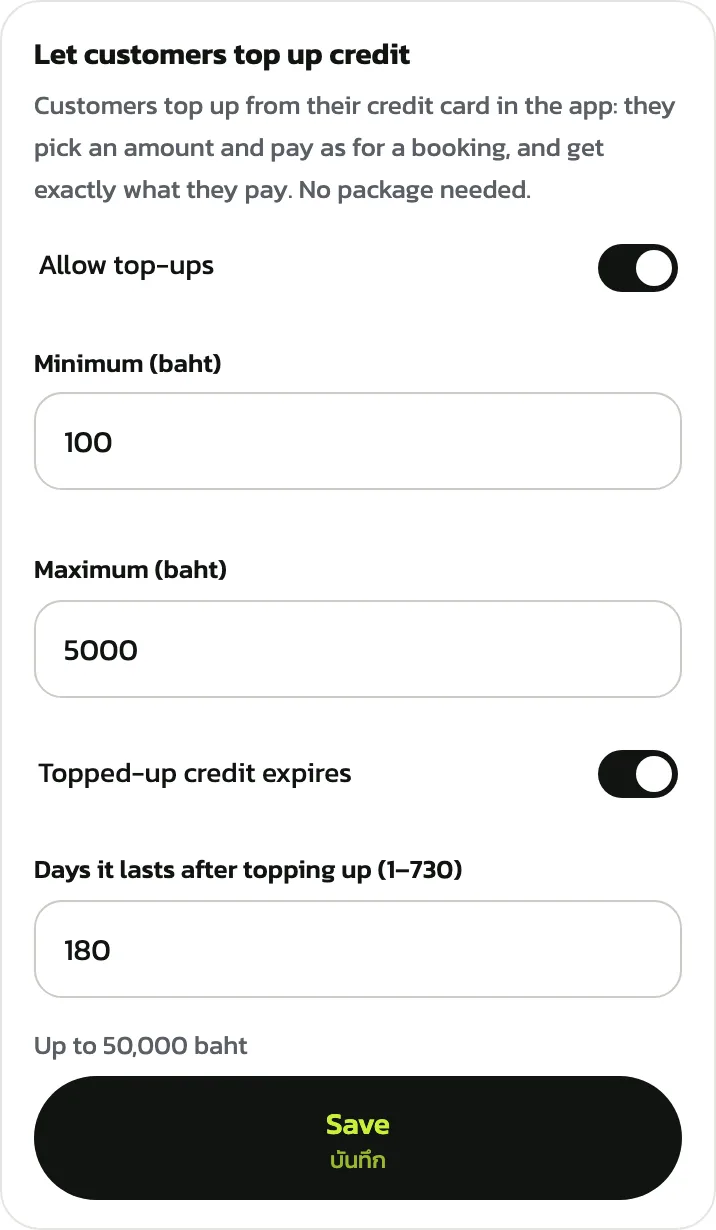
This card is on the “Cancellations and refunds” tab and works on every plan. Customers tap “+ เติมเครดิต” (+ Top up credit) on the credit panel of their bookings, account or packages page, pick an amount and pay as they would for a booking; they get exactly what they pay, with no package needed. A new venue has it off. Turn on “Allow top-ups”, then set the “Minimum (baht)” (100 to start) and “Maximum (baht)” (5,000 to start, up to 50,000)
Topped-up credit doesn't expire. To make it expire, turn on “Topped-up credit expires” and enter “Days it lasts after topping up (1–730)” (180 is filled in), then tap the card's “Save”
The example wasn't saved: the example venue still has top-ups off
“Let customers resell bookings”
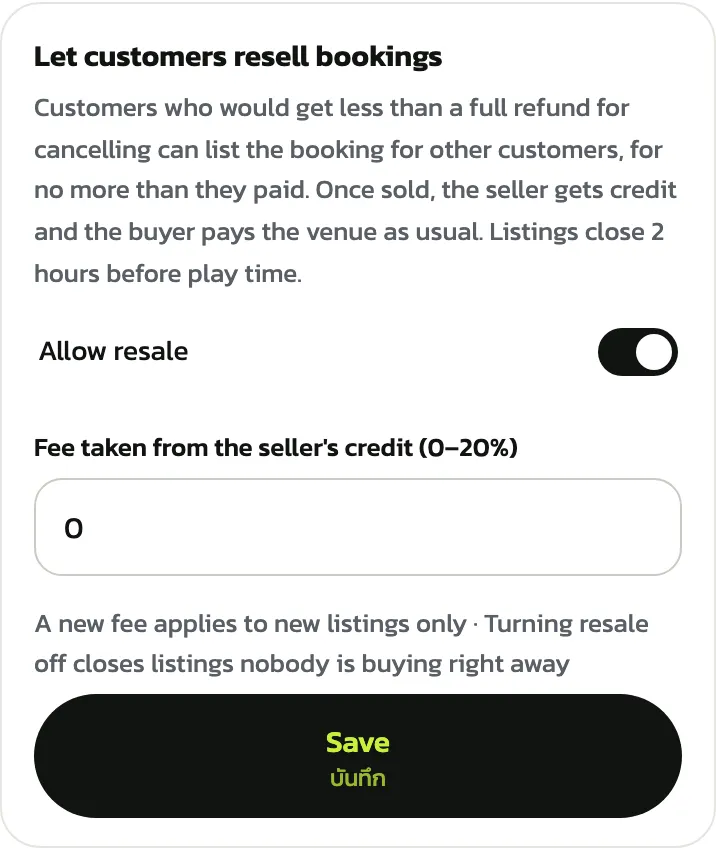
This card sits under the top-up card. A customer who would get less than a full refund for cancelling can list the booking for other customers instead, for no more than they paid. When it sells, the seller gets credit and the buyer pays the venue as usual; the listing closes itself 2 hours before play. A new venue has it off. Turn on “Allow resale”, enter the fee the venue takes from the seller's credit (0–20%, 0 to start) and tap “Save”
Only court bookings made online and fully paid can be resold, not repeat bookings, coach lessons, bookings with rental equipment or ones paid with package hours. A new fee only applies to new listings. Turning resale off closes unsold listings at once. The example wasn't saved