Payments and tax
Booking money goes straight to the venue's PromptPay or bank account. The customer transfers and sends a slip; the venue checks it and approves. This chapter covers the customer paying, checking slips, refunds, the automatic slip check and the seller details printed on receipts. The customer's pages are shown in Thai, as a Thai phone shows them; their buttons are quoted in Thai with their meaning.
“Payment methods”
Set it in “Venue settings › Payment methods”: PromptPay or a bank account, one at a time. Only the owner can set or change it. How to fill it in is in the Getting started chapter
How customers pay
After booking, the customer lands on the “ชำระเงิน” (payment) page with the venue's PromptPay QR (the amount is in the QR; with a bank account, customers copy the account number and type the amount) and a countdown to send the slip. If no slip is sent in time, the court is released for others. The time is 15 minutes by default; set 5–60 minutes in “Venue settings › Booking rules”
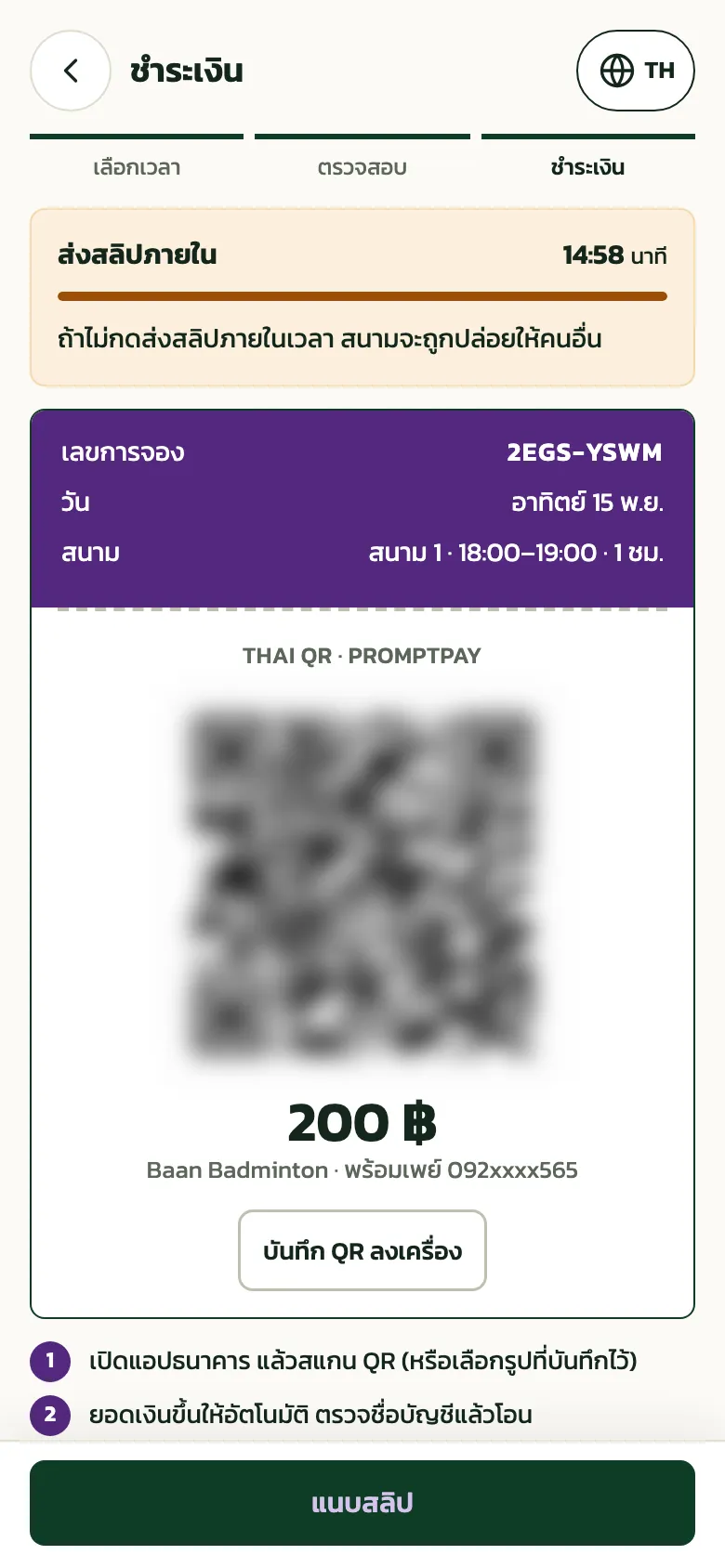
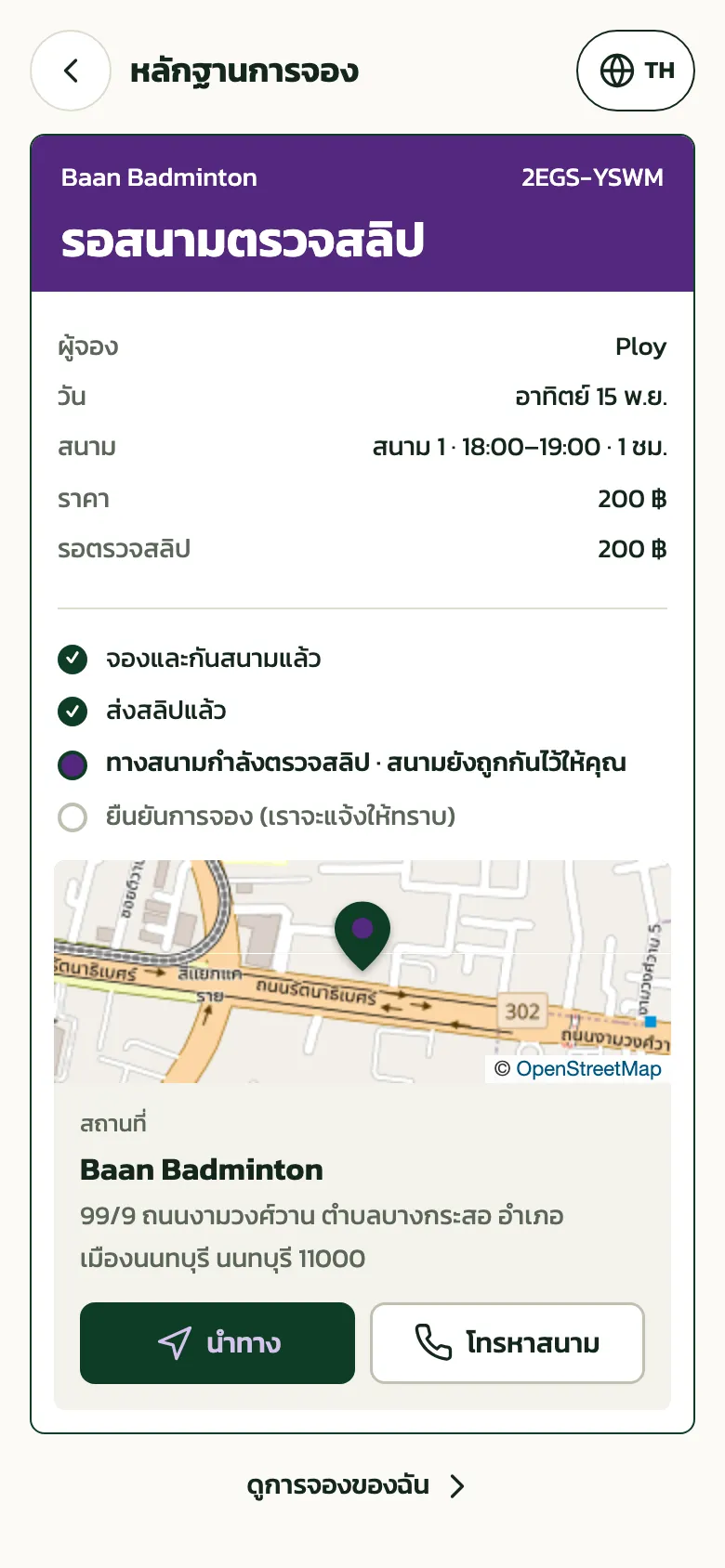
The QR and PromptPay number of the test venue are blurred The customer pays in their banking app, taps “แนบสลิป” (attach slip), picks the slip picture and taps “ส่งสลิป” (send slip). The booking then waits for the venue, and the court stays held for the customer meanwhile
“Check slips”
Sent slips appear under “Check slips”; the number next to the heading is how many wait. The owner, managers and front desk can check them. The page refreshes itself every 10 seconds. Search by code, name or phone, or show only “Duplicate slip” or “New customer”
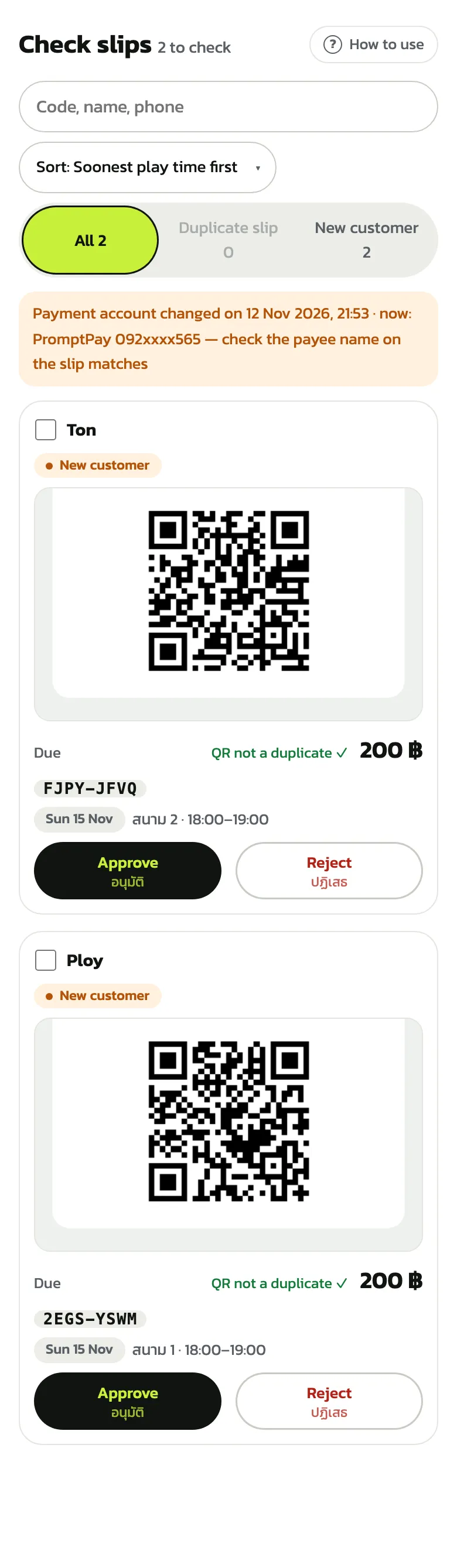
If the payment account changed recently, an orange bar asks you to check that the payee name on each slip matches the new account (shown for 7 days after the change)
Tap the slip to see it whole. Compare its amount with “Due” and look at “Reference from the slip's QR” to see whether it was used before. If it all matches, tap “Approve”: the customer's booking is confirmed at once
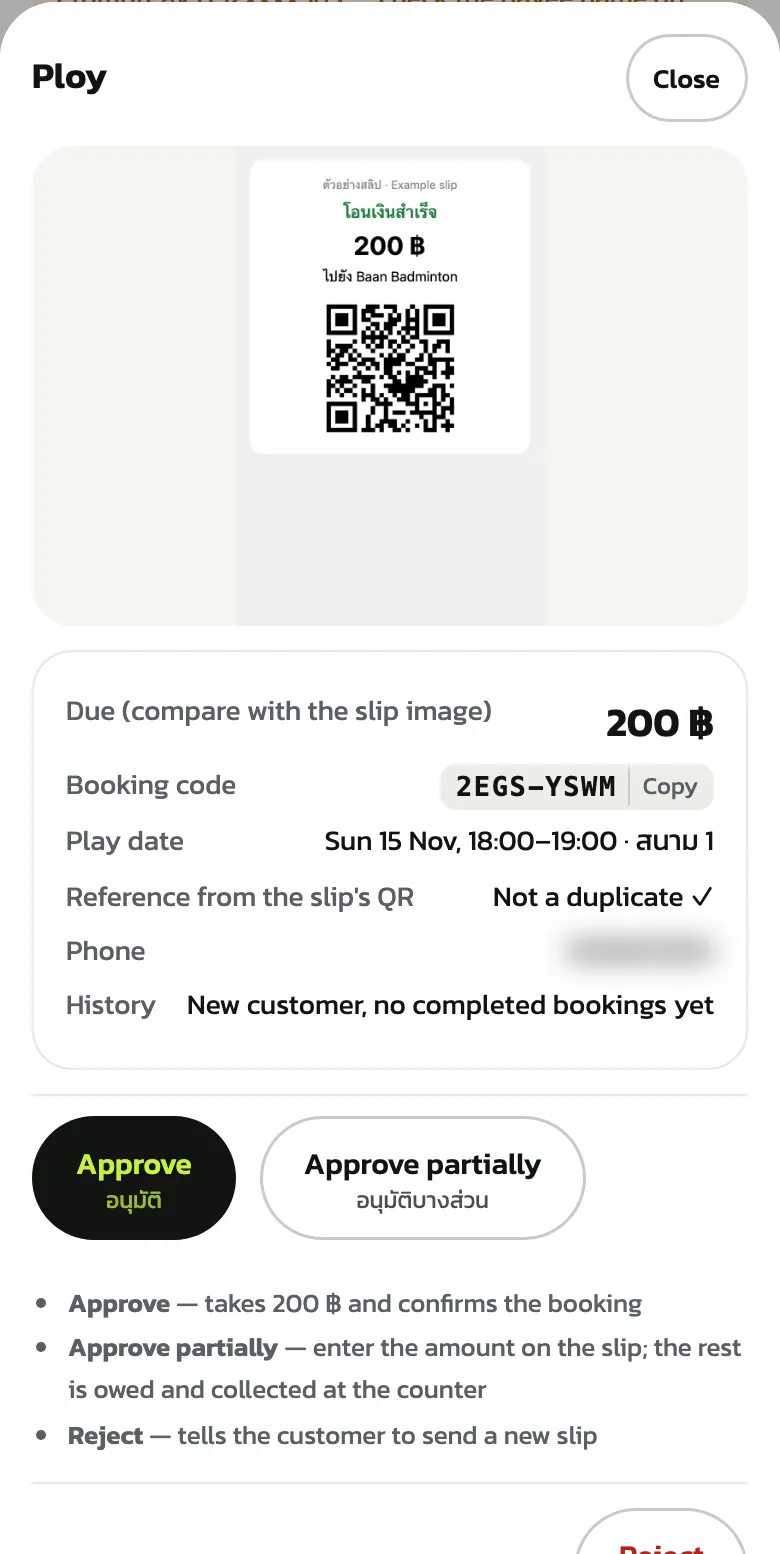
Paid short: tap “Approve partially” and enter the amount on the slip with a note; what's missing becomes a balance to collect at the counter
Wrong slip: tap “Reject”, pick a reason (the customer sees it) and tap “Reject slip”. The customer gets a fresh payment window, as long as the time to pay after booking, to send a new slip (if play time has passed, no new window opens; the amount stays owed at the counter)
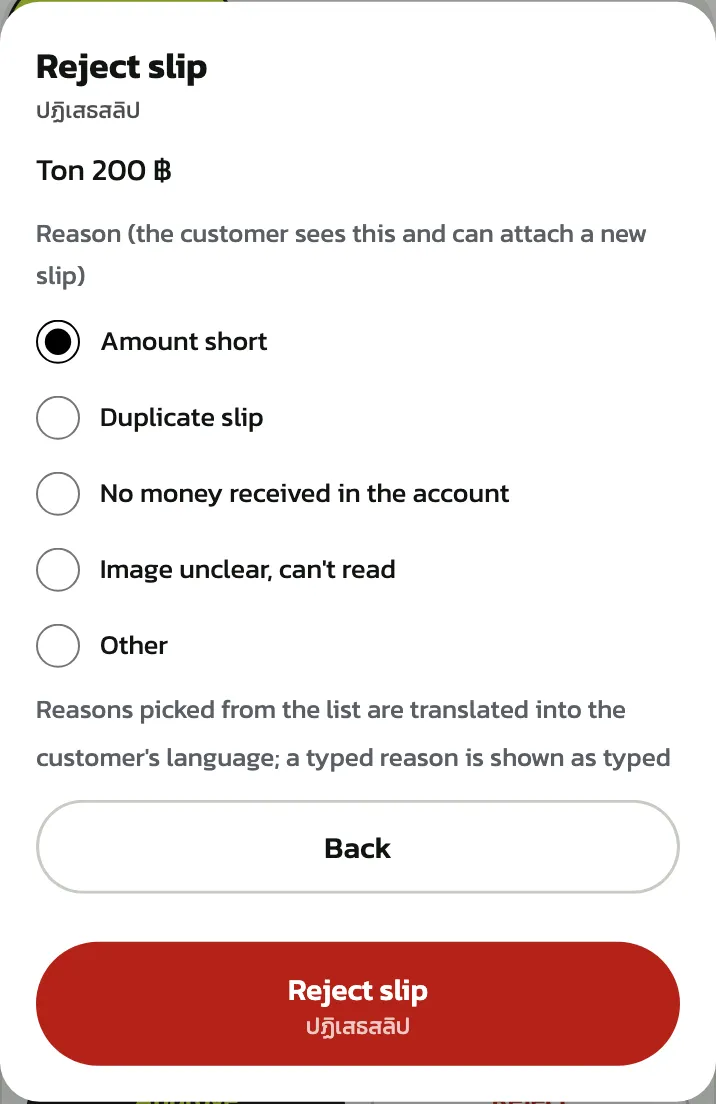
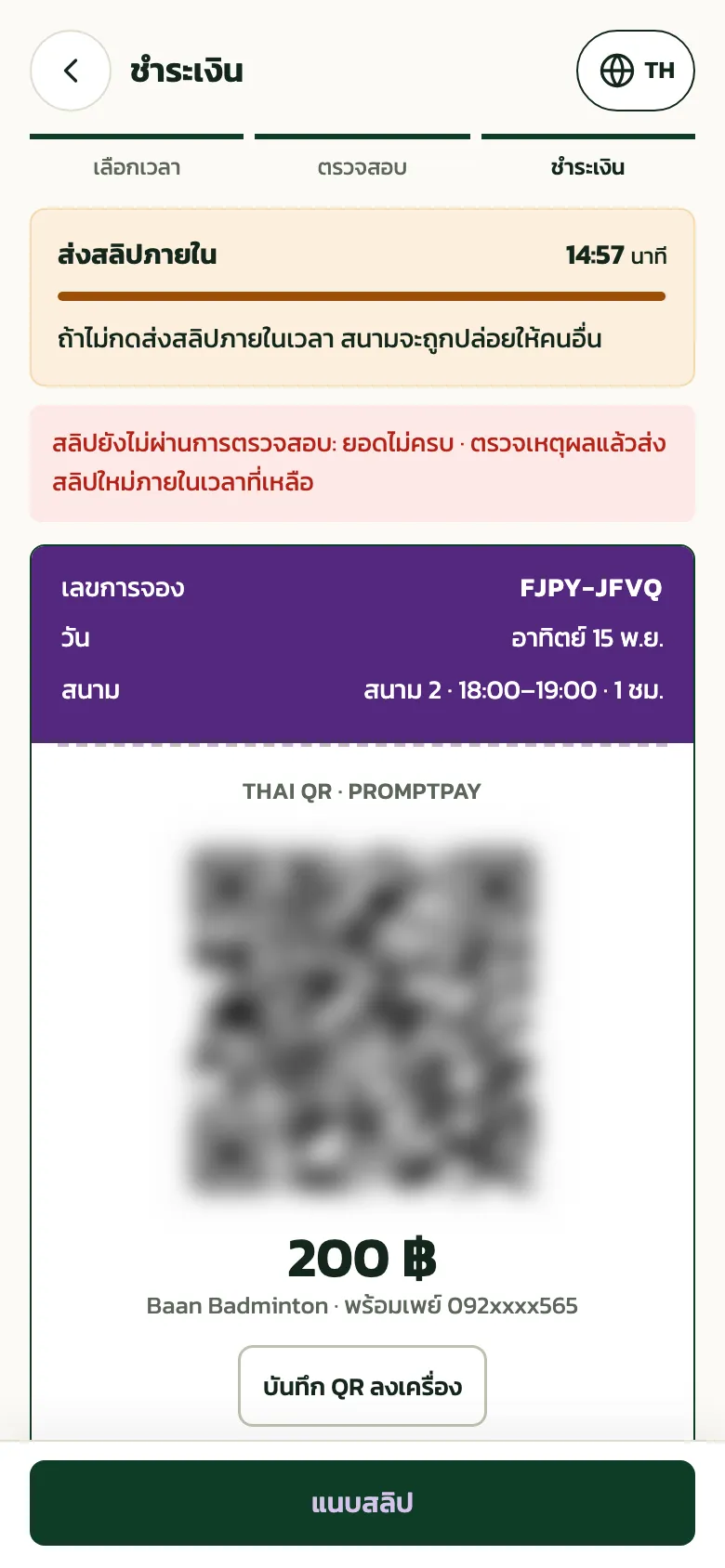
The customer sees the reason on the payment page and can attach a new slip within the time left
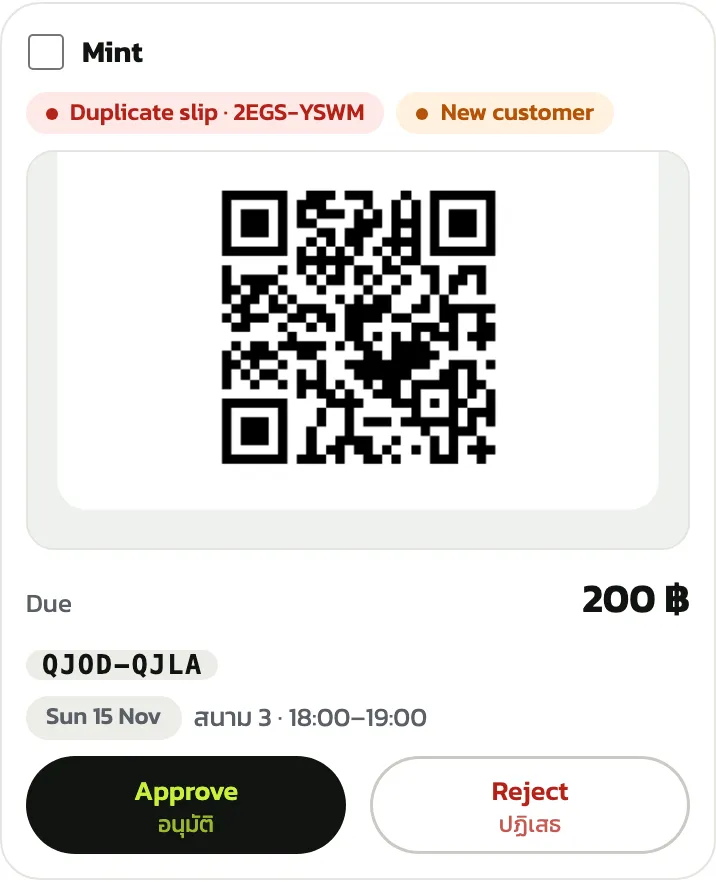
Reused slips: the system reads the reference from the slip's QR. If it was already used for another booking, the card shows a red “Duplicate slip” label with that booking's code. Check the money in your banking app before approving; approving it asks you to confirm once more with “Confirm approval”; if you reject it, “Duplicate slip” is already picked as the reason
Refunds
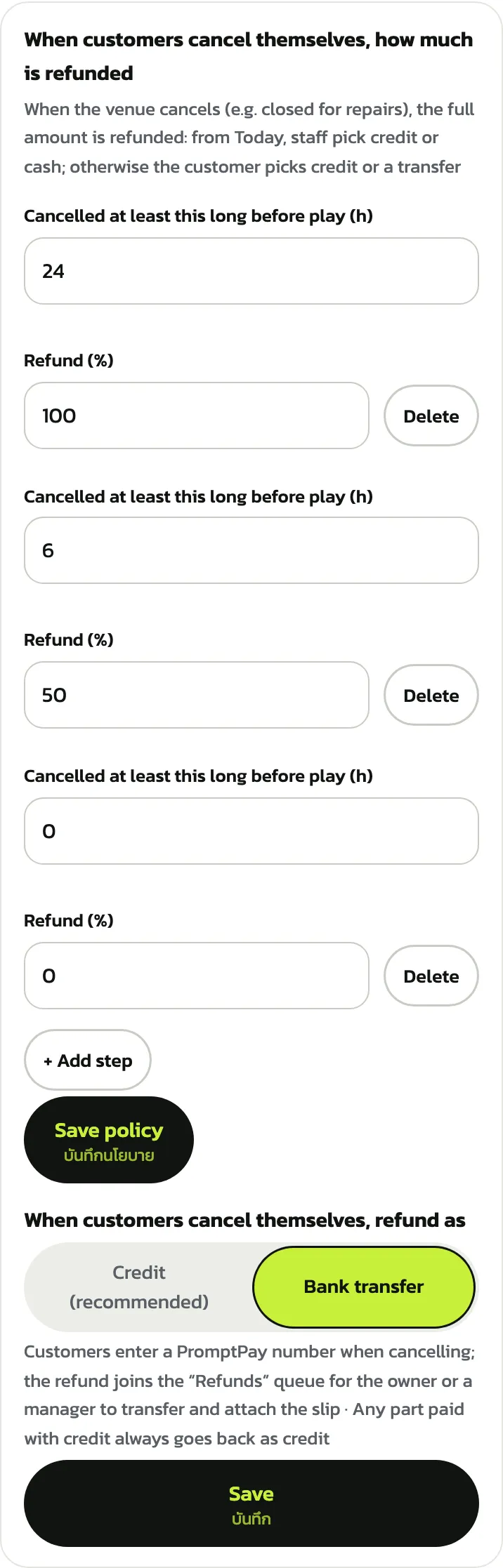
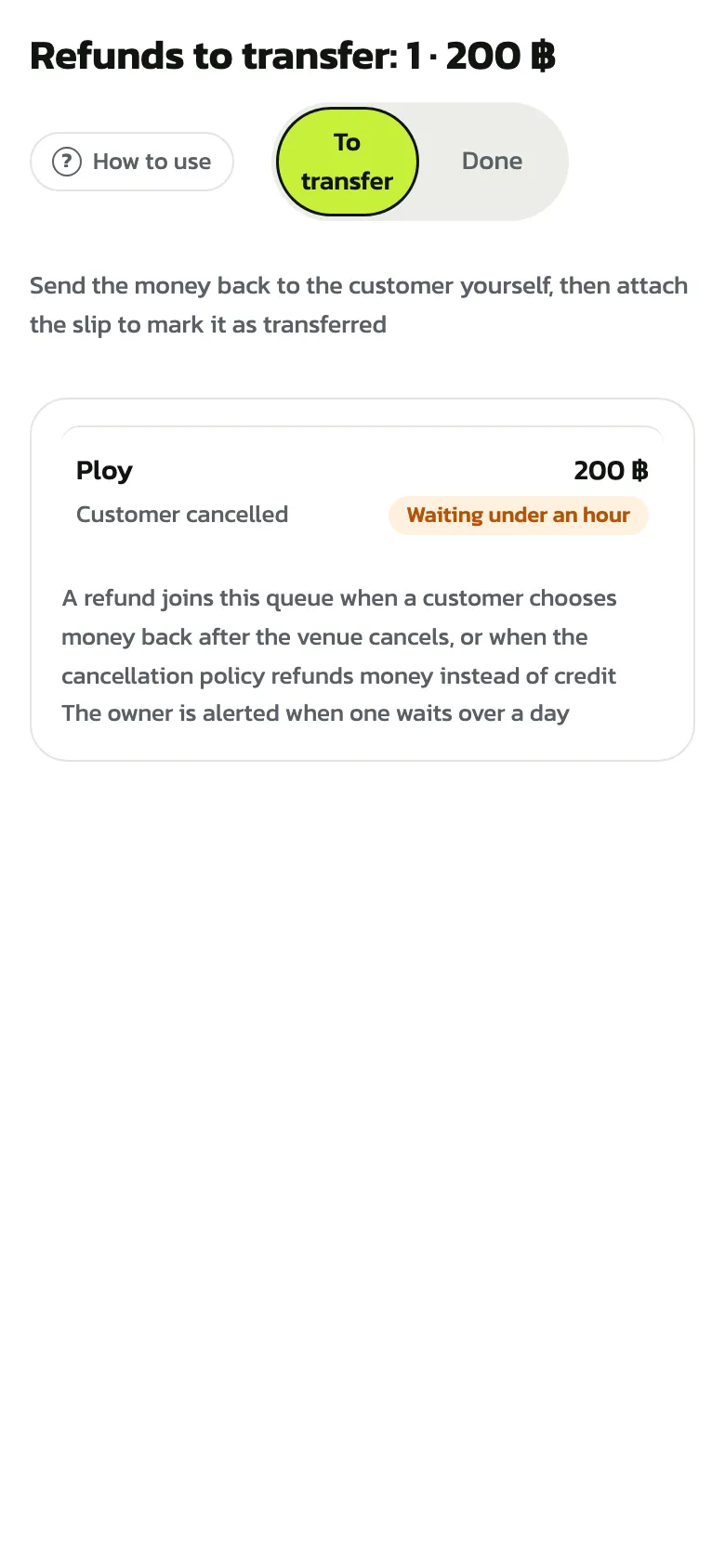
In “Venue settings › Cancellations and refunds”, under “When customers cancel themselves, refund as”, the default is credit (the customer gets it at once for the next booking; nothing to transfer). Choose “Bank transfer” and tap “Save”: the customer then enters a PromptPay number when cancelling, and the refund joins a queue for you to transfer. How much is refunded follows the tiers above it on the same page. When the venue cancels, 100% is refunded: cancelling from Today, staff choose credit or cash handed back at the desk; when a class is cancelled, a branch closes or a coach is unavailable, the customer picks credit or a transfer; any part paid with credit goes back as credit
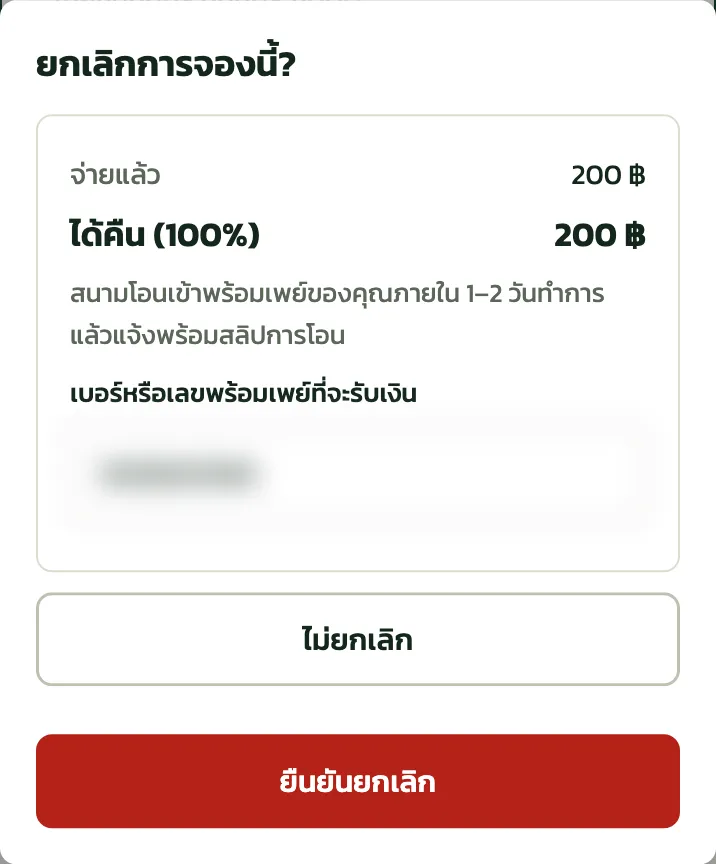
On the customer's side: they tap “ยกเลิกการจอง” (cancel booking), see the refund the policy gives, enter “เบอร์หรือเลขพร้อมเพย์ที่จะรับเงิน” (the phone or PromptPay number to receive it) and tap “ยืนยันยกเลิก” (confirm cancel). The screen tells them the venue transfers it to their PromptPay within 1–2 working days
It appears under “Refunds” in the “Money and reports” menu group (owner and managers only). The heading gives the count and the total. If one waits more than a day, the owner is told
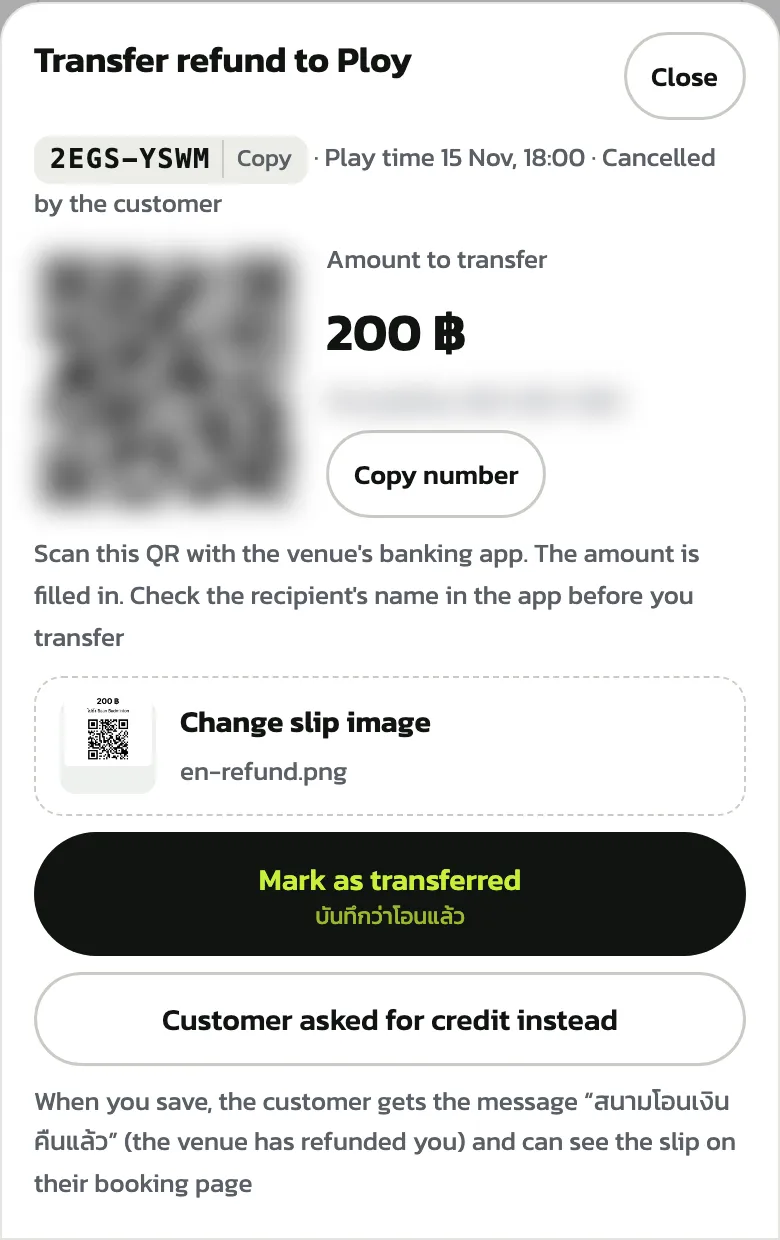
Tap it, scan the QR with the venue's banking app (the amount is filled in; check the payee name before you transfer), attach the transfer slip and tap “Mark as transferred”. The customer is told the venue has refunded them. If the customer asks for credit instead, tap “Customer asked for credit instead”, give a reason and confirm
“Automatic slip check”
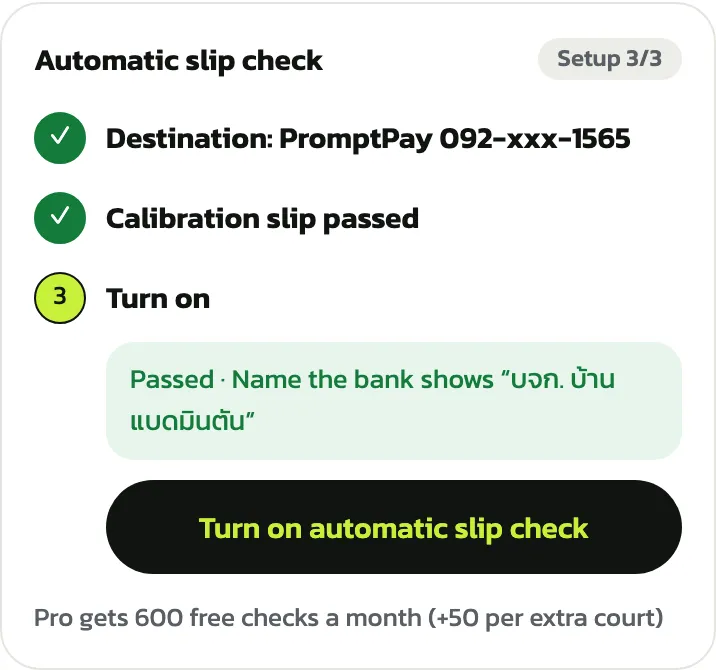
When a customer sends a slip, the system checks the amount, the payee and reuse with the bank. If everything passes, the booking is confirmed straight away; otherwise the slip goes to the queue with the reason. Package purchases and credit top-ups still go to staff, and a slip checked with the bank that fails still uses a token. Only the owner can set it up, in “Venue settings › Payment methods”.
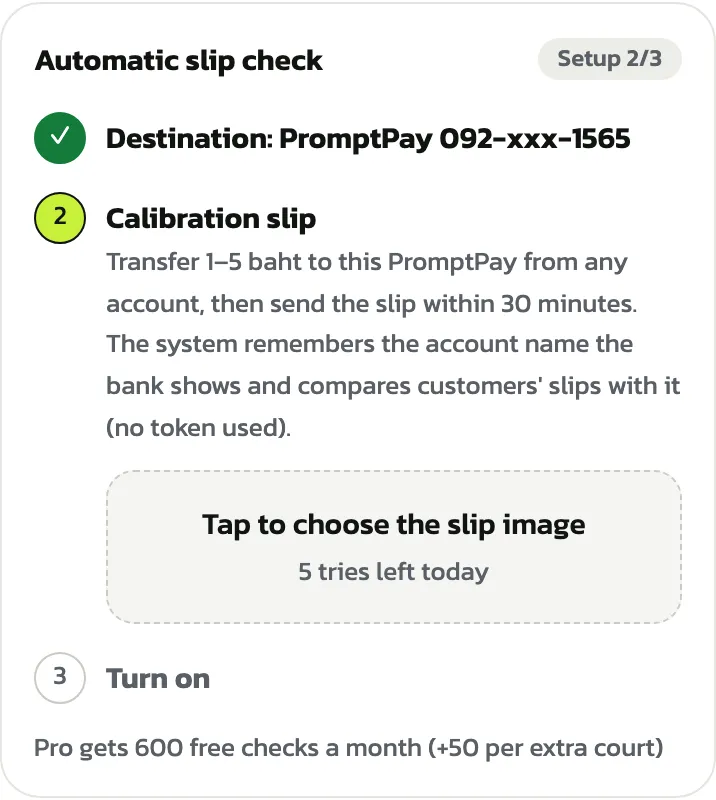
The “Automatic slip check” card has 3 steps. Step 1 is the payment method you already set. Step 2, “Calibration slip”: transfer 1–5 baht to the venue's PromptPay or account from any account and send that slip within 30 minutes with “Tap to choose the slip image”. The system remembers the account name the bank shows and compares customers' slips with it. This costs no token; you can try 5 times a day
Once it passes you see the name the bank shows. Tap “Turn on automatic slip check”
Each slip checked with the bank uses 1 token. The Pro plan gets 600 free checks a month (+50 per extra court). Other plans and the trial get no free tokens, so the card says “Out of tokens” and slips keep going to the staff queue until you top up. Tap “Buy more” and pick a pack (0.40 baht per token), paid by card; bought tokens never expire and aren't refunded
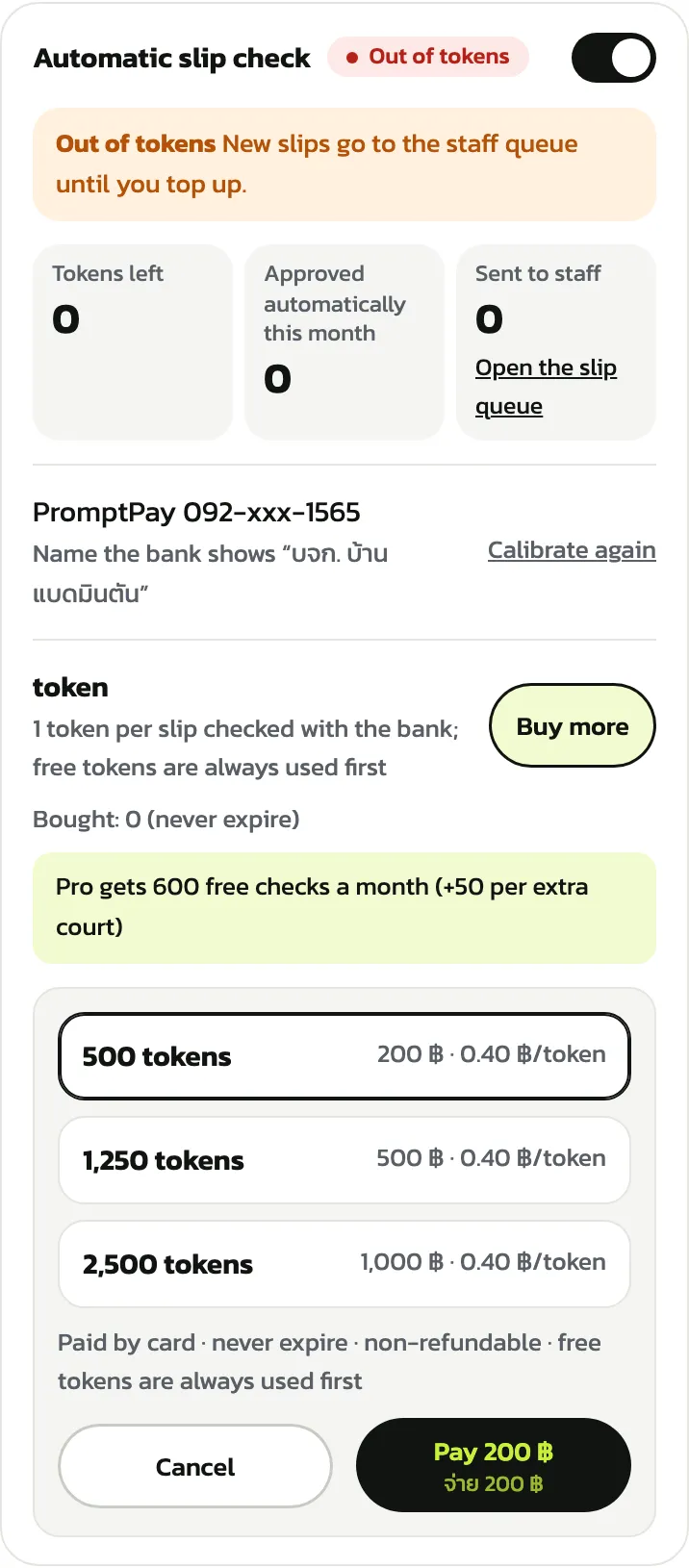
If more than 60 slips arrive within an hour, the check pauses for a while and those slips go to the staff queue
Costs and Stripe
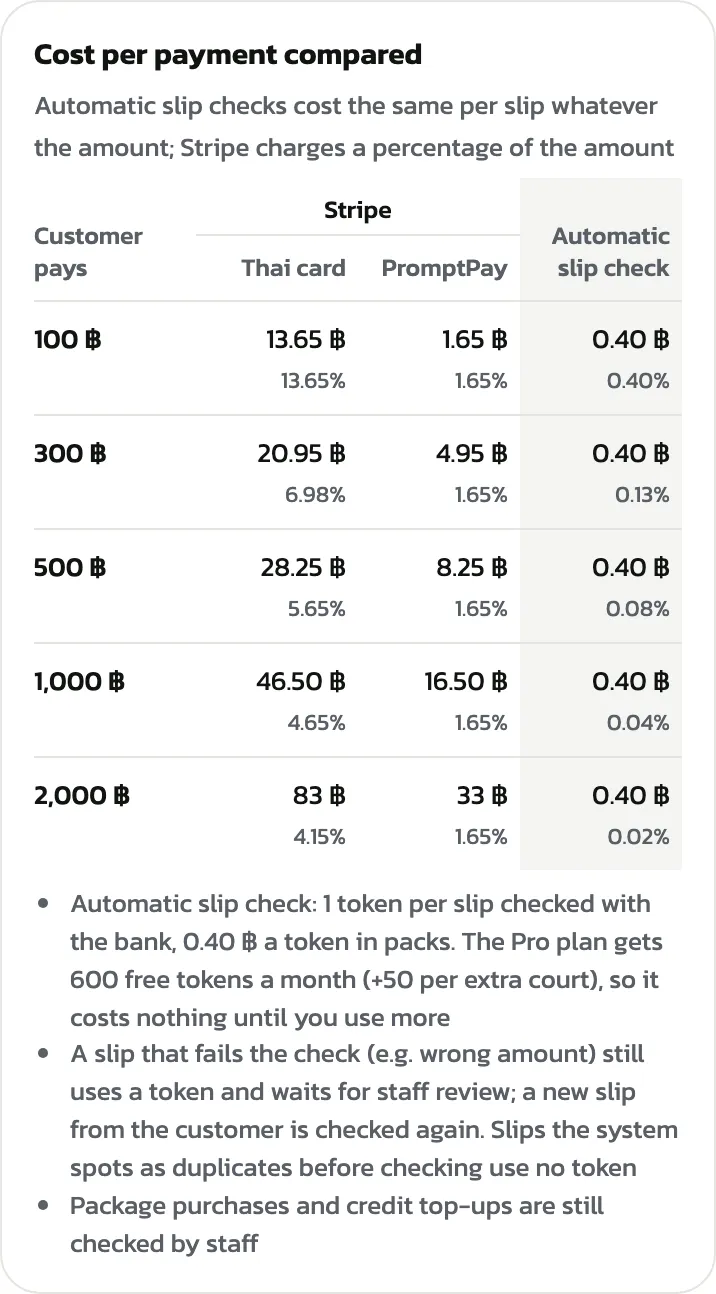
Below the automatic slip check, “Cost per payment compared” sets Stripe's fees (Thai card, PromptPay) against the automatic slip check for payments of 100 to 2,000 baht
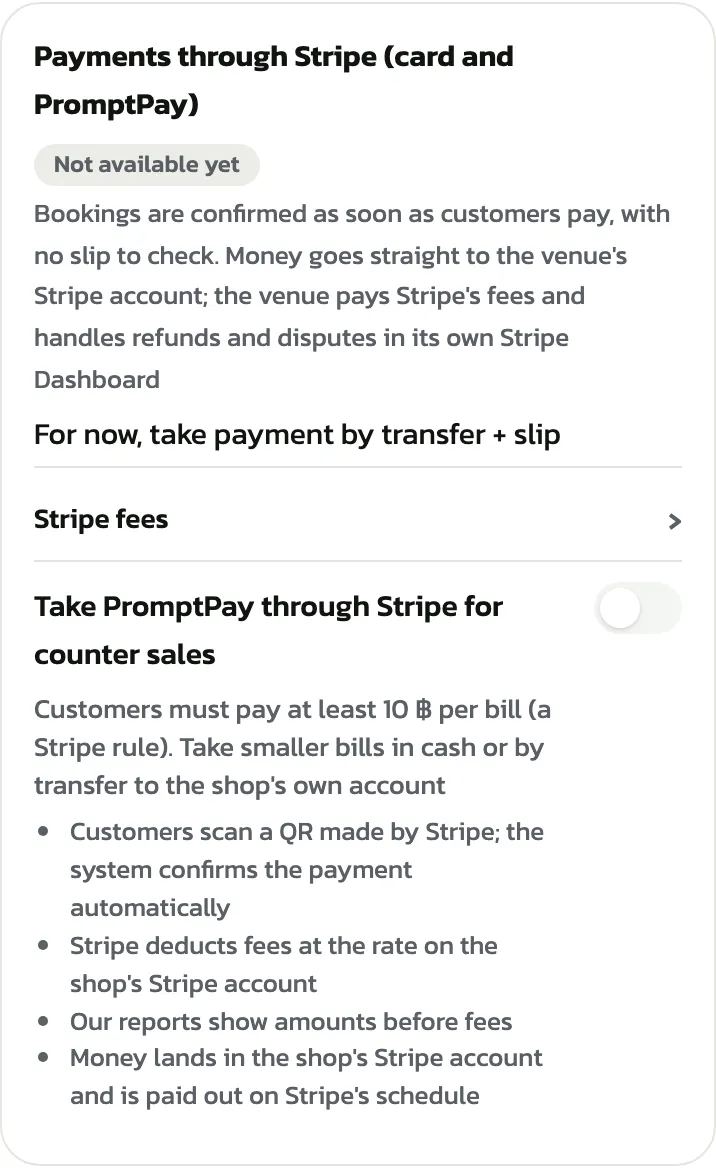
Payments through Stripe (cards and PromptPay confirmed at once) aren't available yet. For now every venue is paid by transfer and slip
“Seller details and VAT”
In “Venue settings › Seller details and VAT”, fill in what receipts show: seller type, registered name, 13-digit tax ID, receipt number prefix, registered branch number and address, then tap “Save” at the bottom of the card (receipts and the prefix field come with Pro and the trial). The owner and managers over all branches can edit it
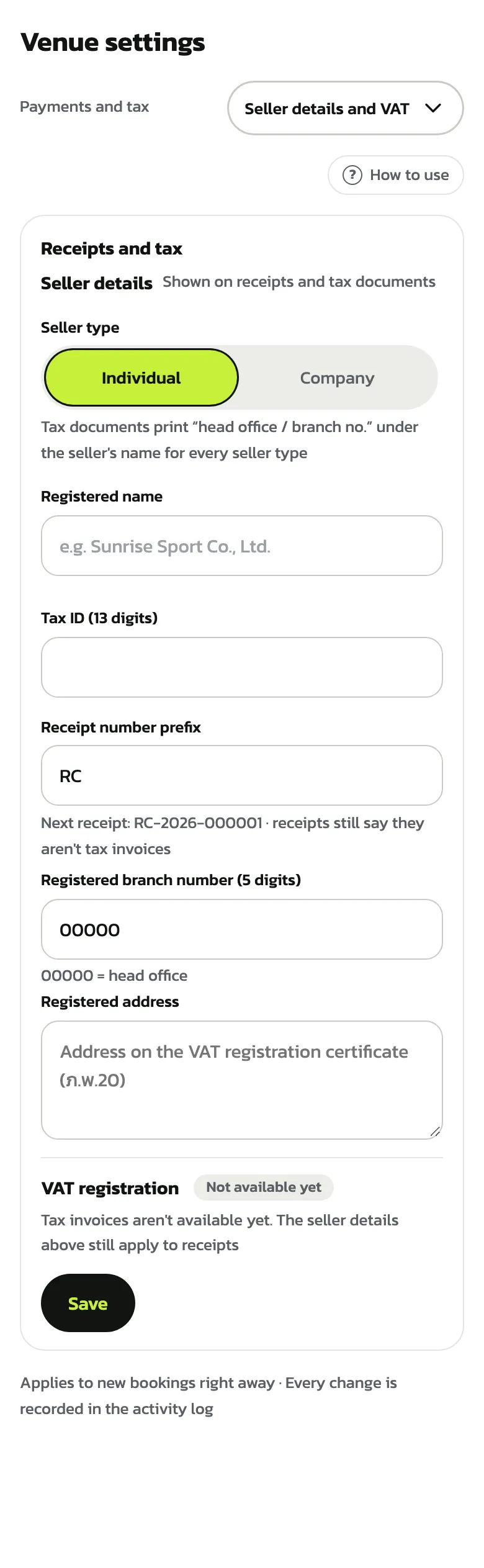
Tax invoices (for VAT-registered venues) aren't available yet, so “VAT registration” says “Not available yet”. The seller details above still apply to receipts