Bookings and policies
Every tab in the “Bookings and services” group of Venue settings: what customers can book, booking rules, cancellations and refunds, and the privacy policy. Changes apply at once. Existing bookings keep their price and amount due, but the refund steps, the refund choice and the rescheduling rules are the ones set when the customer cancels or reschedules, existing bookings included. Every picture is from a phone
The “Bookings and services” group
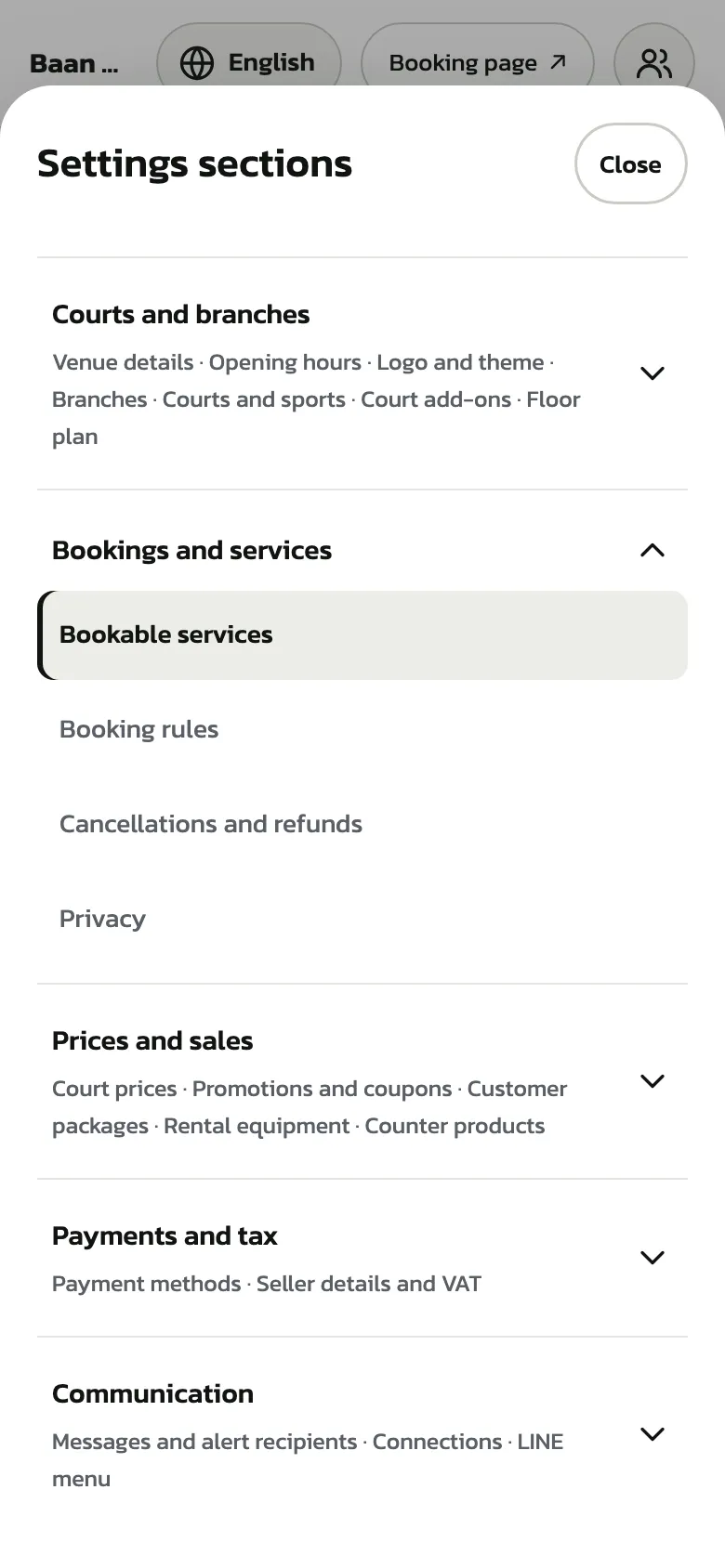
Tap “Venue settings” in the bottom bar, then the section button on the right. The “Bookings and services” group holds “Bookable services”, “Booking rules”, “Cancellations and refunds” and “Privacy”. On a computer the list sits on the left of the page
Only owners and managers can open the settings; a manager kept to some branches sees these four tabs read-only
“Bookable services” Pro
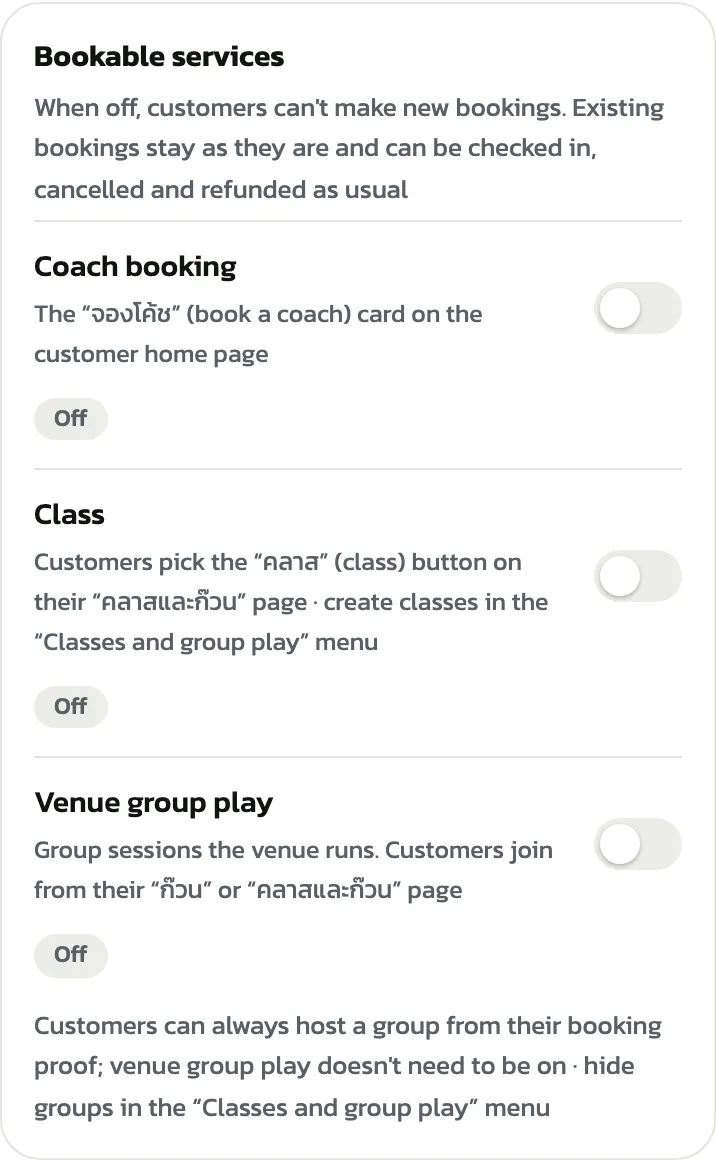
This page has three switches: “Coach booking”, “Class” and “Venue group play”. A new venue has them all off (each shows “Off”). Tap a switch to turn it on or off; it saves at once and shows “Bookable services saved”
When a service is off, customers can't make new bookings for it, but existing bookings stay and can be checked in, cancelled and refunded as usual. Customers can always host their own group from their booking proof, even with “Venue group play” off; hide a group you don't want in the “Classes and group play” menu
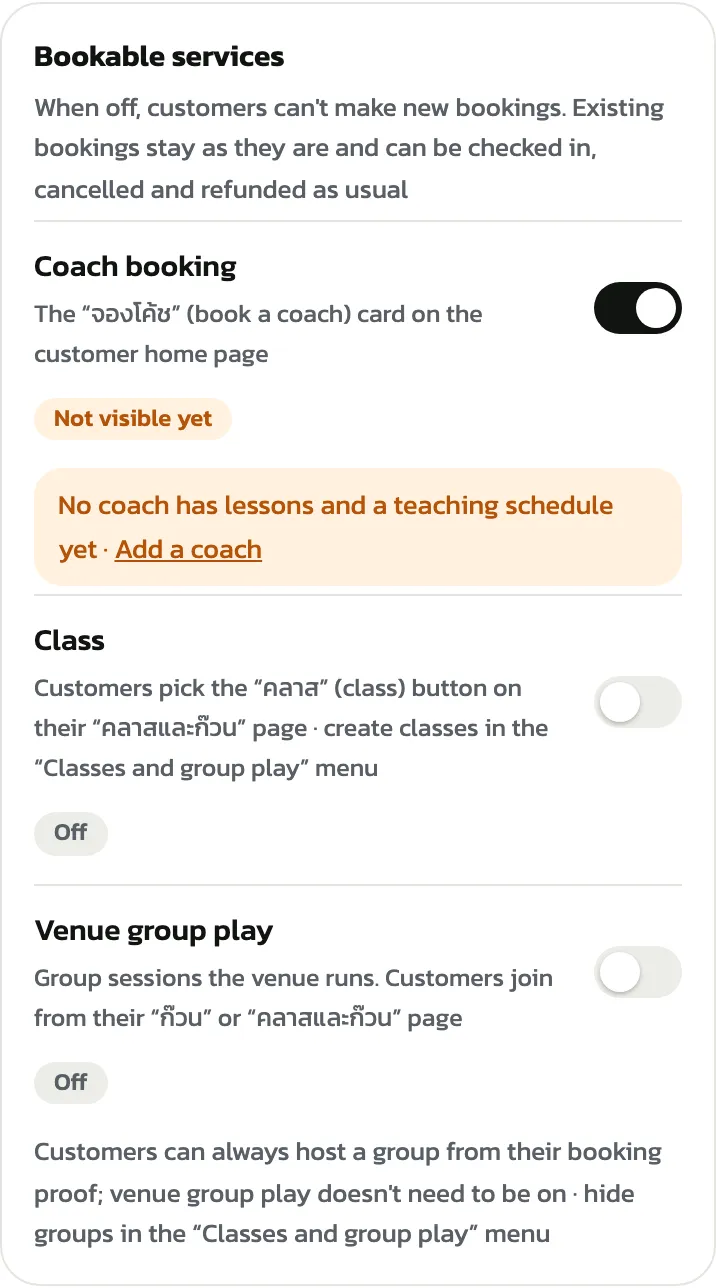
A service that is on but customers can't book yet shows “Not visible yet”, with the reason and a link to fix it. For example, Coach booking with no coach who has lessons and a teaching schedule links to “Add a coach”. Classes and venue group play need an upcoming session before customers see them. Once ready, the label turns to “Customers see it”. With several branches, some of them not ready, it says “Some branches” and names the branches where customers can't see it yet
“Booking rules”
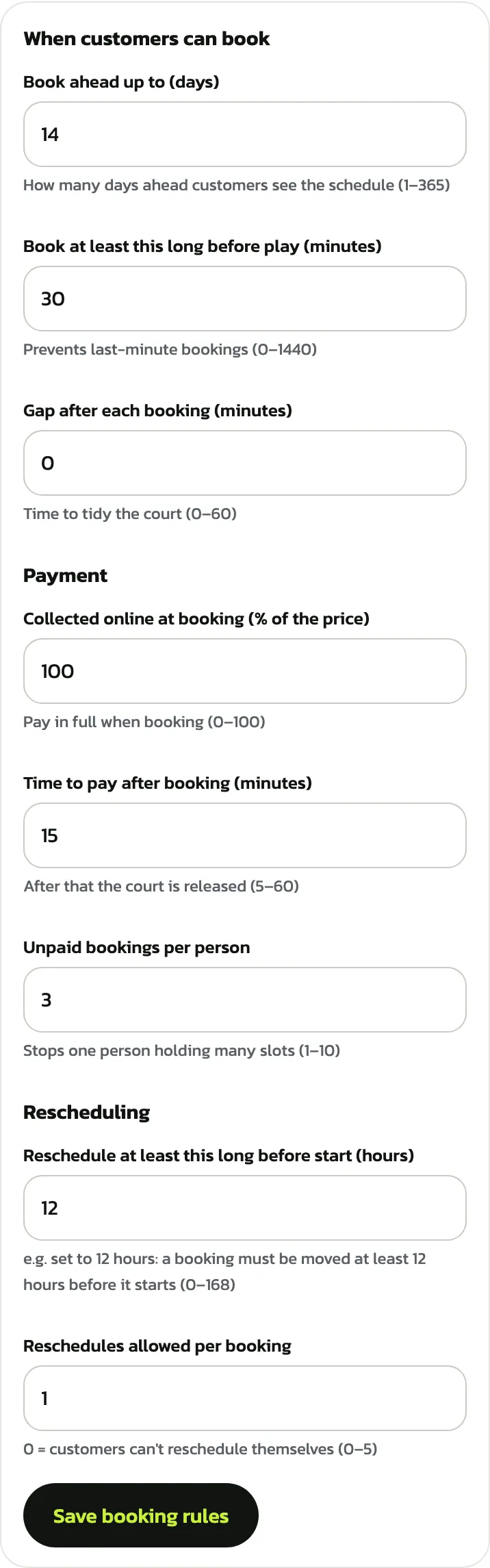
The rules come in three groups. “When customers can book” has “Book ahead up to (days)”, 14 days to start with, “Book at least this long before play (minutes)”, 30 minutes, and “Gap after each booking (minutes)”, 0 minutes. Under each field is the range it accepts
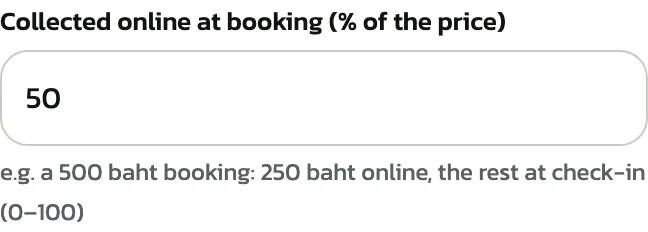
“Payment” has “Collected online at booking (% of the price)”, 100 to start with, meaning the full price is paid when booking; “Time to pay after booking (minutes)”, 15 minutes, after which the slot is released for others to book; and “Unpaid bookings per person”, 3
“Rescheduling” has “Reschedule at least this long before start (hours)”, 12 hours to start with, and “Reschedules allowed per booking”, 1. Enter 0 to stop customers rescheduling themselves. When you're done, tap “Save booking rules”
With less than 100% collected online, customers pay that share when booking and the rest at check-in. Under the field there is a worked example for a 500 baht booking
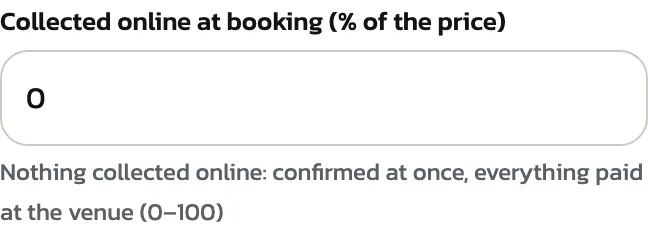
With 0, nothing is collected online: the booking is confirmed at once and everything is paid at the venue
“Cancellations and refunds”
This part sets how much customers get back when they cancel themselves. Each step has “Cancelled at least this long before play (h)” and “Refund (%)”. There are three steps to start with: 24 h, 100% back; 6 h, 50% back; 0 h, nothing back. “Customers see” shows the same table customers see when they book. The percentage is of what the customer has paid: with 50% collected online, a customer who cancels 24 h ahead gets all of that 50% back
When the venue cancels, for example to close for repairs, everything the customer paid is refunded. Cancelling from Today, staff pick credit or cash back at the counter; when a branch closes, a coach is unavailable or a class is cancelled, the customer picks credit or a transfer. The exception is a paid week of a counter regular set, which is settled at the counter
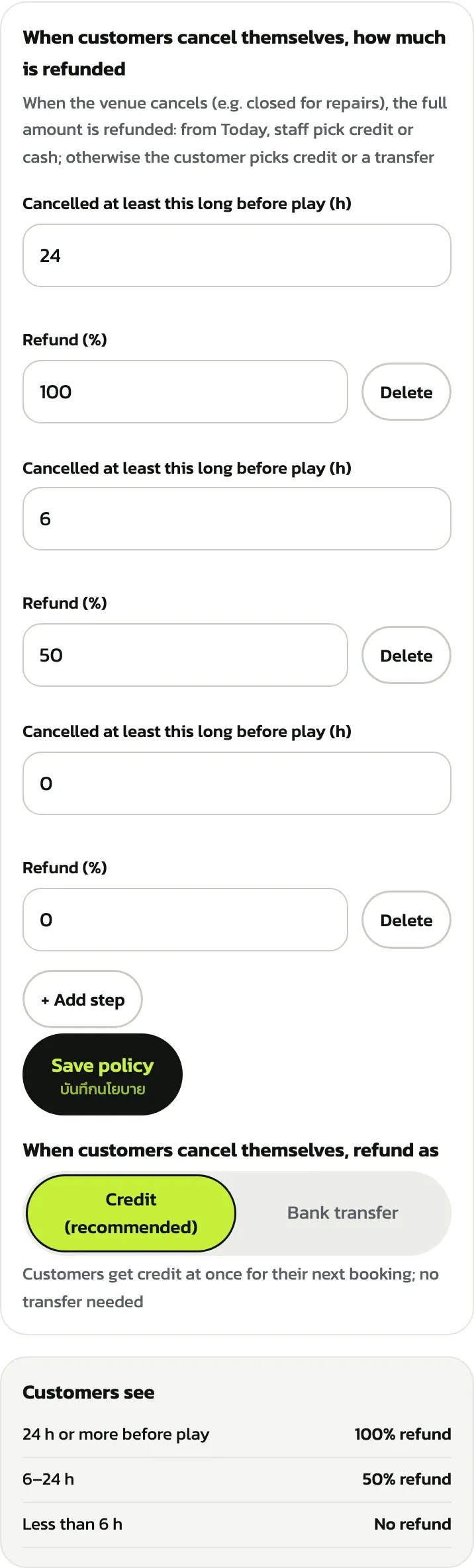
Tap “+ Add step” for up to six steps. A new step starts at 0 h, the same as the last step, so a red warning shows, “Customers see” says “Fix the steps first”, and the save button is greyed out until no two steps have the same hours. One step must stay at 0 h. Tap “Delete” to remove a step you don't need
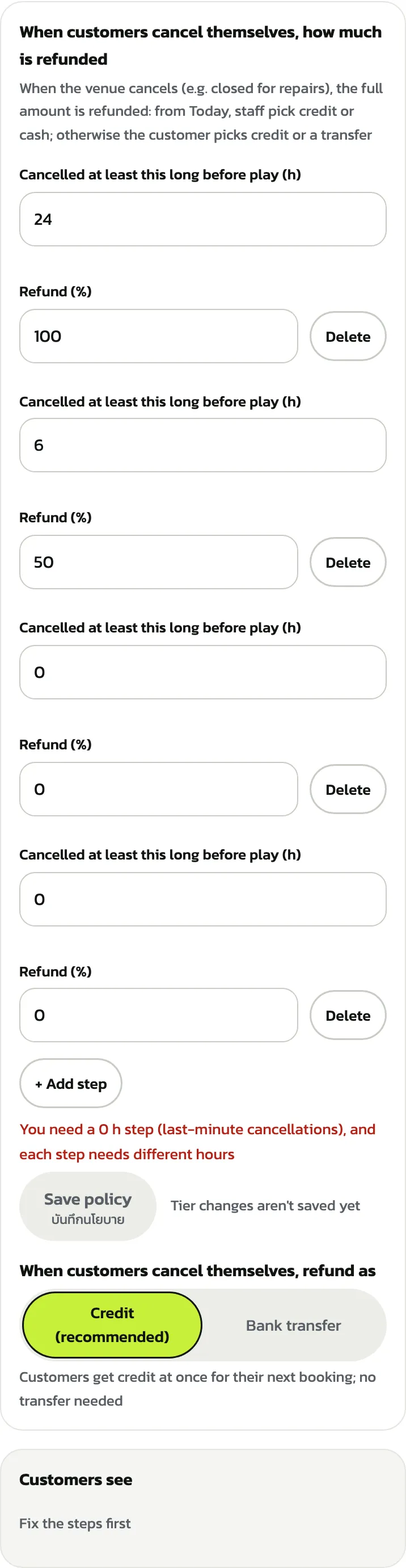
As you change the numbers, the “Customers see” table follows at once, and “Tier changes aren't saved yet” shows beside the button. This example adds 48 h with 100% back and changes 24 h to 80% back. Check the table, then tap “Save policy”
The example on this page wasn't saved, so the example venue keeps its three default steps
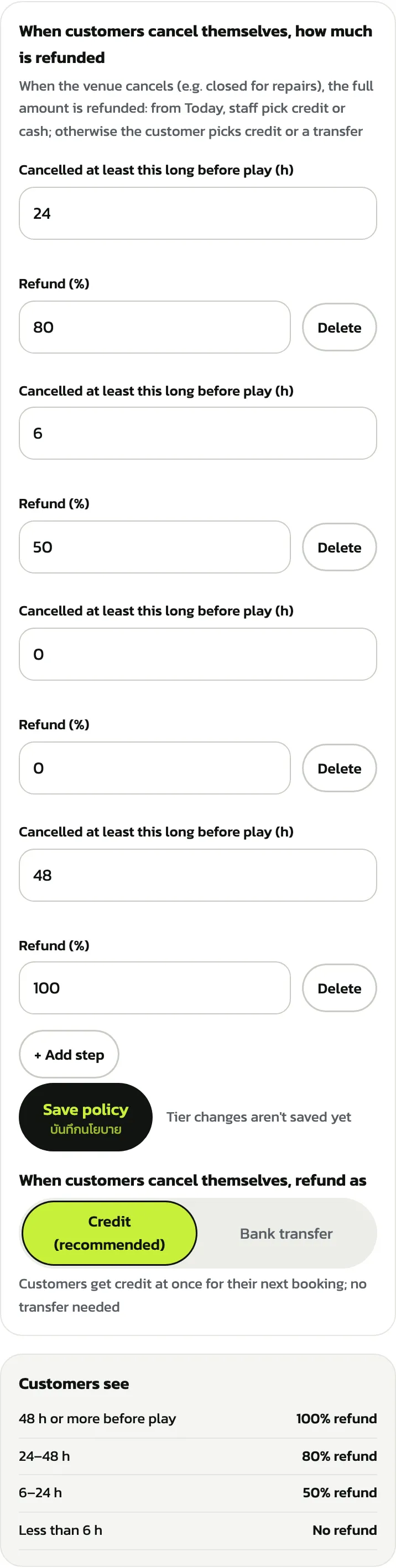
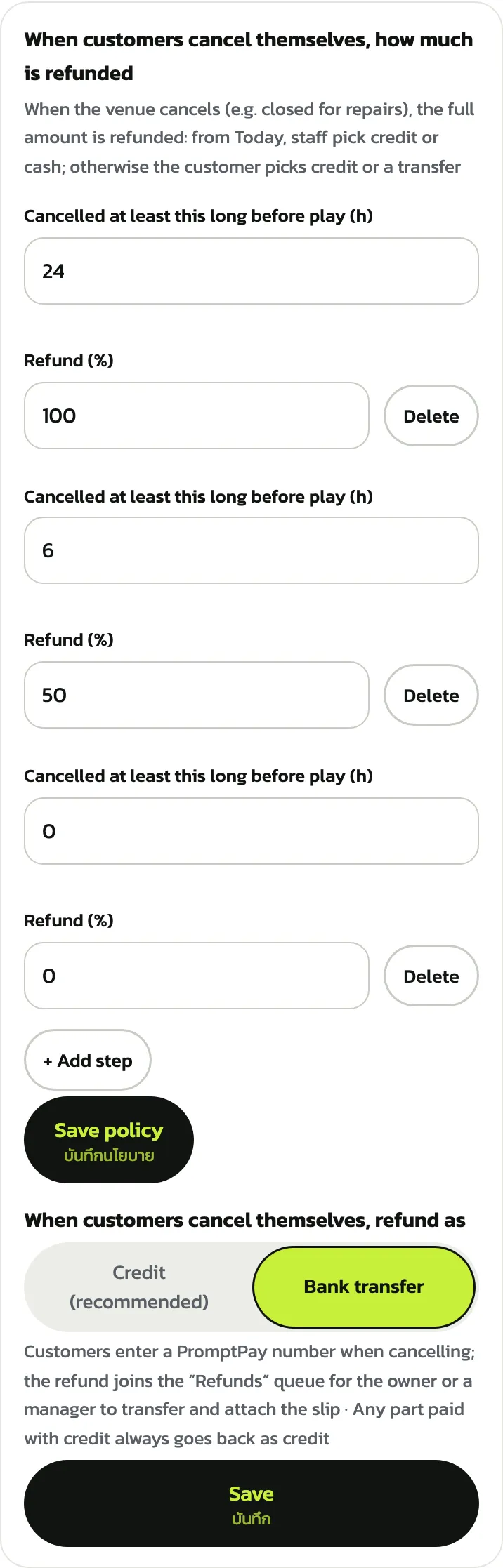
“When customers cancel themselves, refund as” has two choices. “Credit (recommended)” gives customers credit at once for their next booking, with no transfer. “Bank transfer” is only for venues paid by slip: customers enter a PromptPay number when they cancel, and the refund joins the “Refunds” queue for the owner or a manager to transfer and attach the slip. Changing the choice shows a “Save” button under it; tap it too
Any part paid with credit always goes back as credit, whichever you choose
The same tab also has the “Let customers top up credit” and “Let customers resell bookings” cards, explained in the prices and sales chapter
“Privacy”
Your venue has a standard privacy policy from day one (it shows “In use”), so you don't have to write one. Customers open it from the “Privacy policy” link when they book; the policy itself is in Thai only. “Sections the system writes” can't be edited: they follow the data the system actually keeps and update themselves when your venue details change. Tap a section to read it
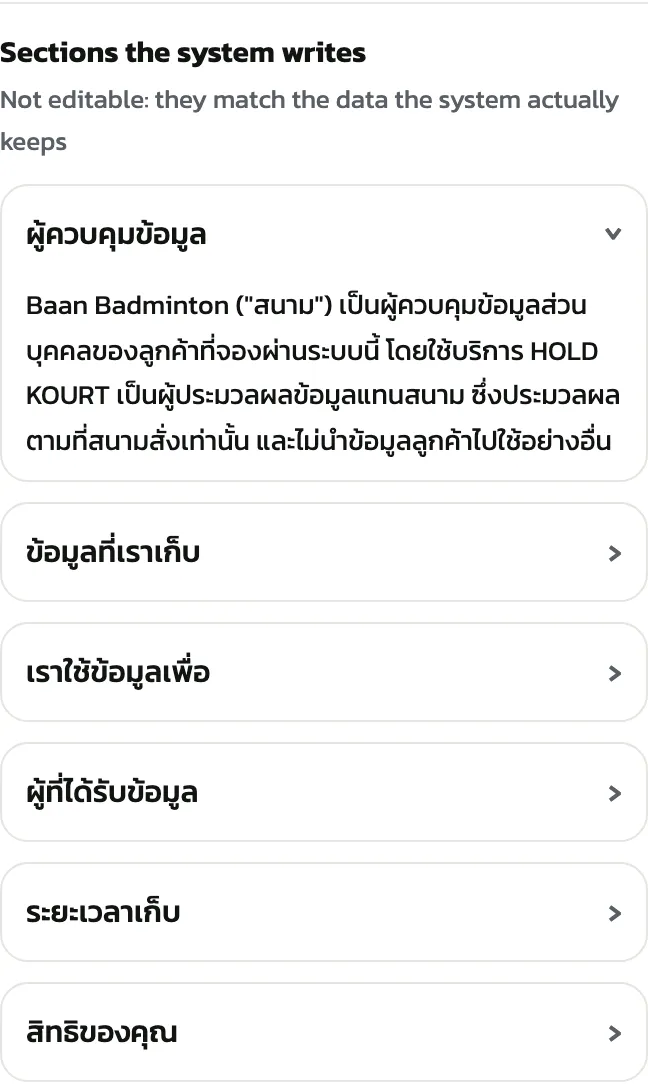
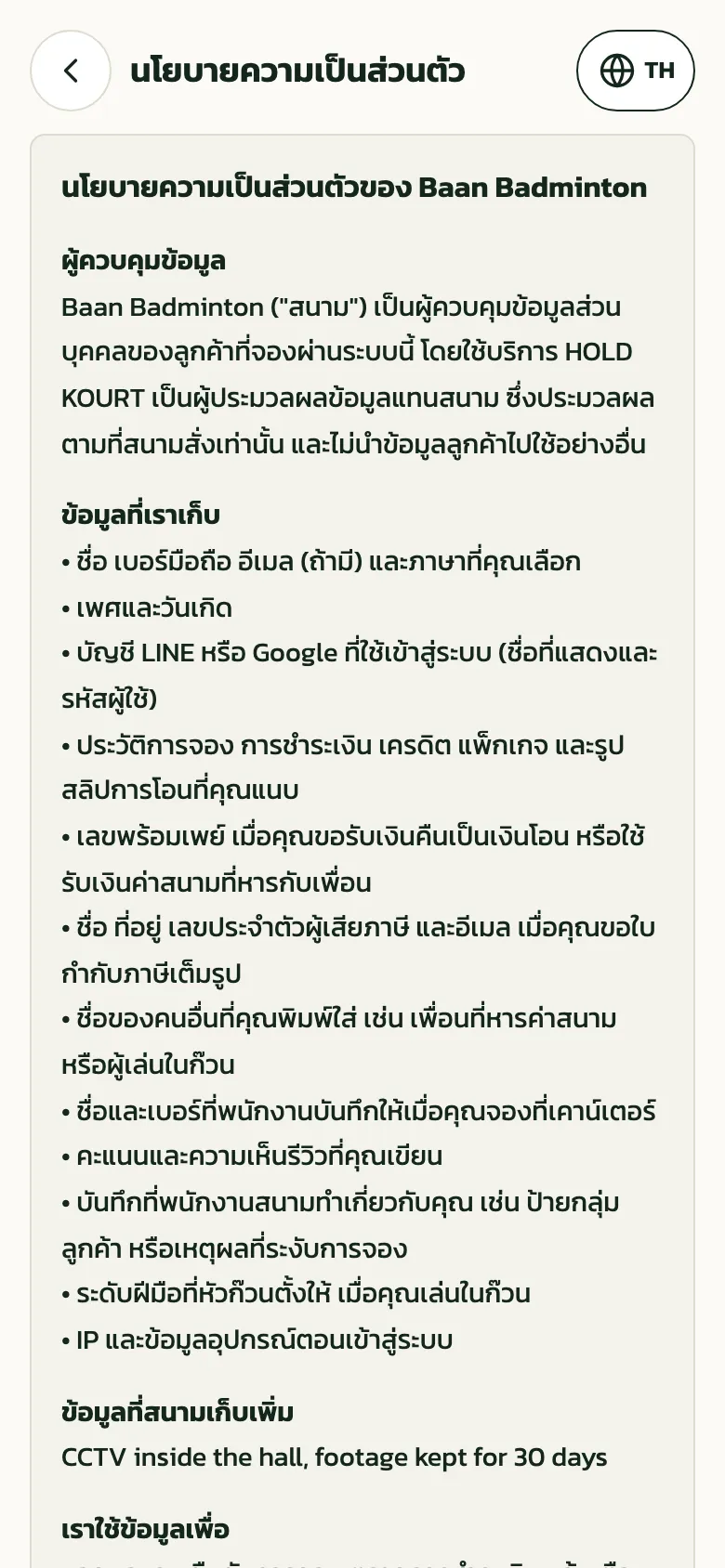
The sections the system writes are in Thai “Your venue's sections” has four fields you write yourself: “Contact for personal data requests”, “Data the venue collects outside the system”, “News and promotions” and “Additional notes”. The contact and news fields come filled in; edit them, or tap “Use default” to go back to the original text. Leave the contact field empty and the default is used; leave the news field empty if your venue sends no news. Fields marked “(optional)” can stay empty. The policy page is in Thai, so write in Thai if you can: text in another language shows a warning that customers may not be able to read it. Anyone who opens the link can read this text, so don't put anyone's personal details in it. This example adds a line about CCTV to the data collected outside the system
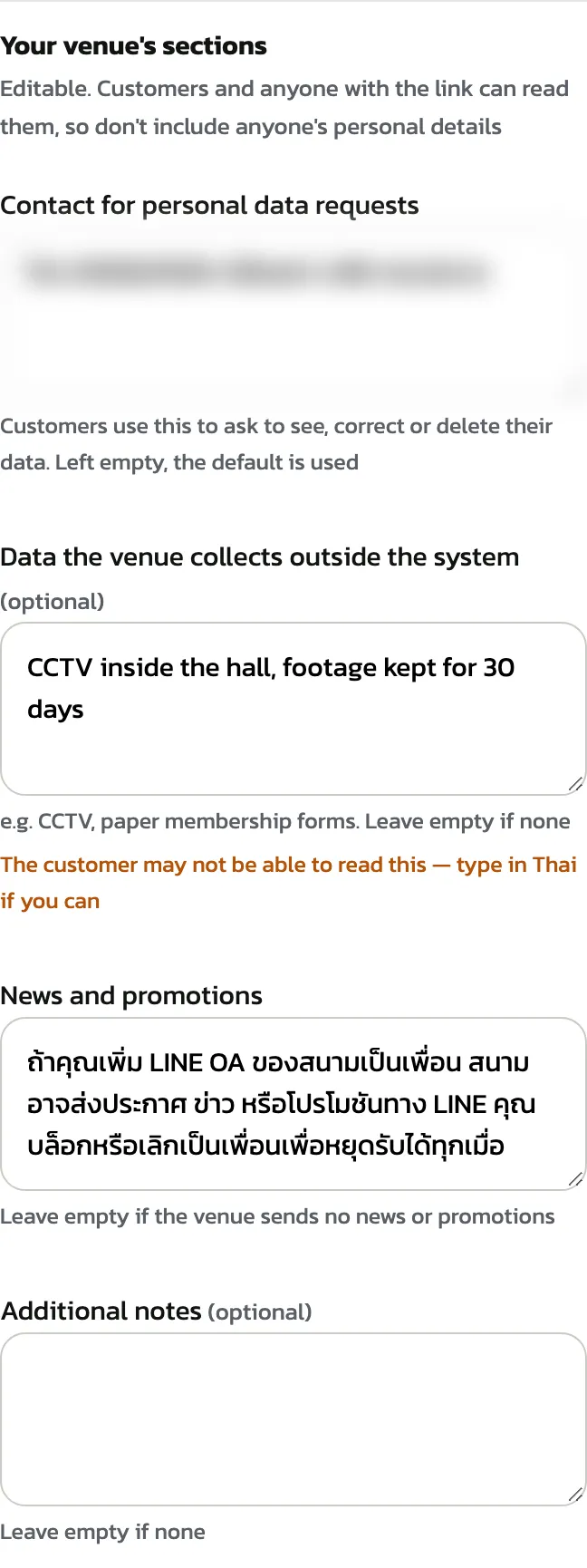
Tap “Save” under the card; it works once you have changed a field. Saving for the first time means your venue accepts the data processing agreement (DPA) with HOLD KOURT: your venue is the data controller, and HOLD KOURT processes data only as your venue instructs. It shows “Privacy policy saved”
Tap “View the customer page” to open the policy in a new tab. What you wrote sits under its own section
Customer pages are in Thai