Customers
The “Customers” page holds everyone who has booked with the venue, from LINE, the web and the front desk. The owner, managers and front-desk staff can open it; tagging, blocking online booking, merging and the credit export are for the owner and managers who look after every branch (a manager kept to some branches sees tags but can't change them). The pictures in this chapter are from a computer, where the list and the customer's details sit side by side; on a phone the details open over the list. The customers in the pictures are examples
Find a customer
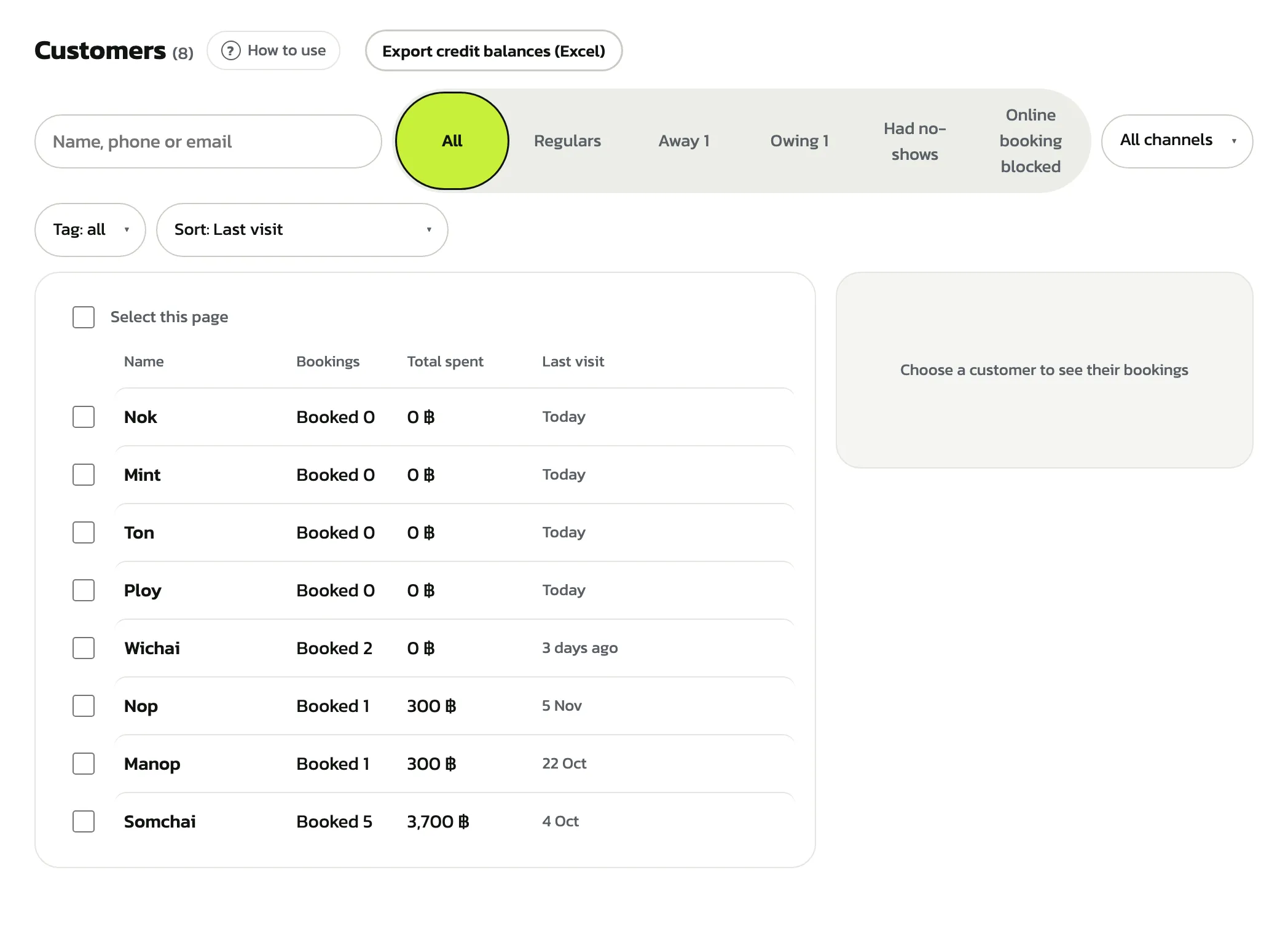
Press “Customers” in the menu. The heading shows how many customers there are. Under it are the search box, the filters “All”, “Regulars” (5 or more successful bookings), “Away”, “Owing”, “Had no-shows” and “Online booking blocked”, a choice of where customers came from (LINE, Google or the front desk) and the sort order. The owner and managers who look after every branch also get “Export credit balances (Excel)” to see every customer's remaining credit
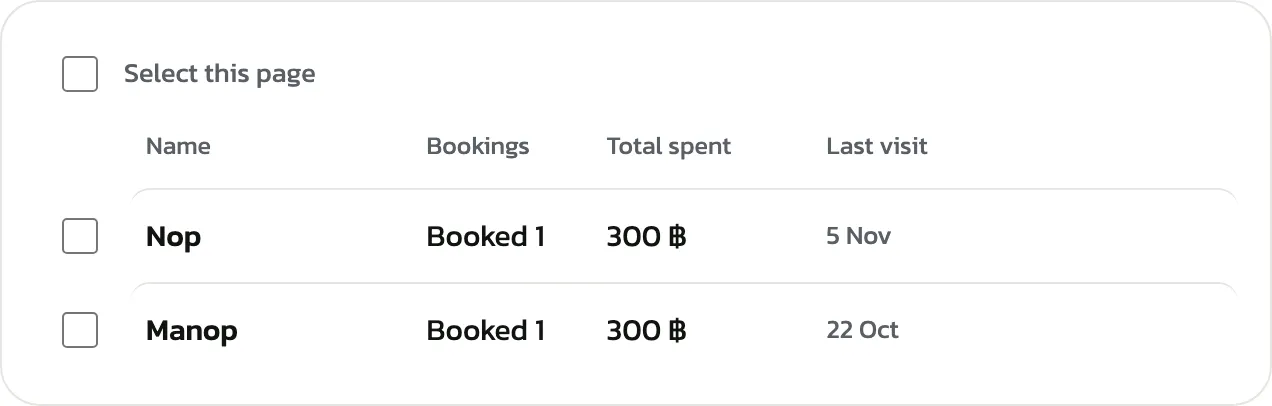
Type a name, phone number or email in the search box and only the matching customers stay
One customer's details
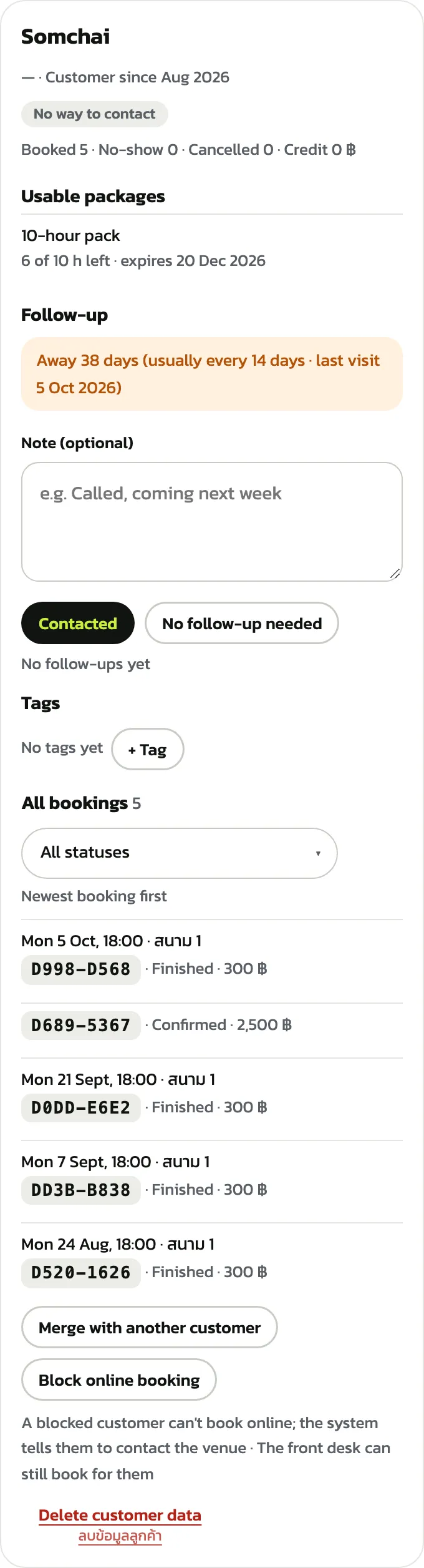
Press a customer's name to open their details on the right: successful bookings, no-shows and cancellations, credit left, “Usable packages” with the hours left and when they expire, then “All bookings”, newest first. Pick a status in “All statuses” to see only those. A customer with a phone number gets a “Phone” button
An away or owing customer with no phone number and no LINE shows “No way to contact”. Ask for a number next time they come to the desk
Customers “Owing” money
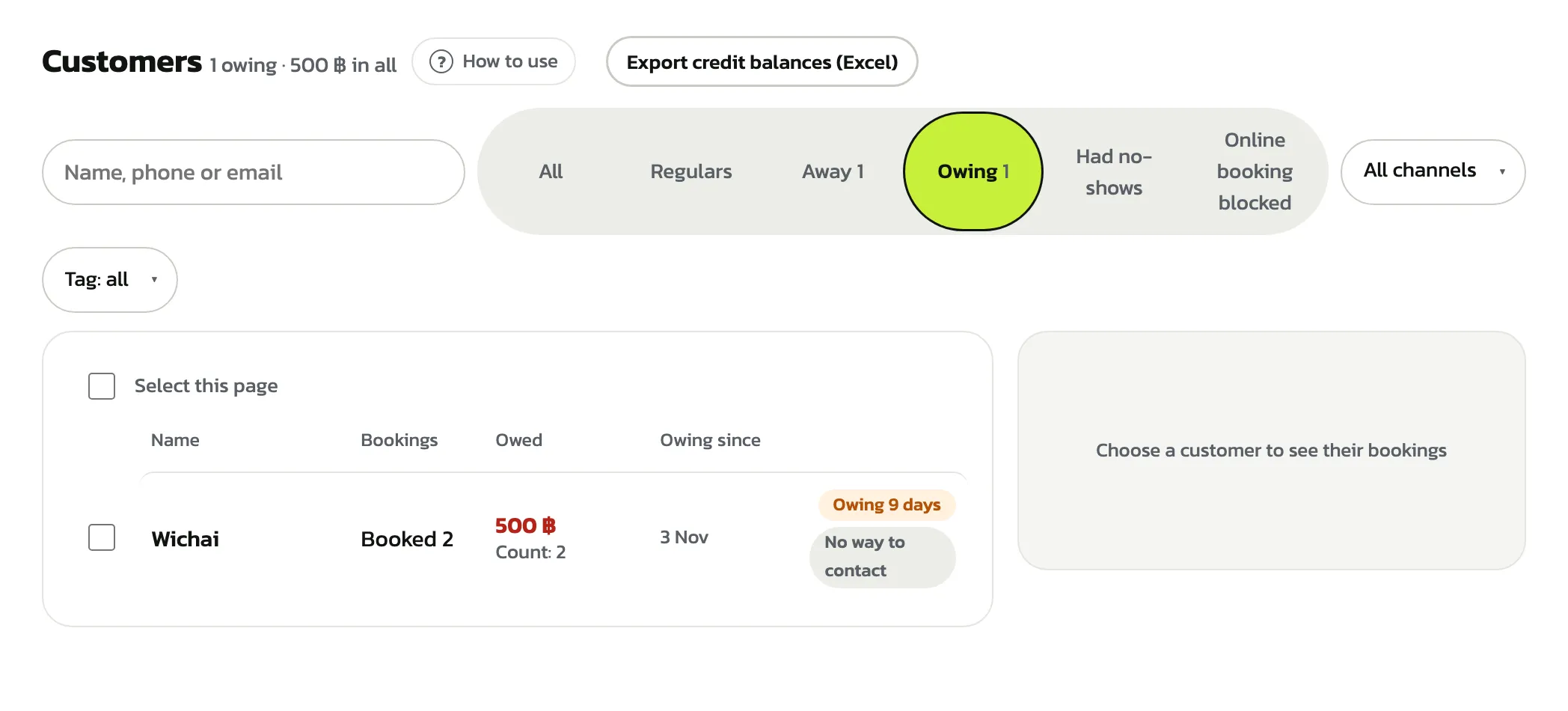
Press the “Owing” filter (the number beside it is how many customers owe). The heading shows how many owe and the total. Each row shows the amount owed, how many bookings and “Owing since”; a label says for how many days, red after 14 days. The longest owed come first
Counts bookings that have ended, aren't fully paid and haven't been closed
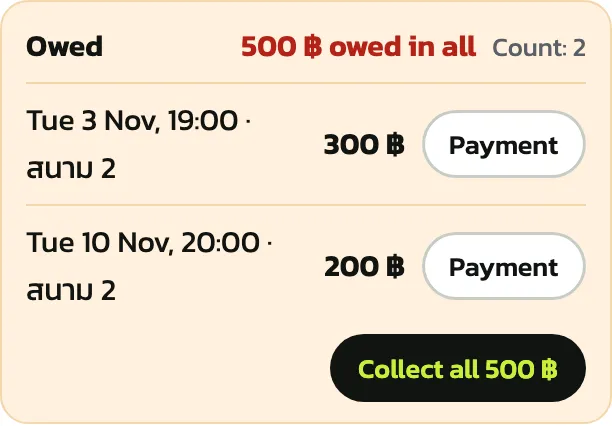
Press the customer's name. The “Owed” part shows the total and each booking. Press “Payment” on a booking to take it one at a time (part of it, or close it with a reason, as on Today's bookings)
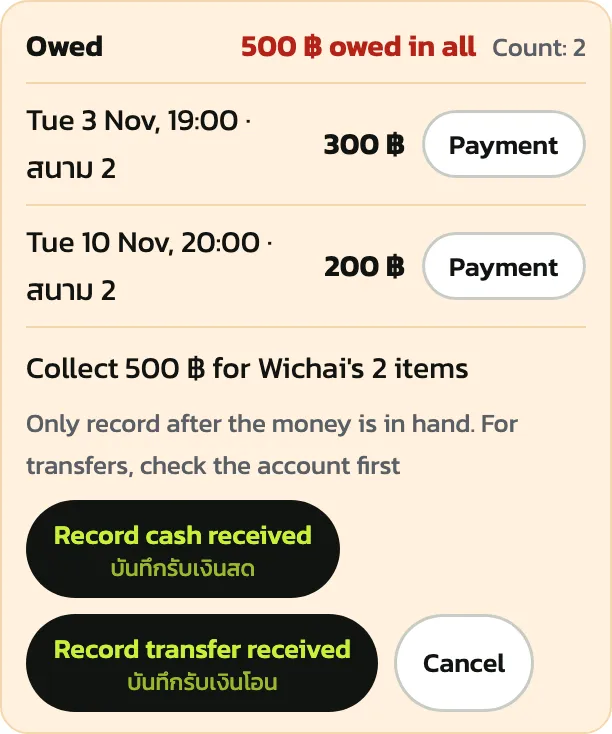
When a customer pays everything at once, press “Collect all” and choose “Record cash received” or “Record transfer received”. Every booking is recorded in one go. If someone took money for one of them first, the system asks you to look at the new amount
Record only after the money is in hand; for a transfer, check the account first
Regulars who are “Away”
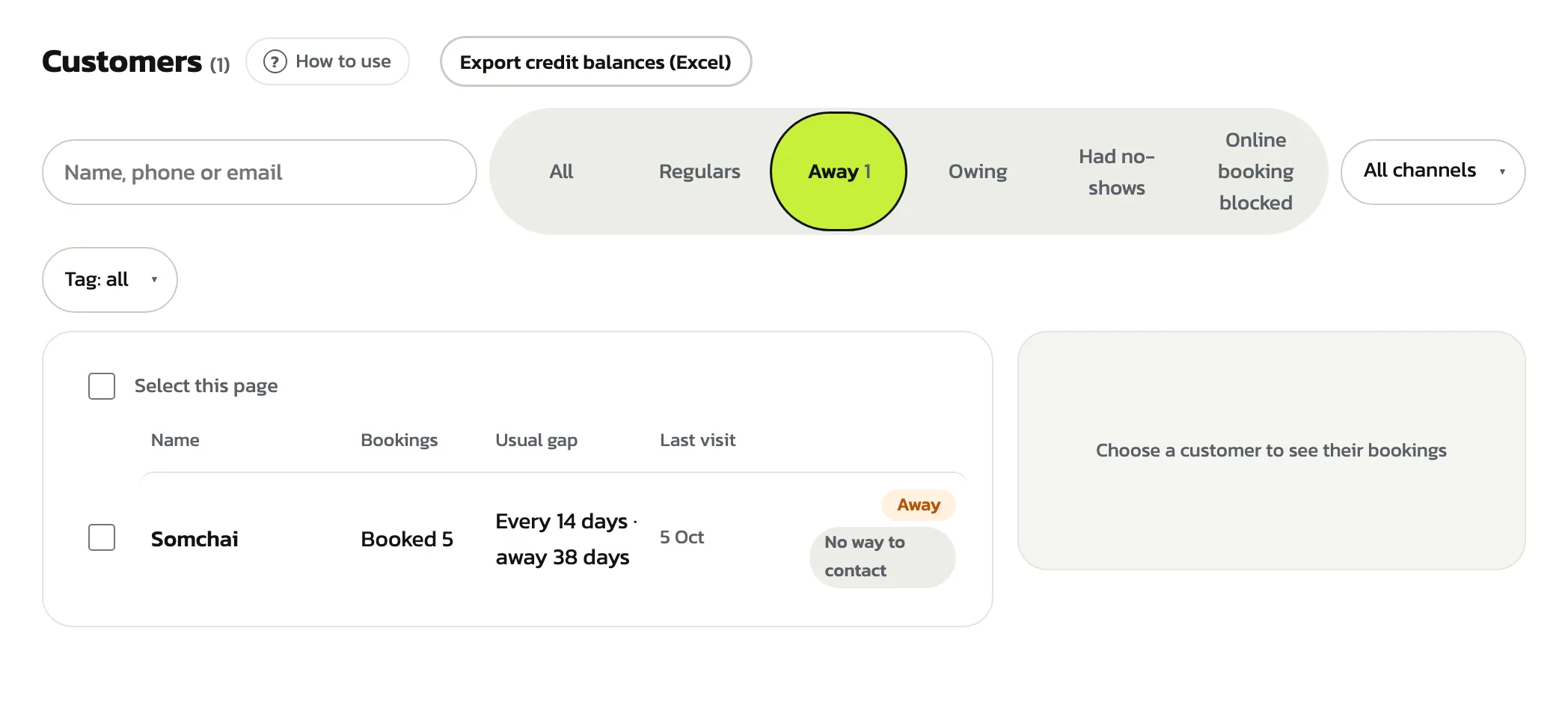
Press the “Away” filter to see regulars who have stayed away longer than usual. Each row shows the “Usual gap” (every how many days, and how long away) and the “Last visit”. The number beside the filter counts those nobody has contacted in the last 14 days
Counts customers who came on at least 3 days in the past year and have stayed away more than twice their usual gap (at least 14 days). Customers with a next booking already made aren't listed
Contact the customer (call or LINE), then press their name. In “Follow-up”, type a short note (optional) and press “Contacted”. If you needn't follow them any more, say they moved away, press “No follow-up needed”: they leave the list until they play again
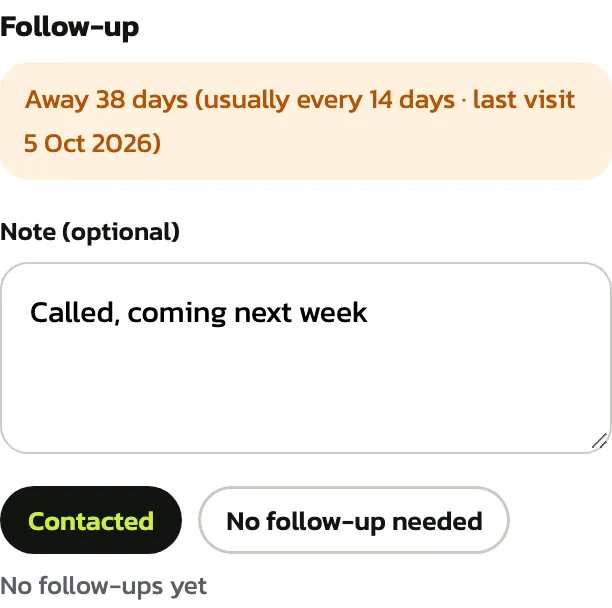
The row of someone contacted shows “Contacted” with the date, so other staff know they've been followed up. The note stays in that customer's follow-up part

Customer tags
Tags group customers, such as a morning group. In a customer's details press “+ Tag”, type the tag name and pick an existing tag or “Create tag”. Press × on a tag to remove it. Filter the list by tag with “Tag: all”
Don't put sensitive information in tags, such as health or debts

To tag several at once, tick the boxes in front of the names (or “Select this page”). The bar below says how many are chosen; pick a tag and press “Add tag” or “Remove tag”
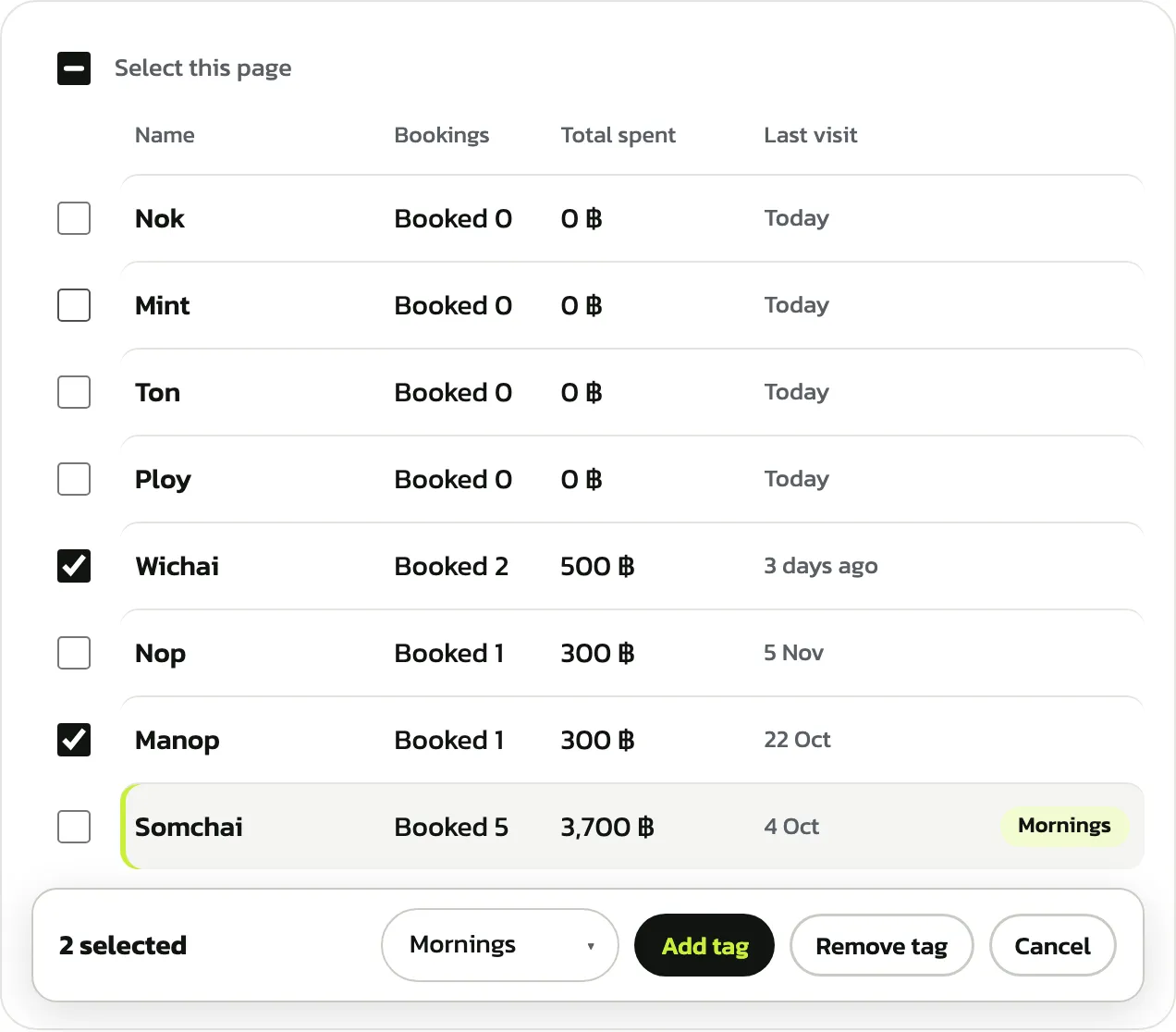
“Block online booking”
For a customer who often books and doesn't come, press “Block online booking” in their details, give a reason (other staff will see it) and press “Block online booking”
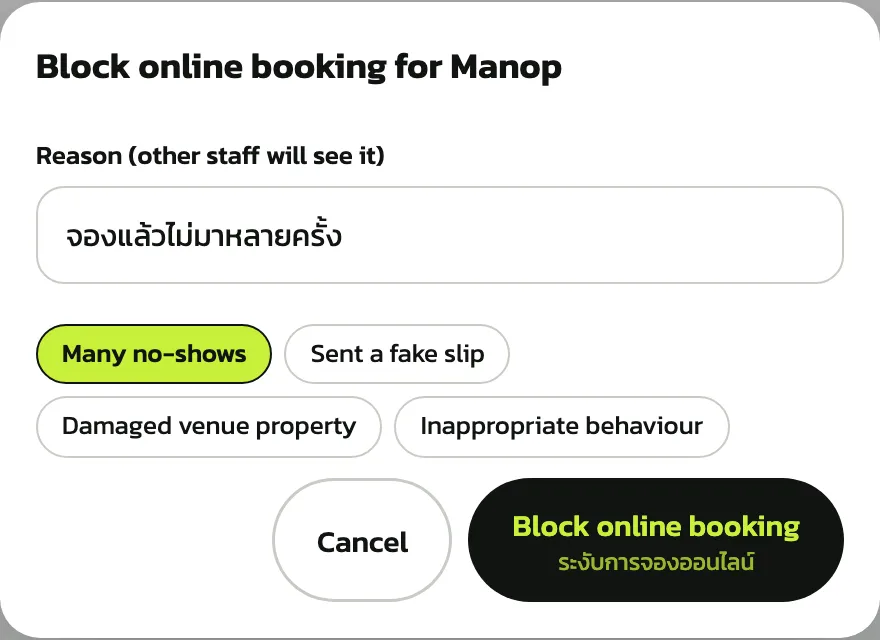
The customer's row shows “Online booking blocked” and the details show the reason, who did it and when. They can't book through LINE or the web (the system tells them to contact the venue), but the front desk can still book for them. To lift it, press “Allow online booking again”
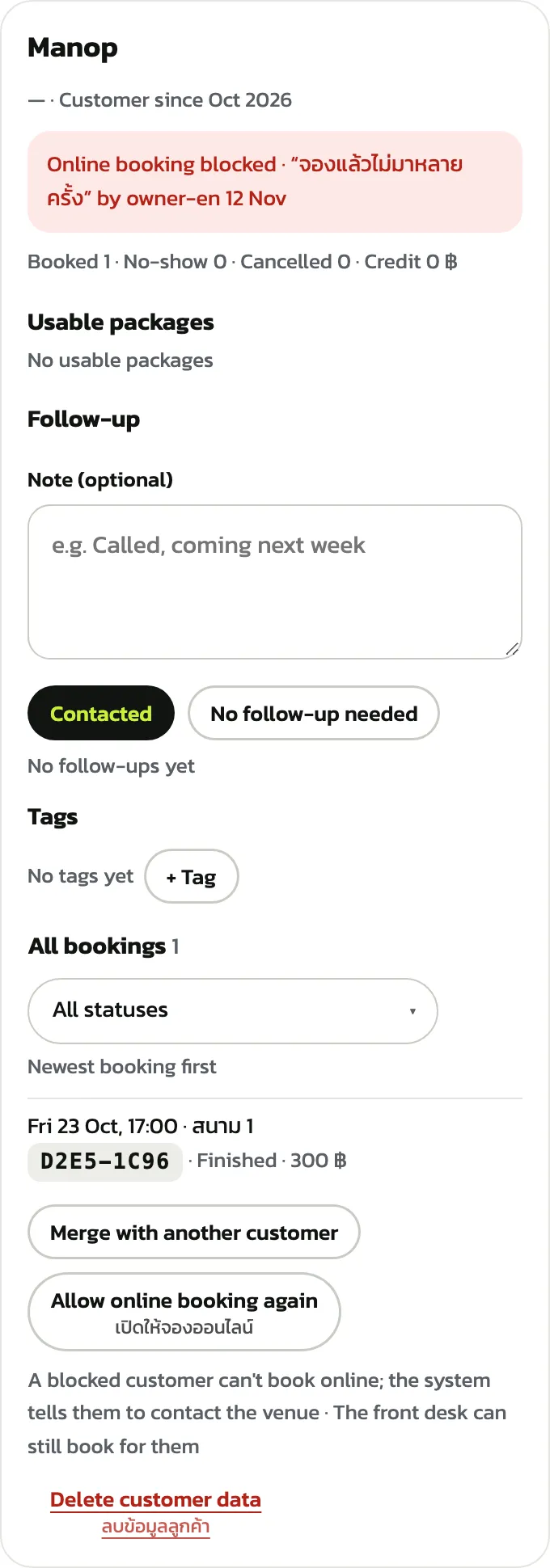
“Merge with another customer” (duplicates)
One person can have two records, say from a front-desk booking and a later LINE booking. When two records share a phone number, the details say they may be the same person: press “View”, then “Merge” beside that name. Otherwise press “Merge with another customer”, search for the one to merge in and pick them
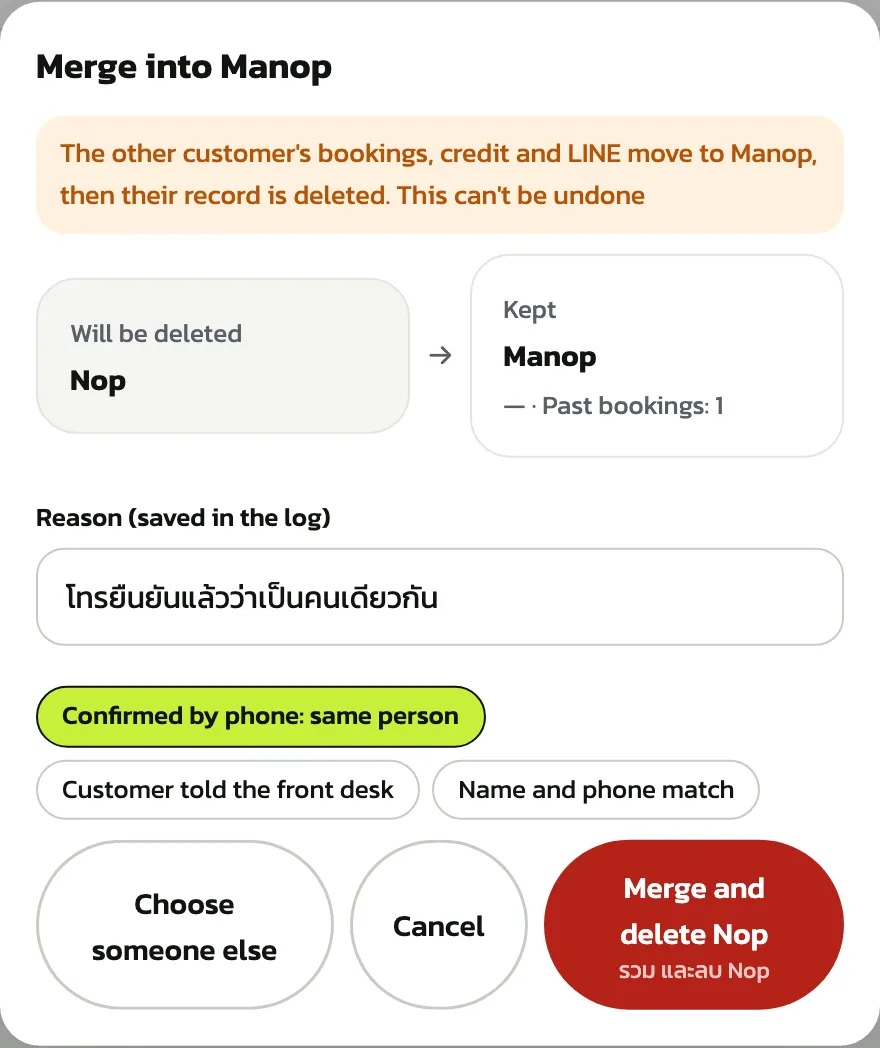
The window shows who “Will be deleted” and who is “Kept”. Give a reason (saved in the log) and press the merge button: the deleted record's bookings, credit and LINE move to the kept one. This can't be undone; picked the wrong person? Press “Choose someone else”
Two customers linked to different LINE accounts can't be merged, and a customer's own sign-in account is linked by the customer on their account page