User guide
Follow each step on the real HOLD KOURT screens, from signing up to your first customer booking.
Getting set up
 Chapter 1 of 11
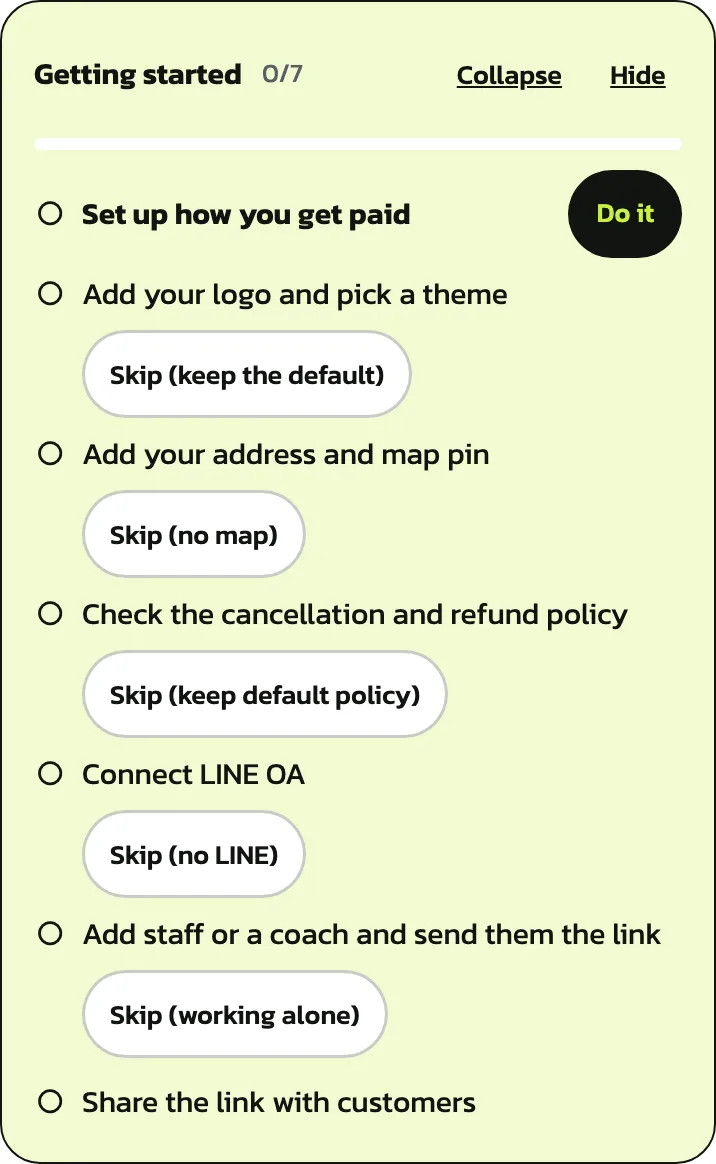
Getting started
Sign up as a venue owner, create your venue, verify your mobile, then finish the 7 steps of the Getting started card until customers can book. Every step has a real screenshot.
13 sections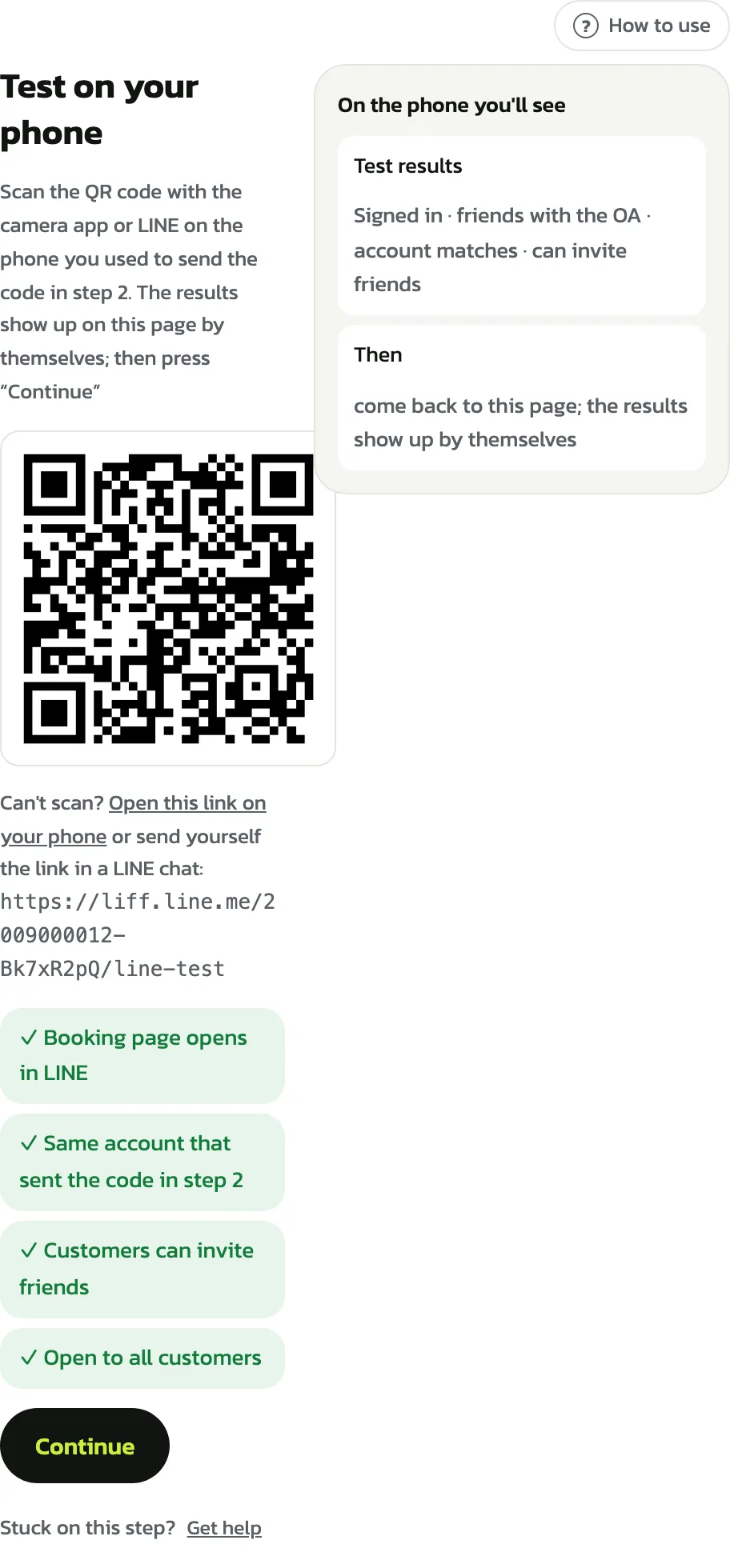 Chapter 2 of 11
Connect LINE OA
Connect your venue's LINE Official Account so customers book in LINE: turn on Messaging API, send a code from your phone, create LINE Login, test, and get your links and QR. Real screenshots at every step
10 sections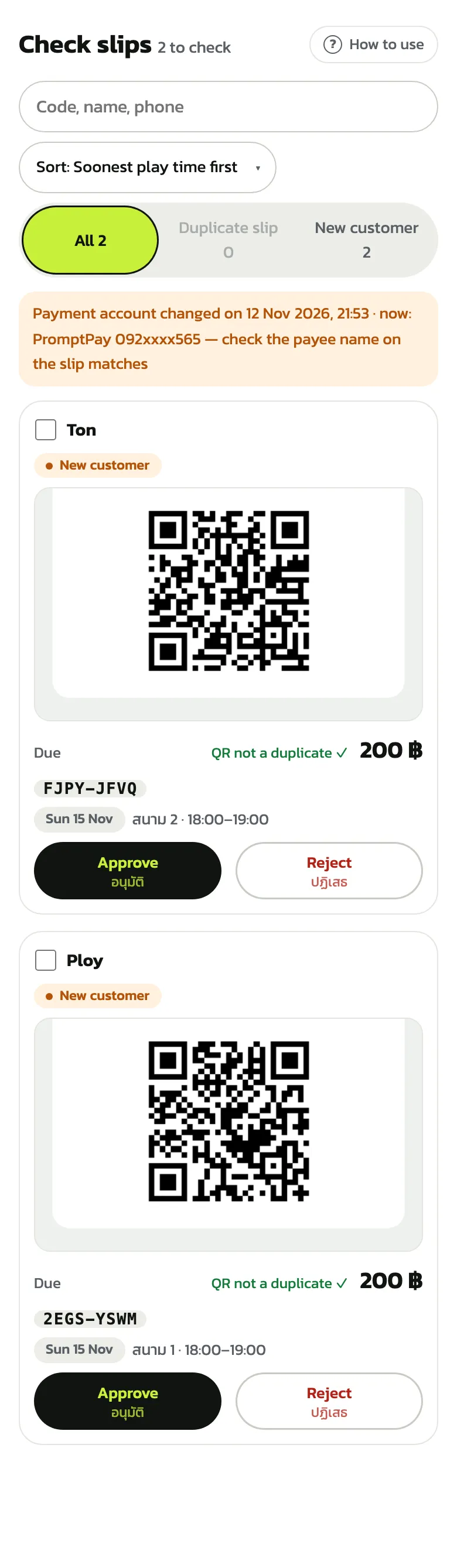 Chapter 3 of 11
Payments and tax
Customers transfer to the venue's PromptPay or bank account and send a slip; the venue checks it, approves or rejects it, catches reused slips, pays refunds back, sets up the automatic slip check and fills in its seller details. Every step has real screenshots.
7 sections
Venue settings
 Chapter 4 of 11
Courts and branches
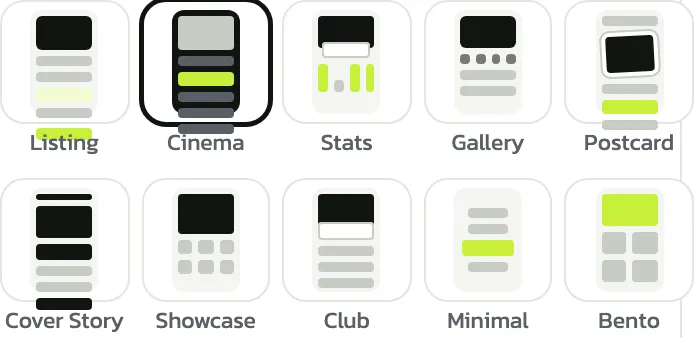
Change the venue name and URL, set opening hours per day and holidays, pick a home page and cover photos, add or delete courts, split courts in half, add sports and add-ons, and add a branch. Every step has a real screenshot
8 sections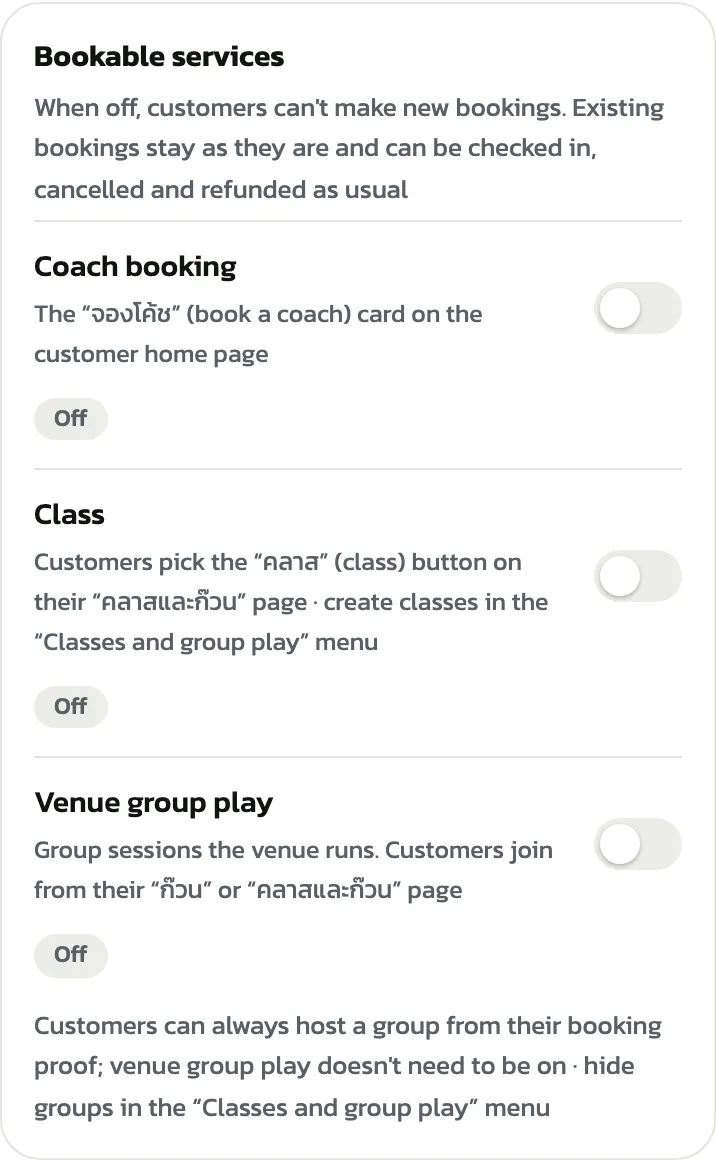 Chapter 5 of 11
Bookings and policies
Turn coach booking, classes and venue group play on or off, set how far ahead customers book, how much is paid online and how often a booking may move, set refund steps for cancellations, and add your venue's sections to the privacy policy. Every step has a real screenshot
5 sections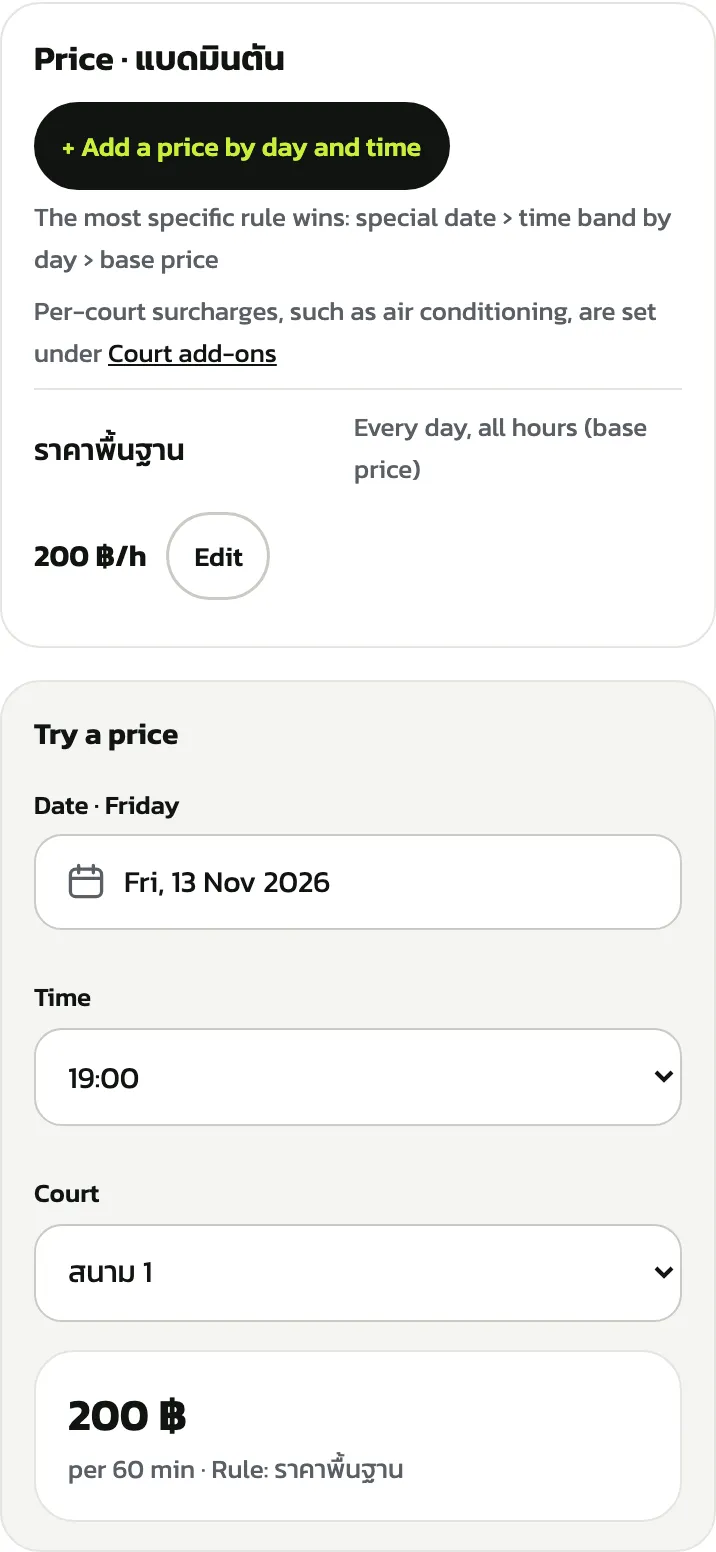 Chapter 6 of 11
Prices and sales
Set court prices by day and time, create automatic promotions, last-minute deals and coupons, sell credit, hour packs and memberships, rent out equipment, sell counter products with stock counts, and let customers top up credit or resell bookings. Every step has a real screenshot
11 sections
Day to day
 Chapter 7 of 11
Front desk
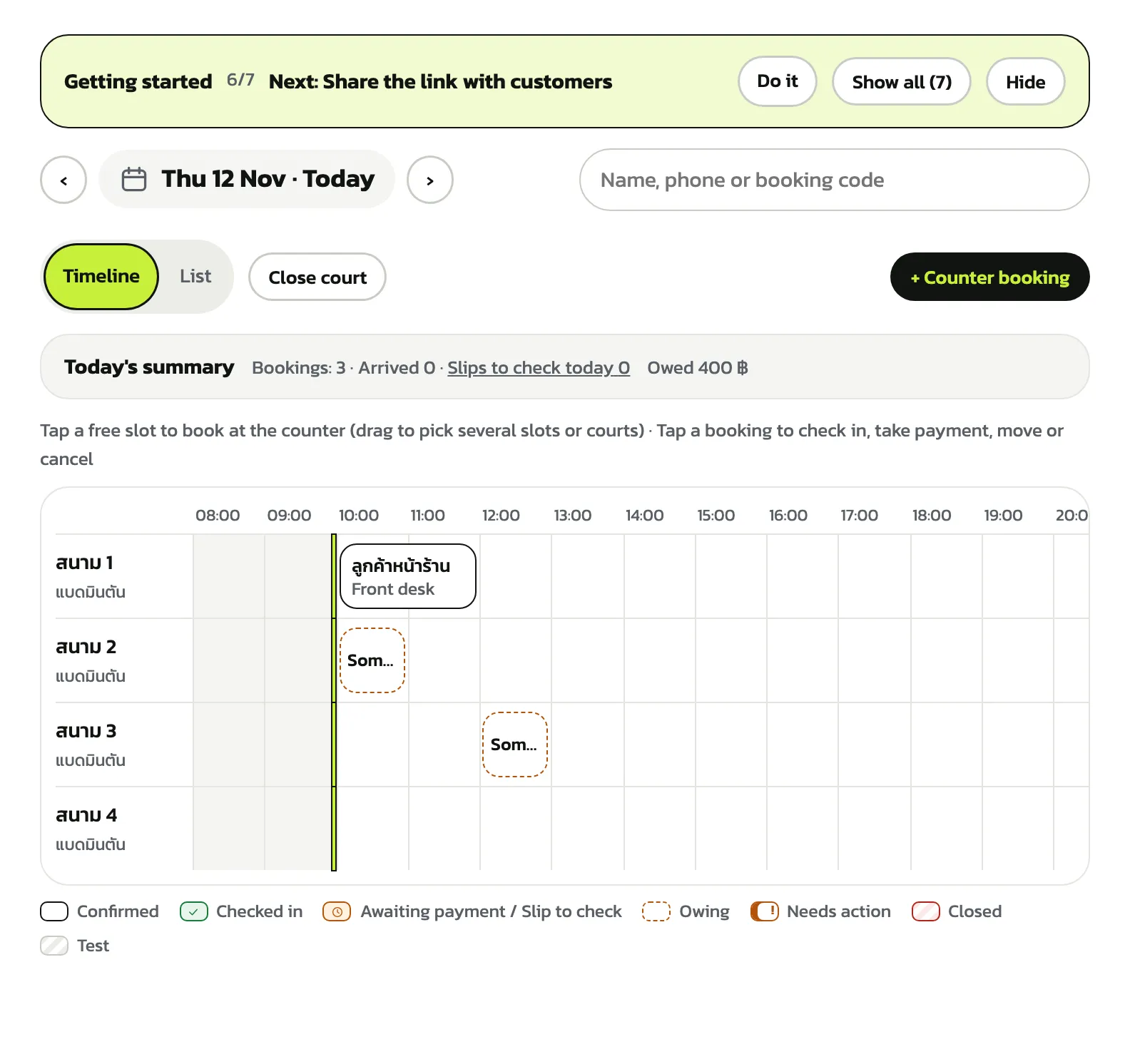
Use “Today's bookings” to book walk-ins, take money and check in, move courts, cancel and refund, close courts for a while, book regulars every week, and sell products at the counter with a daily summary. Every step has a real screenshot
11 sections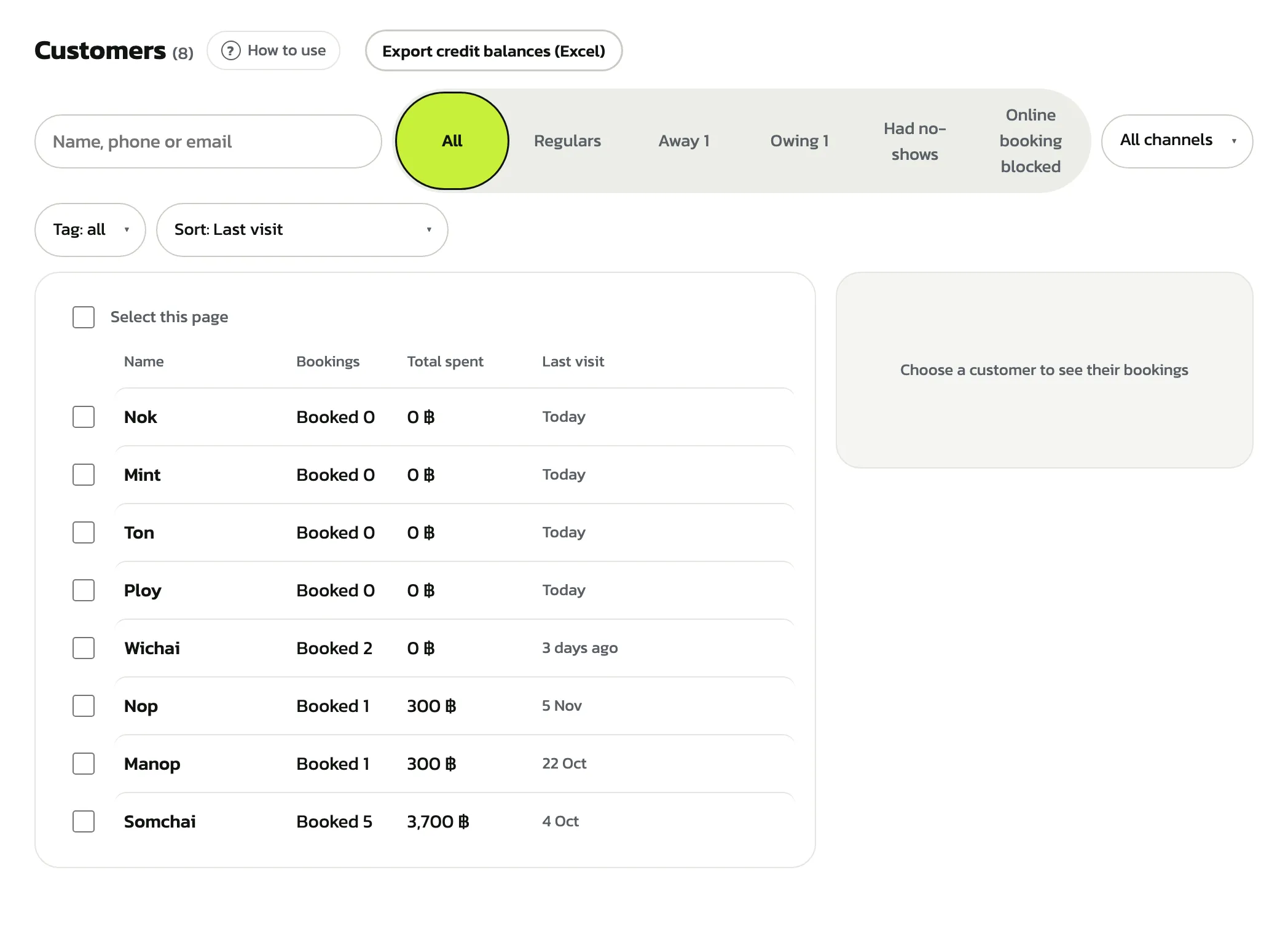 Chapter 8 of 11
Customers
Use the “Customers” page to find a customer and see their bookings and package balance, collect money customers owe, follow up regulars who stopped coming, tag customers, block online booking and merge duplicate records. Every step has a real screenshot
7 sections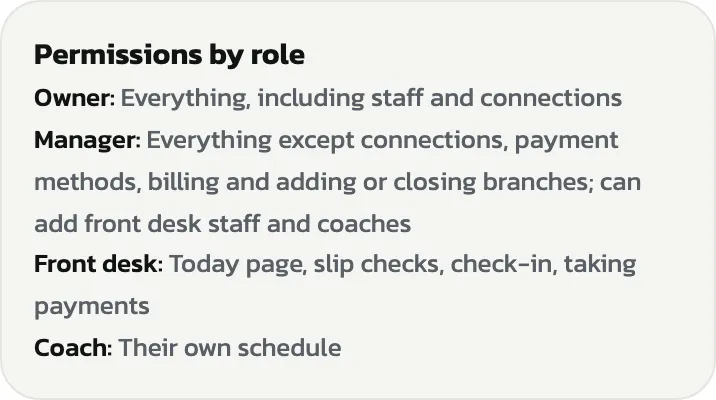 Chapter 9 of 11
Team
Run your venue's team: owner, manager, front desk and coach roles, add staff with no email using a username and temporary password, set a new password, change roles, deactivate accounts, set branches and read the activity log. Every step has a real screenshot
6 sections
Your HOLD KOURT plan
 Chapter 10 of 11
Plan and billing
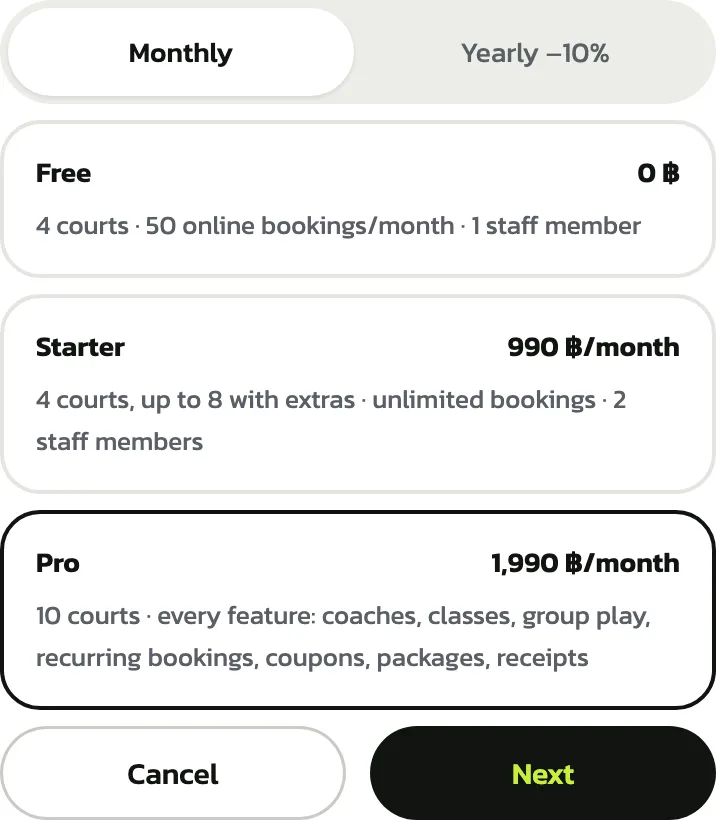
Choose HOLD KOURT's Free, Starter or Pro plan, pay monthly or yearly (10% off) by card, change or lower the plan, view receipts, and let a company ask for a yearly invoice and pay by bank transfer with withholding tax. Every step has a real screenshot.
9 sections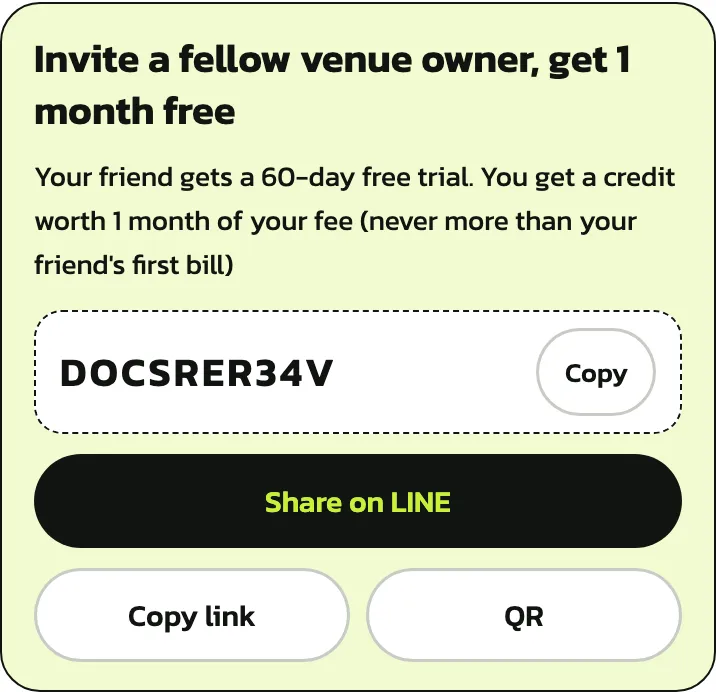 Chapter 11 of 11
Refer a friend
Share your venue's code or link with a fellow venue owner. They get a 60-day free trial; you get a credit worth one month of your fee 14 days after they pay their first bill. Follow each friend's status and see how credit comes off a card bill or a bank transfer invoice. Every step has a real screenshot.
6 sections