Plan and billing
The “Plan and billing” page is in the venue owner's menu (only the owner can open it). Use it to choose a plan after the trial, pay for HOLD KOURT and see receipts. There are two ways to pay: a credit or debit card, charged automatically every month or every year, or a yearly invoice paid by bank transfer, for companies that don't use cards. All pictures are from a phone. The provider's name, the bank account, the buying company and the slip in the pictures are examples.
The trial and the plans
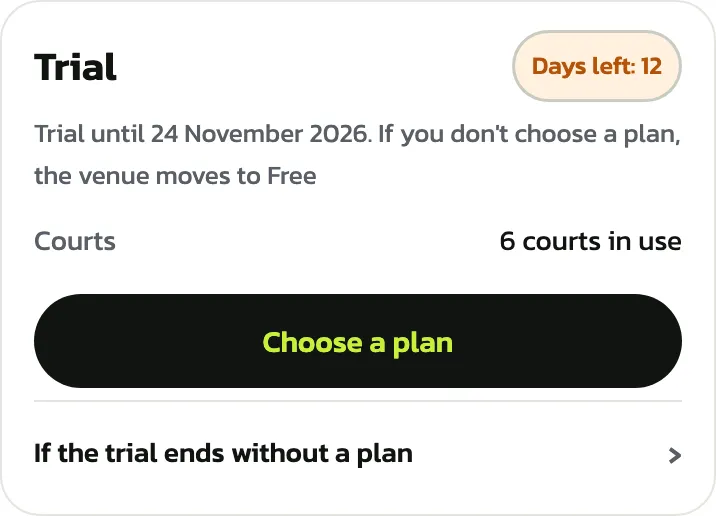
A new venue gets every feature free during the trial. Tap “Plan and billing” in the menu. The card at the top says when the trial ends, and the label at its corner how many days are left; if you don't choose a plan by then, the venue moves to the Free plan.
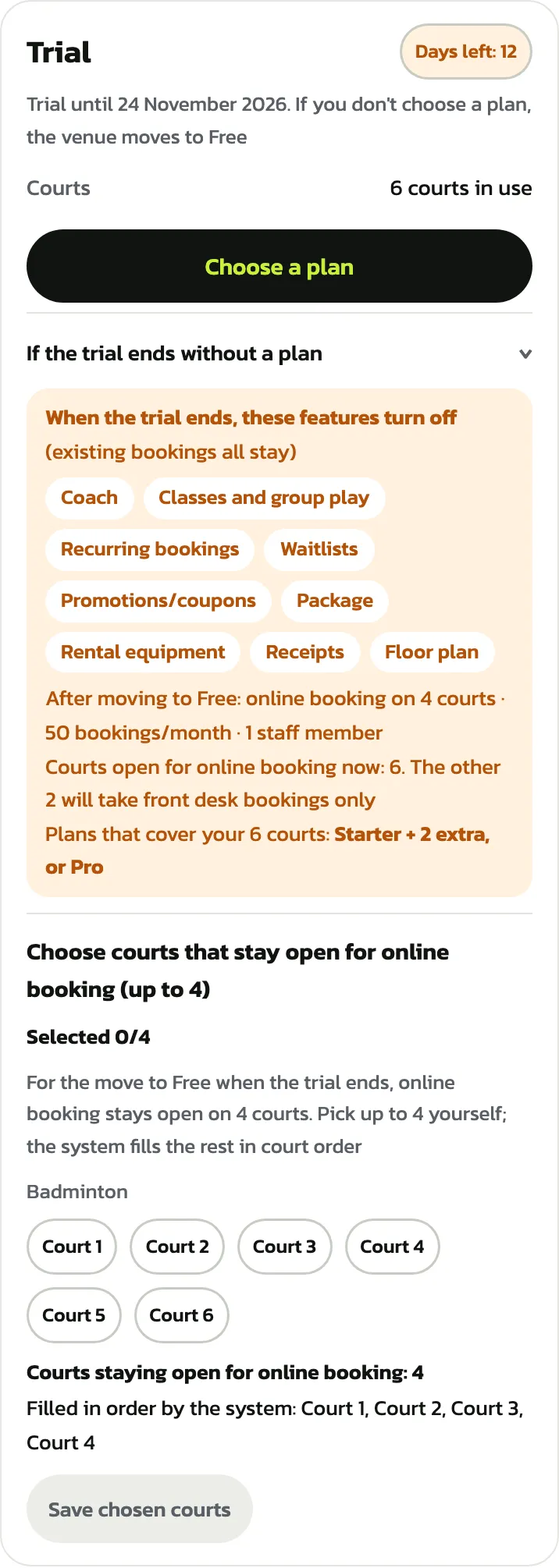
Tap “If the trial ends without a plan” to see what turns off on Free (existing bookings all stay). Free takes online bookings on 4 courts and keeps 1 staff member (the others are paused). If the venue has more courts, pick the courts that stay open for online booking and tap “Save chosen courts”; the others take front desk bookings only. If you don't pick, the system goes by court order.
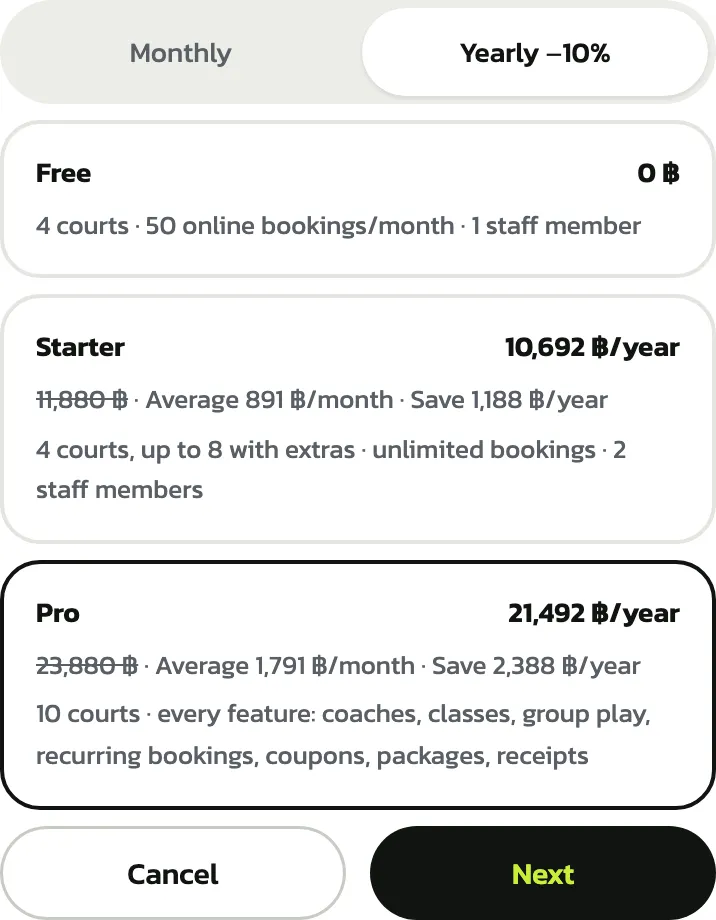
Tap “Choose a plan” to see the 3 plans: Free (0 baht, 4 courts, 50 online bookings a month, 1 staff member), Starter (990 baht a month, 4 courts and up to 8 with extras, unlimited bookings, 2 staff members) and Pro (1,990 baht a month, 10 courts and every feature: coaches, classes, group play, recurring bookings, coupons, packages, receipts). A venue with more branches uses Pro, at 990 baht a month for each extra branch.
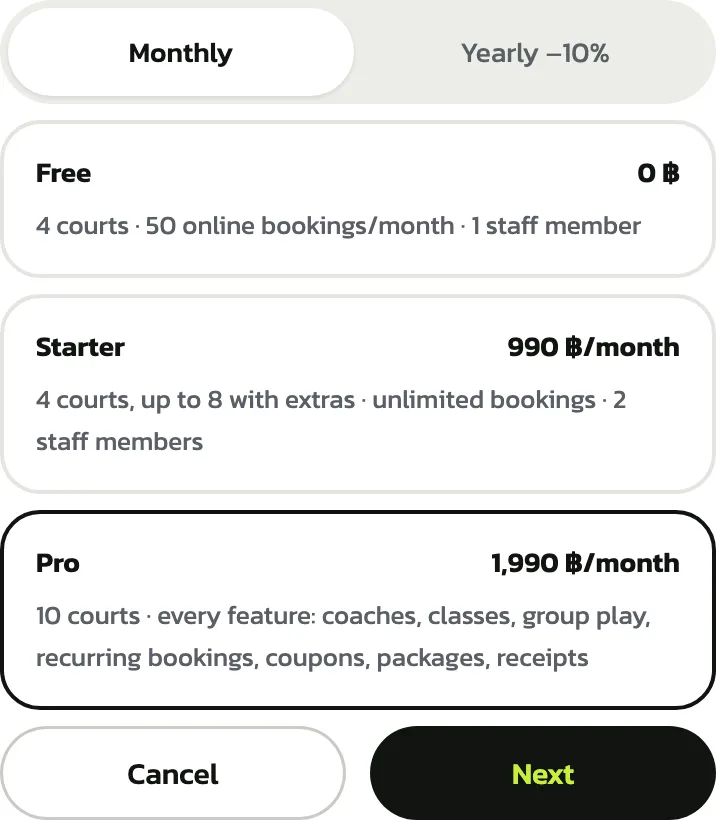
Tap “Yearly −10%” for yearly prices: one payment a year, 10% less: Starter 10,692 baht a year, Pro 21,492 baht a year (1,791 baht a month on average, 2,388 baht saved a year).
Subscribe and pay by card
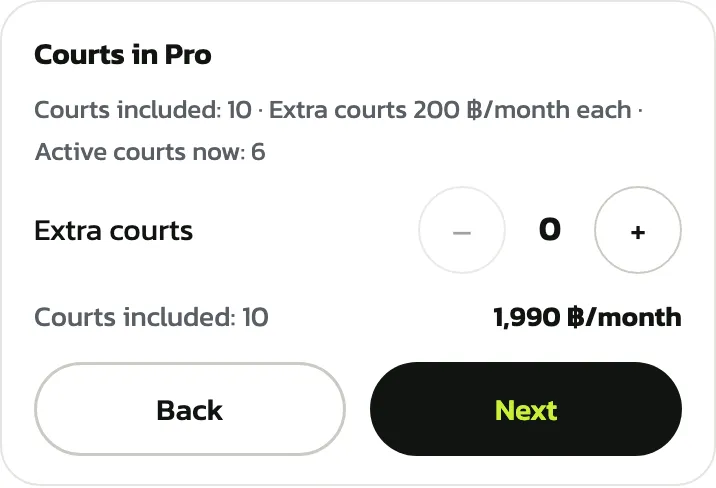
Choose a plan and tap “Next”. The courts step says how many courts the plan includes. If the venue has more active courts, the extra courts it needs are already added (200 baht a month each); tap + at “Extra courts” only to add more, then “Next”.
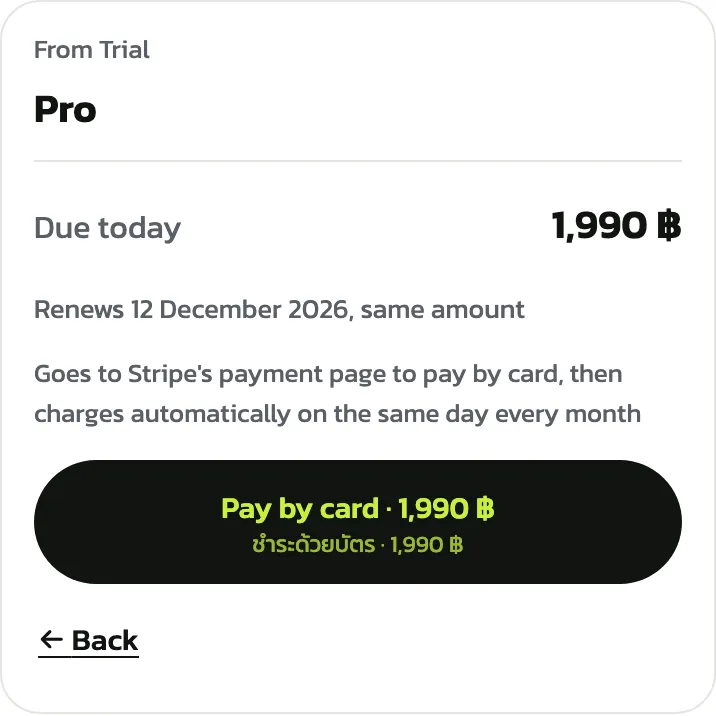
The confirm step shows what is “Due today” and the renewal date. Tap “Pay by card”: Stripe's payment page opens, you enter the card and come back to this page. The card is charged automatically on the same day every month (or every year).
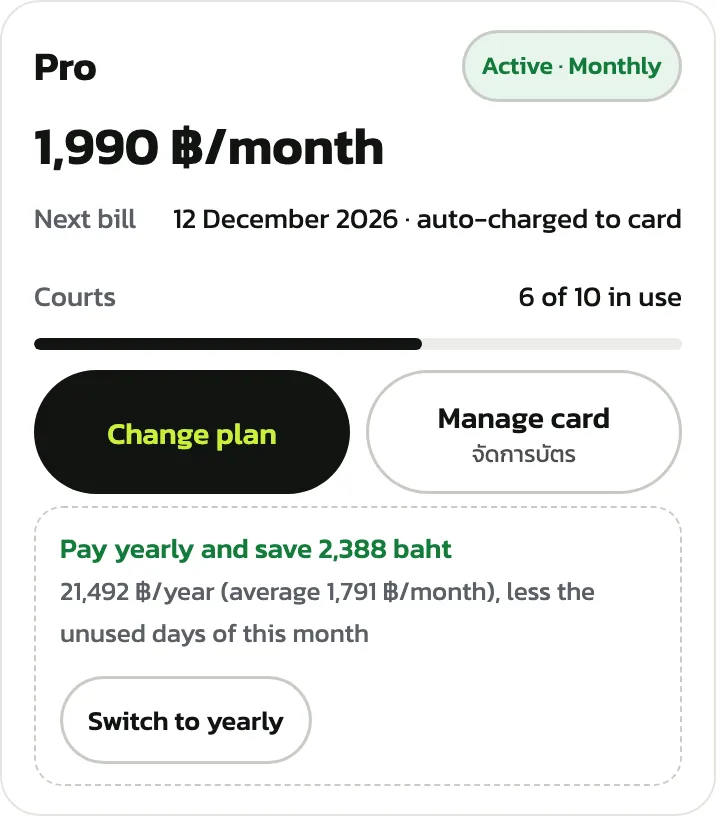
Once paid, the card shows the plan, its status (such as “Active · Monthly”), the fee, the next bill and how many of the plan's courts are in use. “Manage card” opens Stripe's page to change the card and see Stripe's invoices.
Receipts
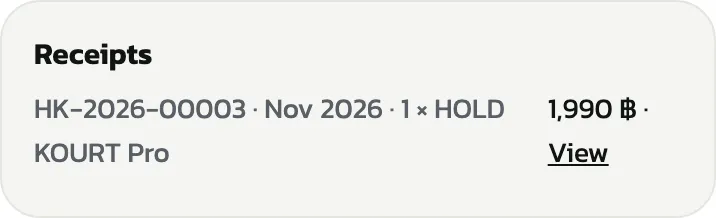
Each time the card is charged, a receipt appears under “Receipts” below the plan card. Tap “View” to open it.
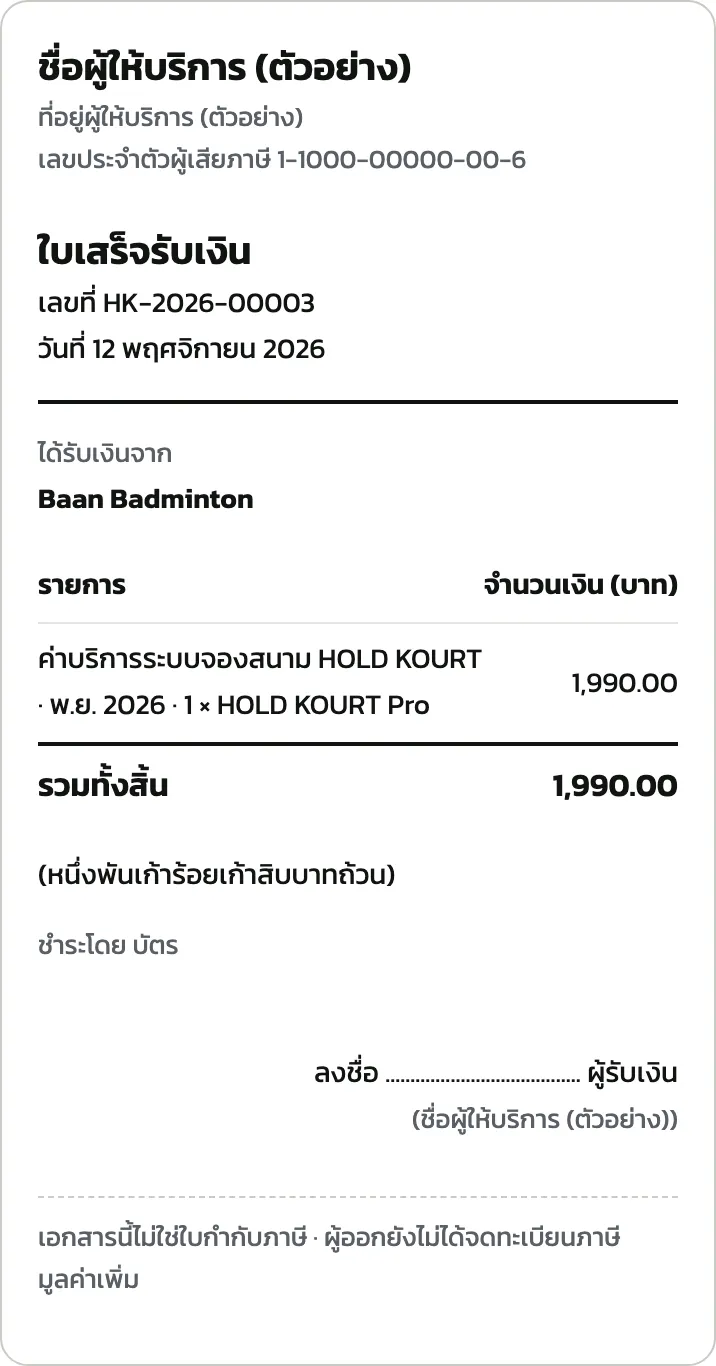
The receipt is made out to the venue and printed in Thai. Tap the print button (“พิมพ์ / บันทึกเป็น PDF”) to keep it or send it to your accountant.
The provider isn't VAT registered, so the document is a receipt, not a tax invoice.
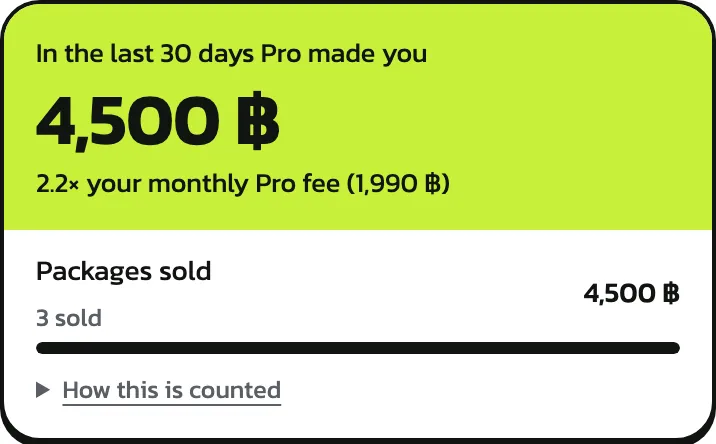
The “In the last 30 days Pro made you” card Pro
A venue on Pro sees this card when what Pro's features brought in over the last 30 days (package sales, classes, coach fees, recurring bookings, waitlists, last-minute deals, rental equipment) reaches twice your monthly fee (extra courts and branches included). It shows the total and each feature; tap “How this is counted” for what is included.
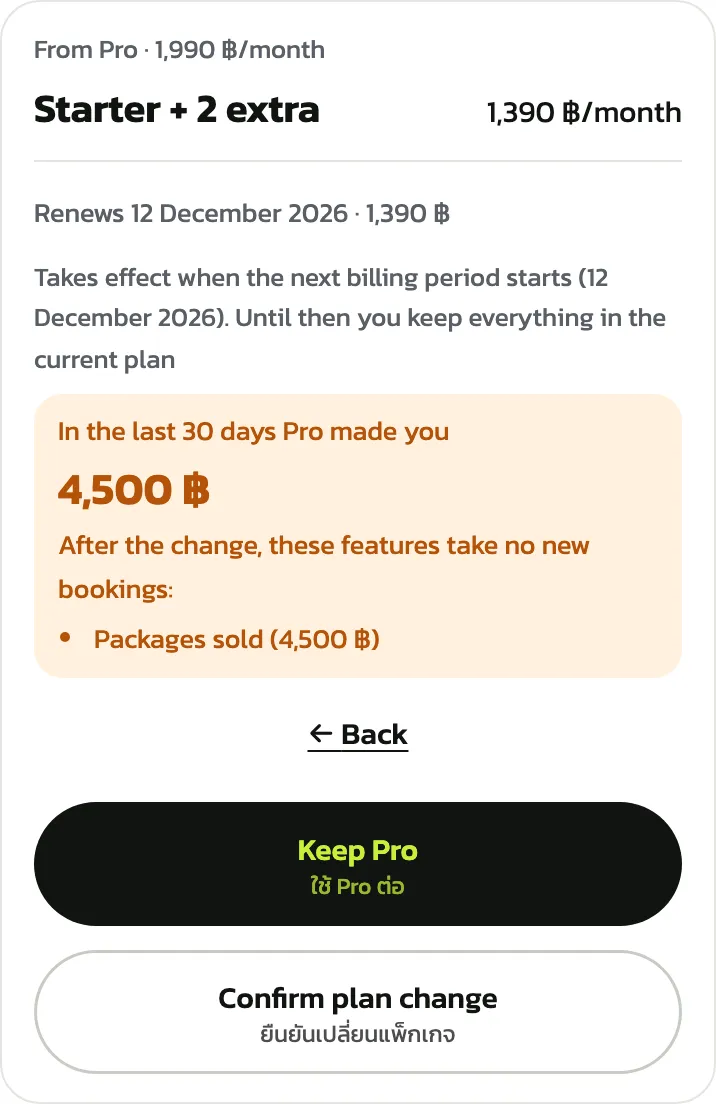
Change or lower the plan
Tap “Change plan”, then choose the new plan and the courts. A higher plan starts now: the card is charged the difference for the days left in the billing period. A lower plan starts at the next billing period (on yearly, when the year ends); until then you keep everything. If the “Pro made you” card is showing, the confirm step lists what stops taking new items after the change: tap “Keep Pro” if you change your mind, or “Confirm plan change”.
To stop paying, choose Free; it also starts at the next billing period.
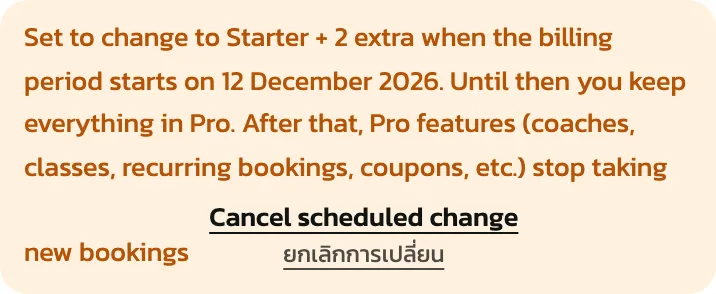
A change waiting for the next billing period shows as a box on the page. Tap “Cancel scheduled change” to keep your current plan.
Switch to yearly
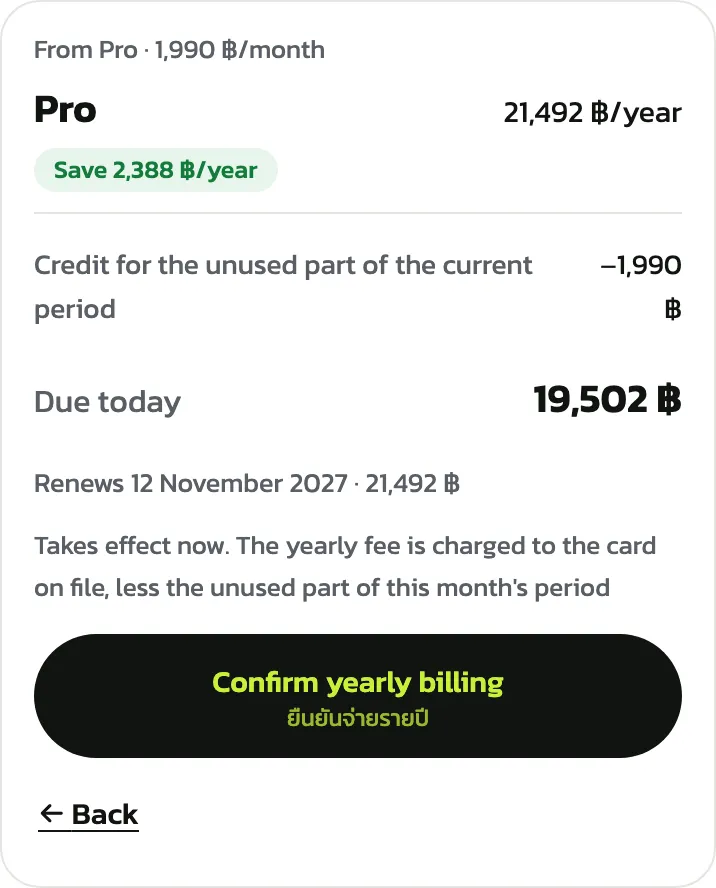
Venues paying monthly see “Pay yearly and save …” on the card. Tap “Switch to yearly”: the confirm step takes off the unused part of this month; tap “Confirm yearly billing”. It starts now and is charged to the same card.
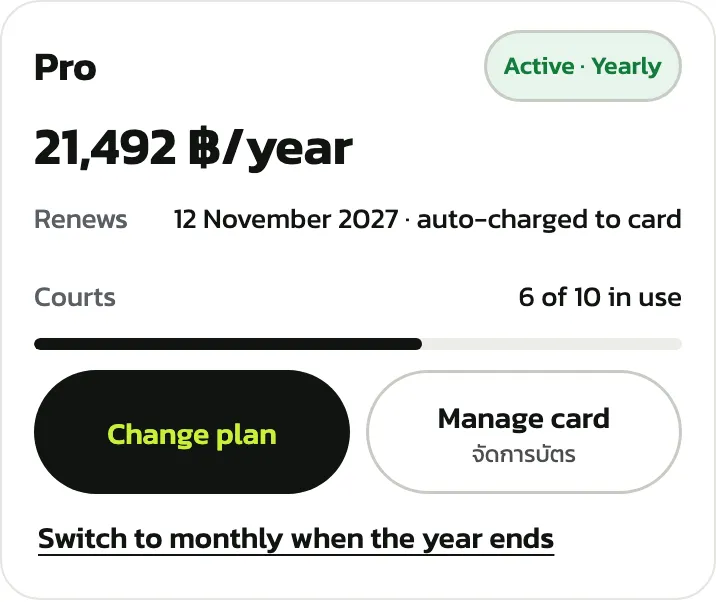
On yearly, the card shows the automatic renewal date. To go back to monthly, tap “Switch to monthly when the year ends”; it starts when the year is up.
When the card is declined
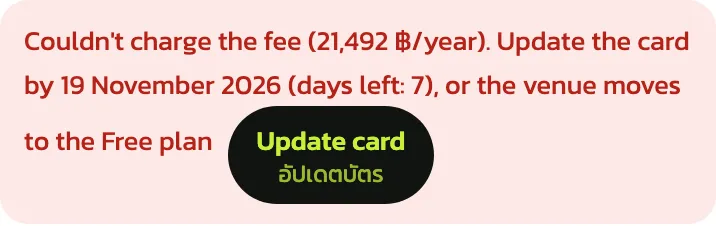
If a charge fails (an expired card, not enough credit), the page shows a red box with the last day: you have 7 days. Tap “Update card” to change the card on Stripe's page. If it still hasn't been paid after that day, the venue moves to the Free plan.
Pay yearly by transfer: “Request an invoice (bank transfer)”
A company (a juristic person) that doesn't use cards can ask for a yearly invoice in its own name and pay by bank transfer. It works while the venue isn't paying by card, once the owner has verified their mobile number.
Tap “Choose a plan” (“Change plan” on Free), pick “Yearly −10%”, the plan and the courts, then “Next”. On the confirm step, under “How to pay”, pick “Invoice, bank transfer”, then tap “Request an invoice (bank transfer)”.
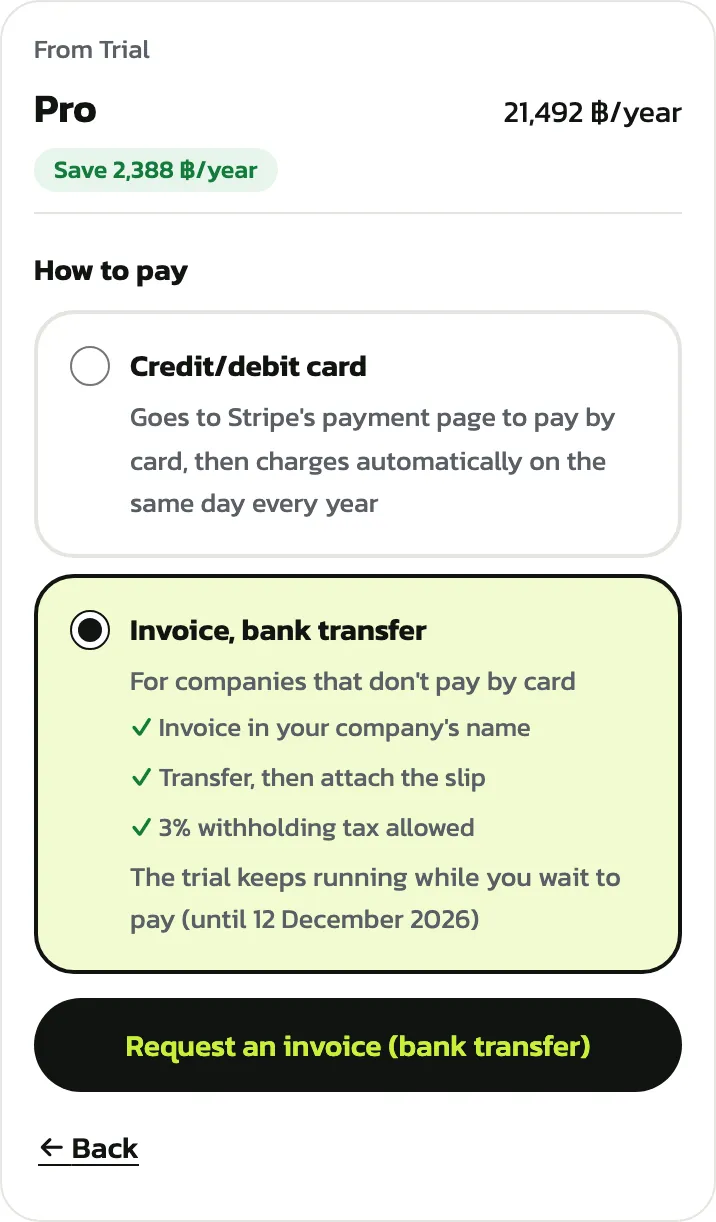
Fill in the “Buyer details” as on the company certificate: the registered name, the tax ID, head office or branch, and the address. Add an accounting email if invoices and receipts should go there too. Choose the withholding tax: “Withhold 3% and send a 50 Tawi certificate” or “No withholding tax”. The amount to transfer shows below; tap “Create invoice”.
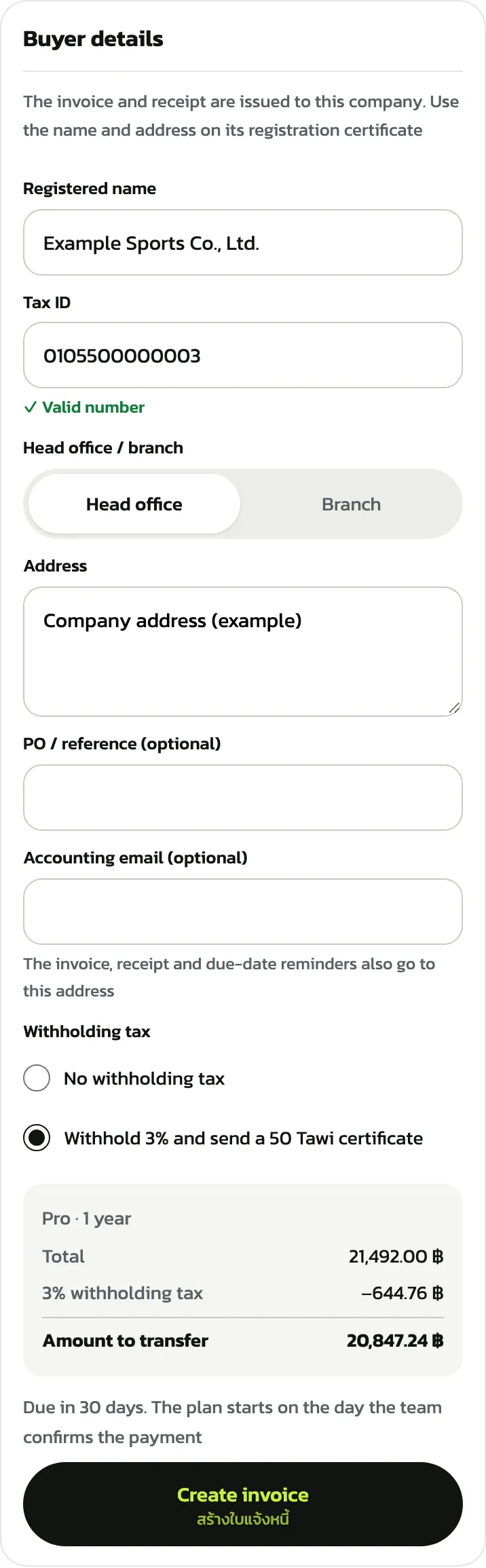
The invoice page shows the amount to transfer and the account to transfer to (“Copy” copies the account number, the amount and the invoice number; put the invoice number in the transfer note). It is due in 30 days, and while you transfer the trial doesn't end before the first invoice's due date. Tap “View / print invoice” if your accountant needs the invoice.
The plan starts on the day the team confirms the payment; trial days left aren't added.
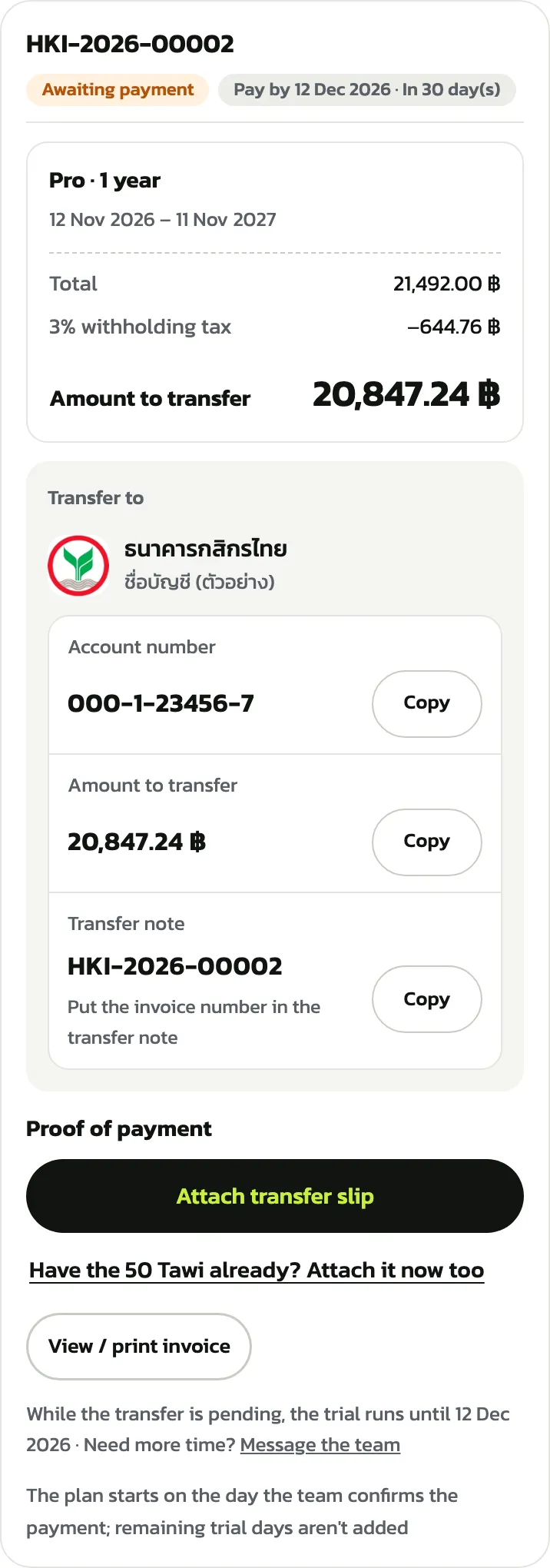
After transferring, tap “Attach transfer slip” and pick the slip picture; the team checks it within 1 business day. If you withheld tax, send the 50 Tawi with “+ Attach 50 Tawi (image or PDF)”, with the slip or later.
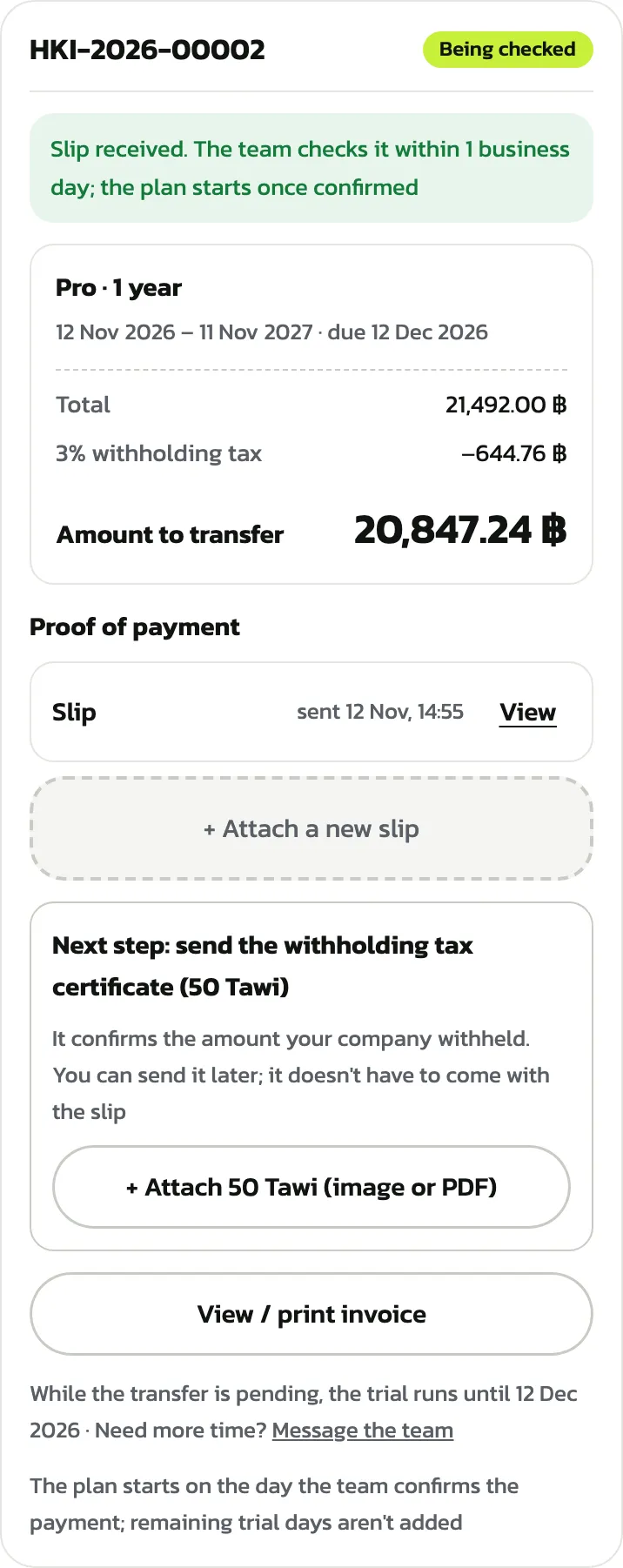
During a year paid by transfer
Once the team confirms the payment, the card shows “Paid by transfer · valid until …” and when next year's invoice is issued (about a month before the end). During the year there are these options (some hide depending on the state, such as while the team checks next year's slip): “Downgrade for next year” (next year's invoice follows the plan you choose), “Add plan / courts / branches”, and “Don't renew”, which cancels next year's invoice; the venue then moves to Free on the expiry date with no grace period, and existing bookings all stay.
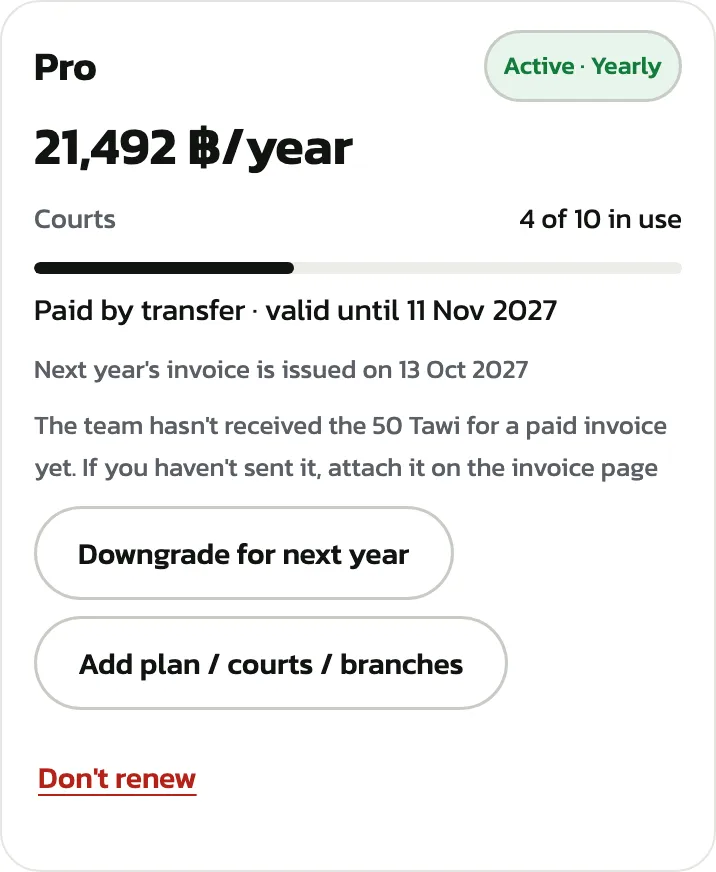
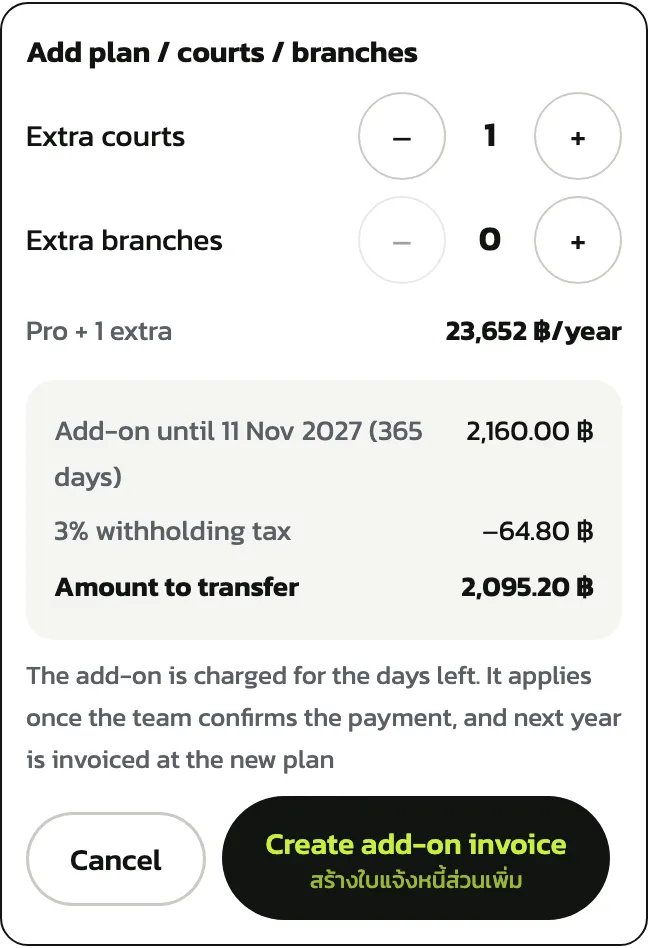
To add courts or branches, or move from Starter to Pro during the year, tap “Add plan / courts / branches” and set the numbers: the extra is charged for the days left in the year. Tap “Create add-on invoice”, then transfer and attach the slip as with the first invoice. The extra starts once the team confirms the payment.
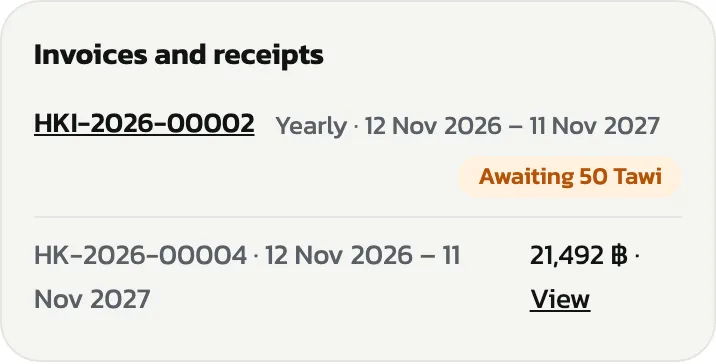
All invoices and receipts are under “Invoices and receipts”. An invoice the team has confirmed but whose 50 Tawi hasn't arrived shows “Awaiting 50 Tawi”; tap the invoice number to attach it.