Team
The “Staff” page sits in the “Team” group of the menu and opens for the owner and managers only. Managers add and edit front-desk staff and coaches only. Every picture is from a phone
Roles and access
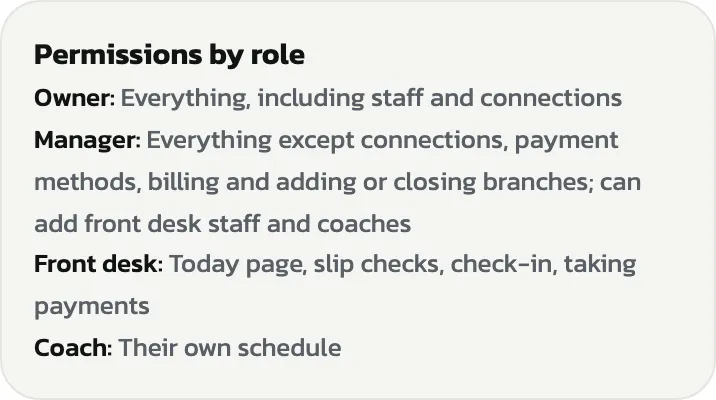
The “Permissions by role” card says what each role may do: “Owner” does everything; “Manager” does everything except connections, payment methods, billing and adding or closing branches, and can add front-desk staff and coaches; “Front desk” works the Today page, slip checks, check-in and payments; “Coach” sees their own schedule
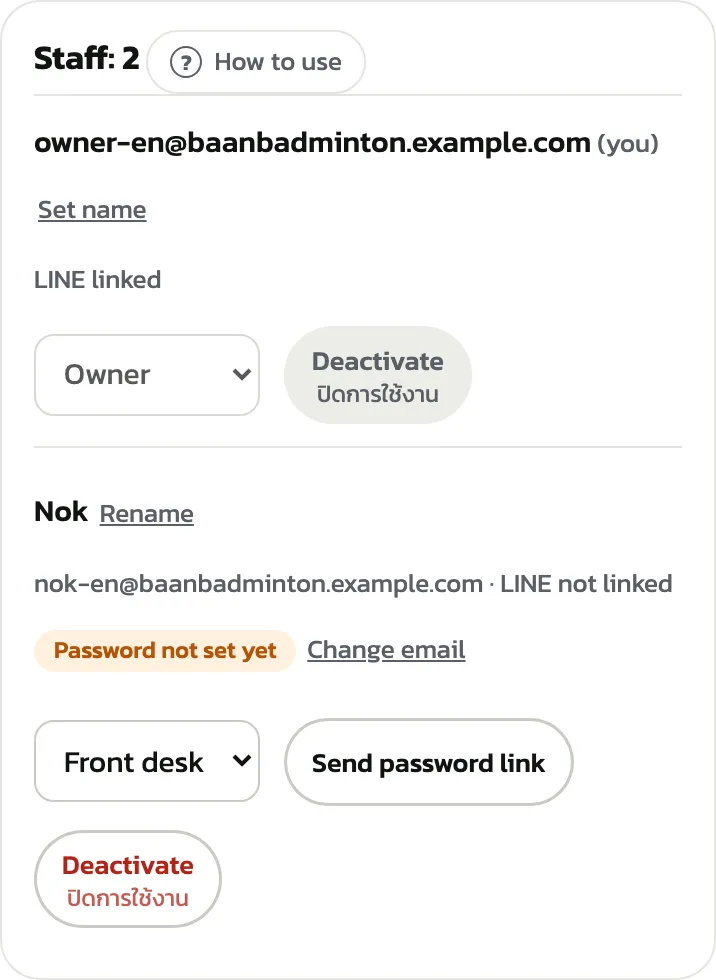
The list above counts your staff. Each person shows their role, whether their password is set and whether LINE is linked. Someone added by email who hasn't set a password yet can get the email again with “Send password link”
During the trial you can add any number of staff. After it, Free has the owner only, Starter 2 people in all, and Pro no limit
Staff without an email
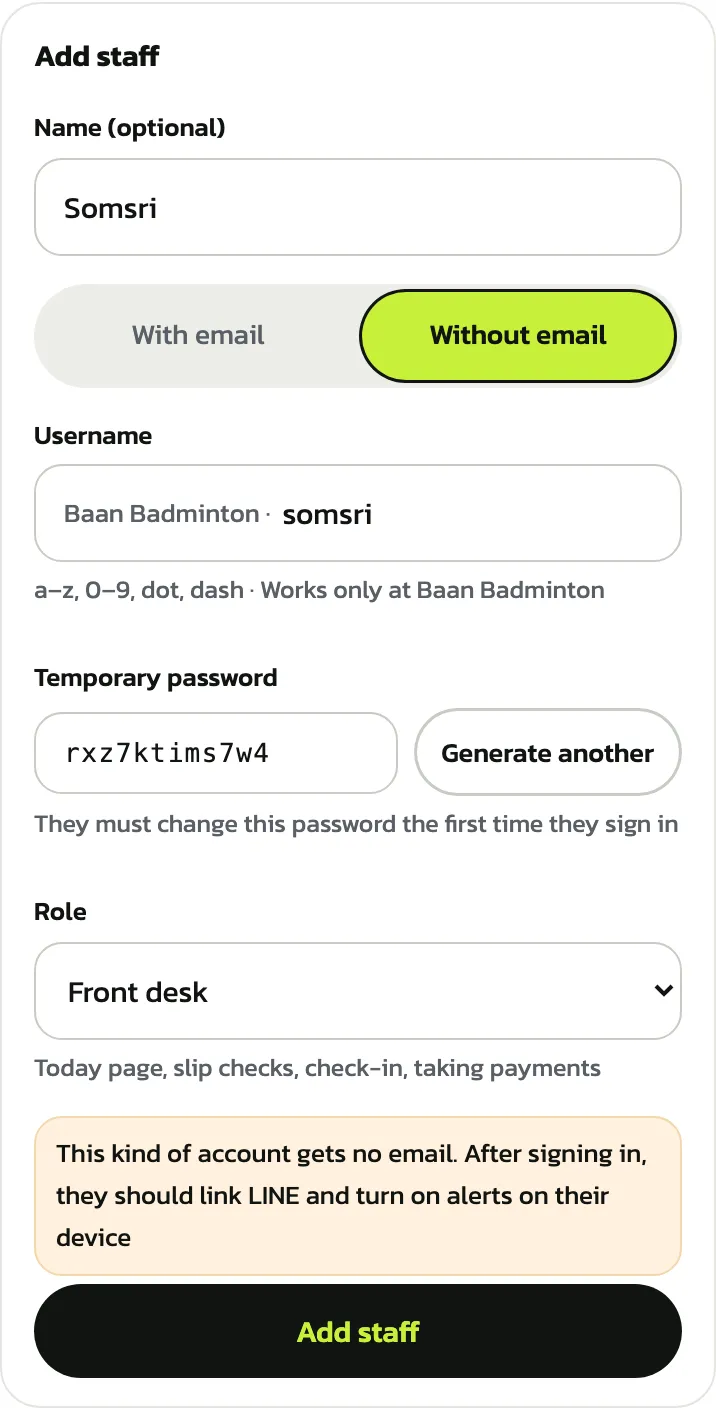
In the “Add staff” form, enter “Name (optional)” and choose “Without email”. Set a “Username” (it works only at this venue). A “Temporary password” is made for you; press “Generate another” for a different one. Pick the “Role” and press “Add staff”
These accounts get no email, so have the person link LINE and turn on notifications on their device after signing in
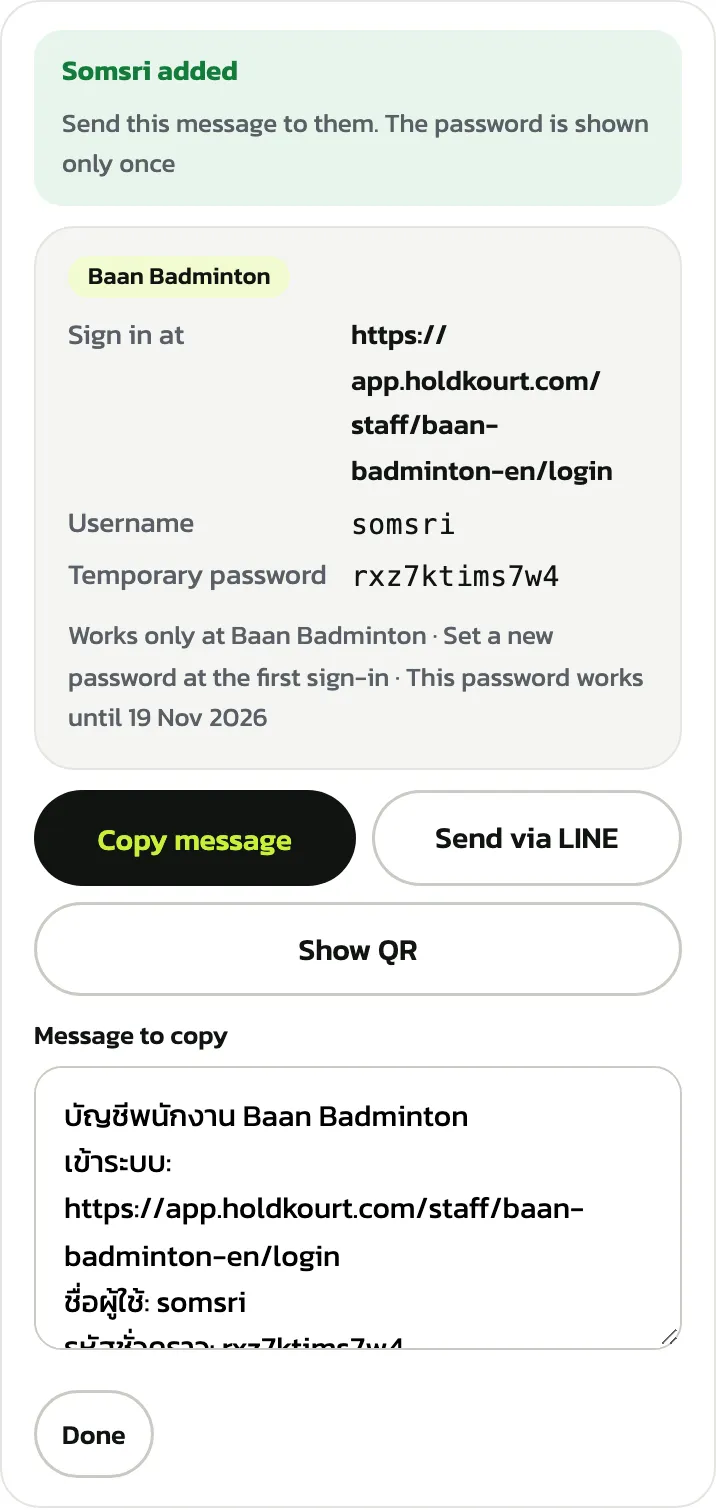
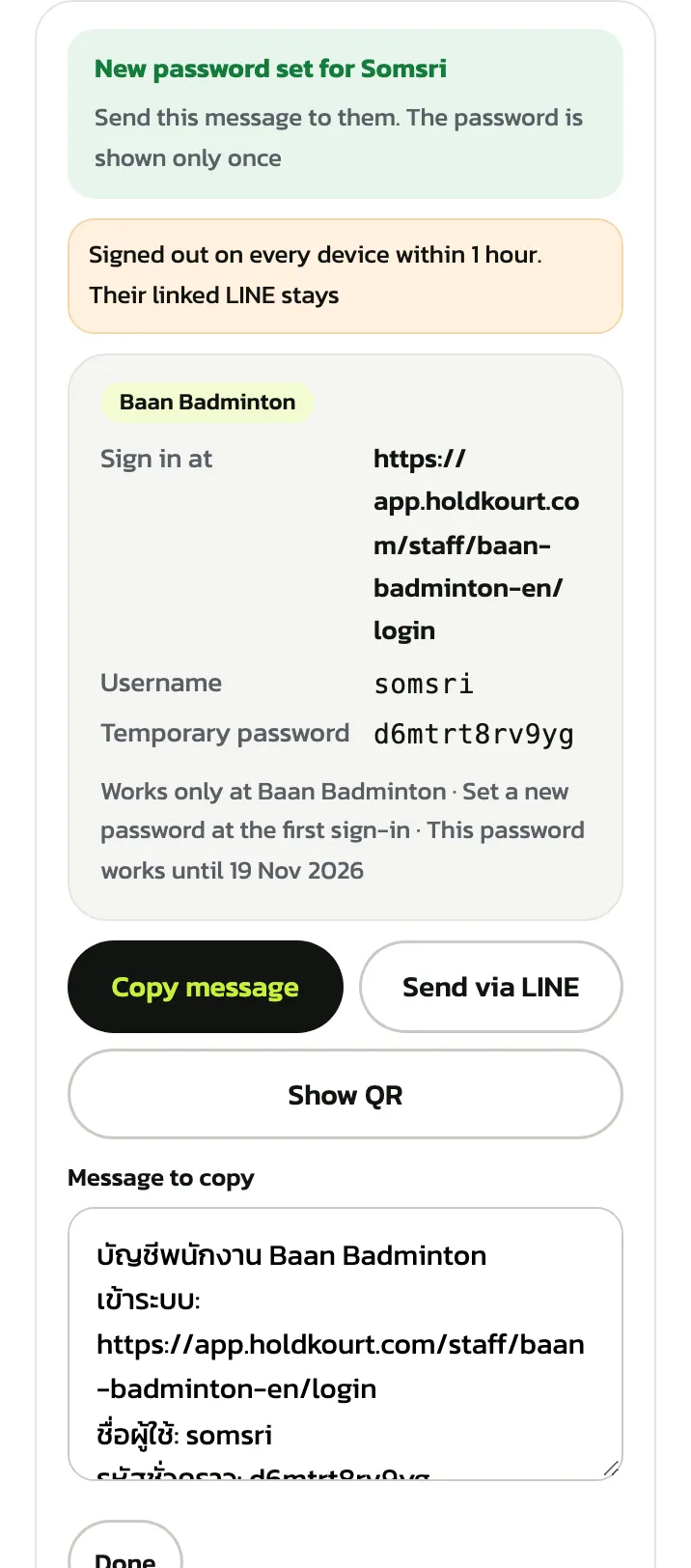
Once added, the “Somsri added” card shows where to sign in, the username, the temporary password and when it expires. The password is shown only this once: press “Copy message” or “Send via LINE” to send it, or “Show QR” to scan, then “Done”
The username and password in the picture are examples. The message it copies is in Thai. On first sign-in the person sets a password of their own
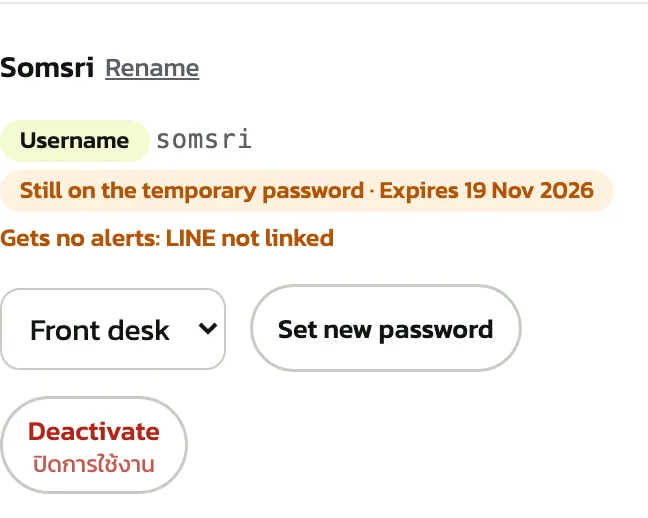
In the list, someone who hasn't signed in to change it yet shows “Still on the temporary password” with the expiry date; afterwards it shows “Ready”. If the date passes before they sign in, it shows the temporary password expired; press “Set new password” again
A forgotten password
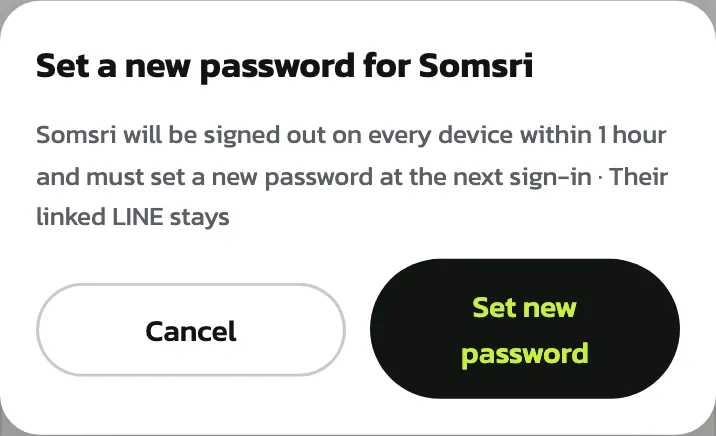
For someone with a username, press “Set new password” on their row. The window says they will be signed out on every device within 1 hour and must set a new password next time. Press “Set new password” in the window. For someone with an email, press “Send a new password link” on their row instead
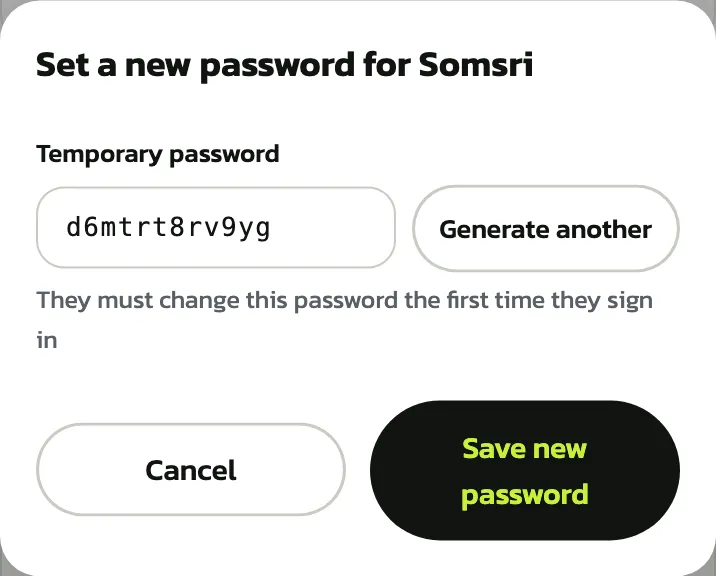
A new “Temporary password” is made for you; press “Generate another” for a different one, then “Save new password”
You get the same kind of card as when adding someone. Send the message and press “Done”; a linked LINE stays linked
Changing a role and deactivating
The owner changes a role in the box beside the name; it applies at once (“Role changed”). Managers see the role as a tag and can't change it
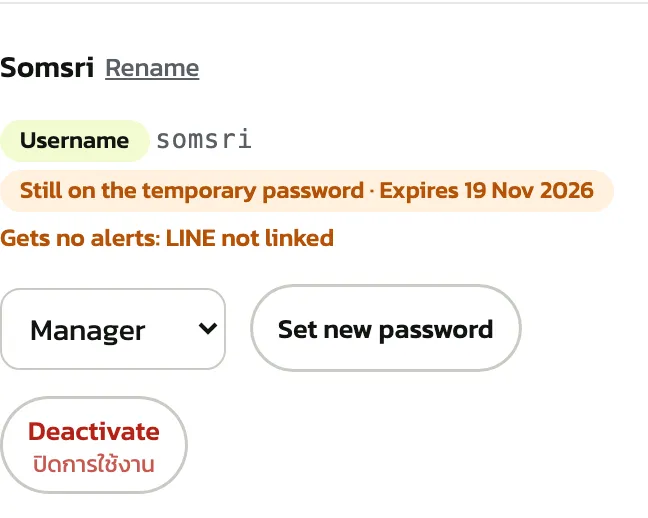
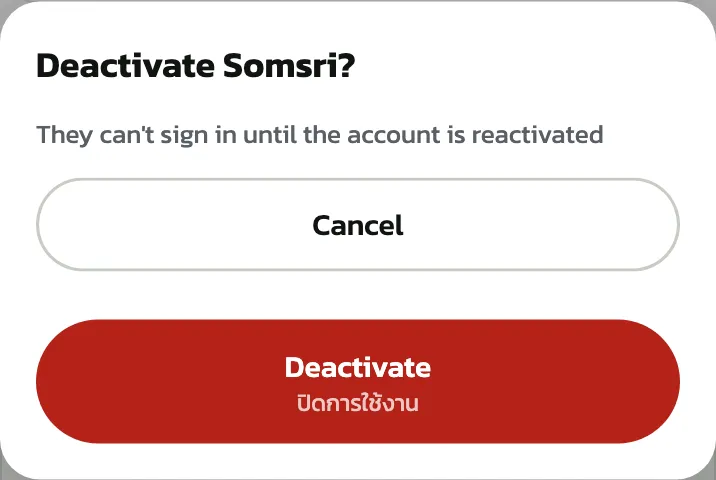
When someone leaves, press “Deactivate” and confirm in “Deactivate Somsri?”. They can't sign in until reactivated. There is no delete button for staff on this page; to have them back, press “Reactivate”
Only the owner can deactivate, and never their own account
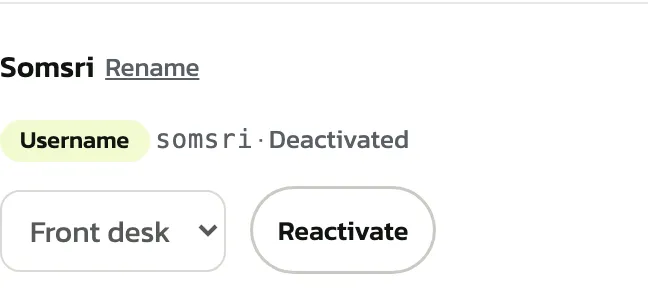
A deactivated person's row says so and has a “Reactivate” button
Staff per branch Pro
At a venue with several branches, each row on this page has an “Edit branches” button to choose where that person works. The steps and pictures are in the venues and branches chapter
The “Activity log”
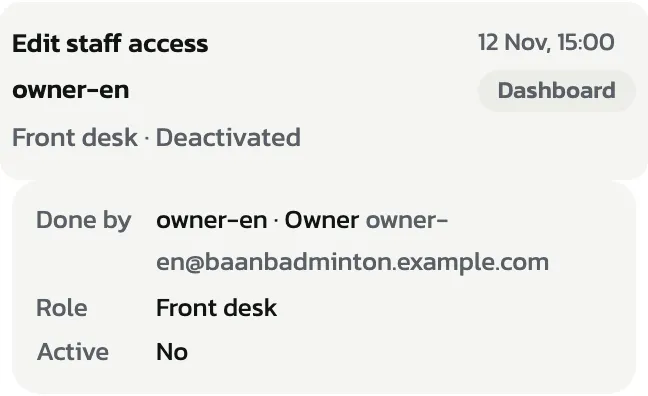
Press “Activity log” in the menu (owner and managers) to see who did what and when. Pick “Today”, 7, 30 or 90 days, and filter by “Who” or “Type”. This example shows the type “Staff”
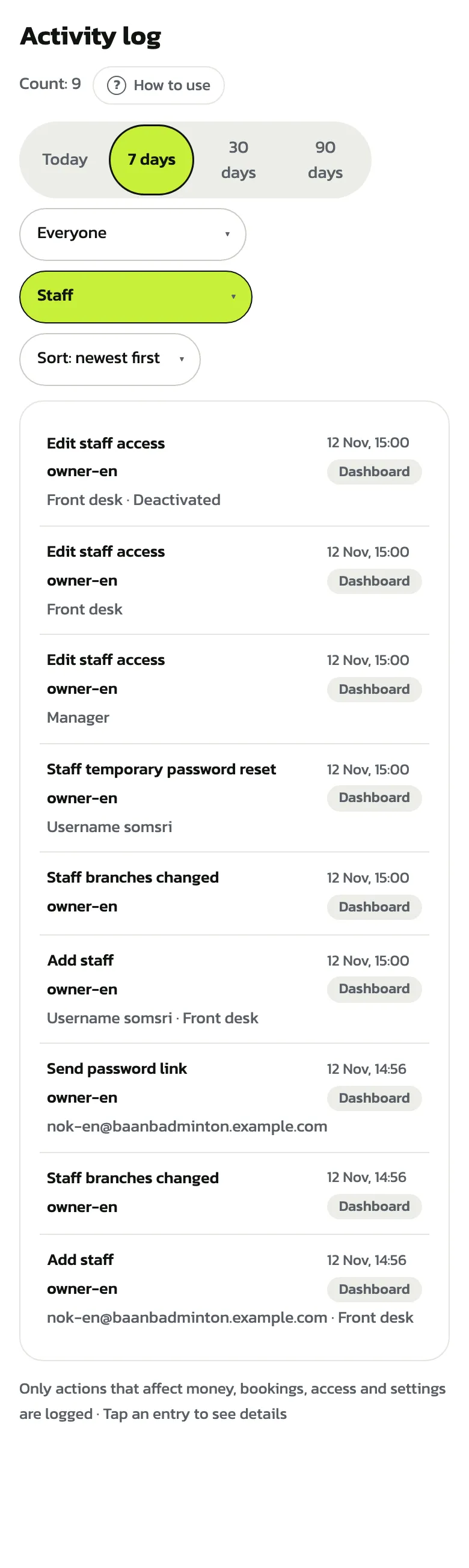
Tap an entry for its details, such as who did it, the role set and whether the account is active